Physical Address
304 North Cardinal St.
Dorchester Center, MA 02124
Physical Address
304 North Cardinal St.
Dorchester Center, MA 02124

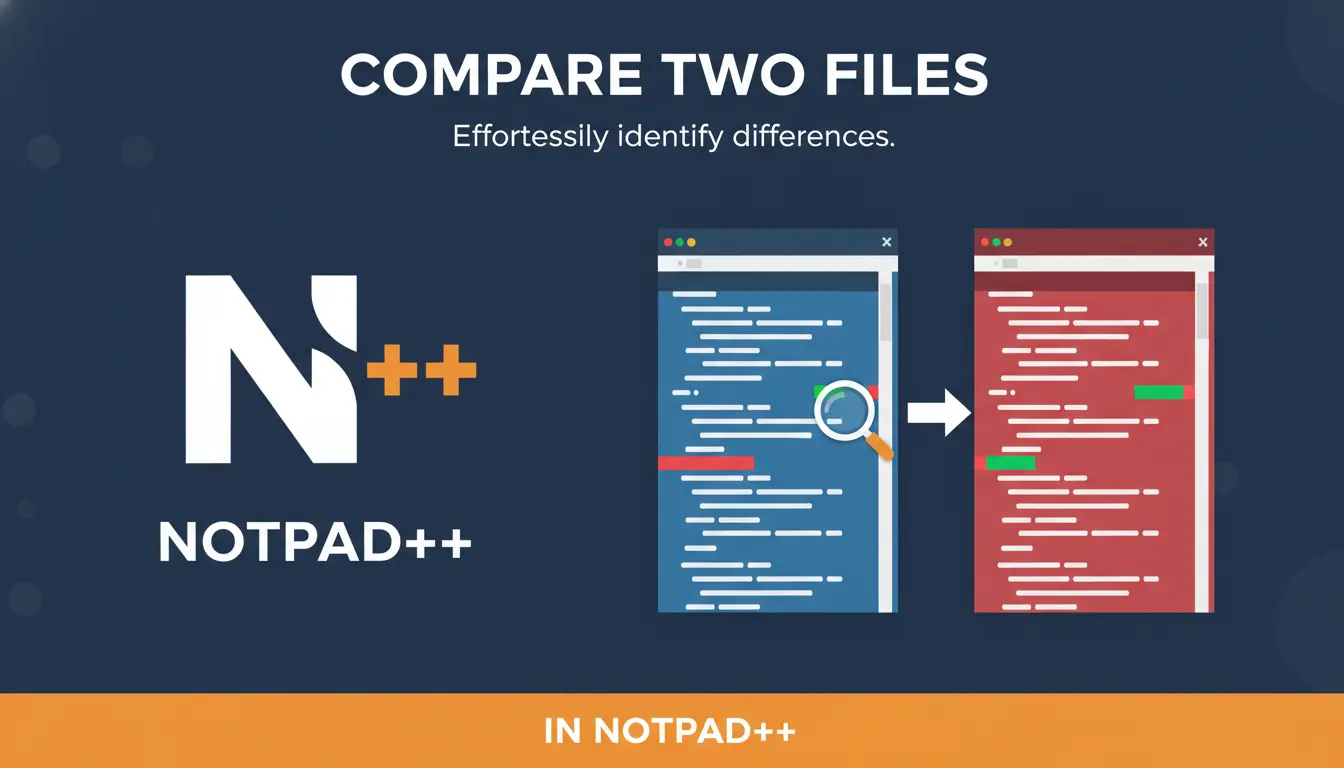
Open both files in Notepad++, install the Compare plugin from Plugins → Plugins Admin, then choose Plugins → Compare → Compare (or press Alt + D) to see differences side-by-side with colored highlights. If Plugins Admin isn’t available, install the plugin manually from the Compare GitHub releases.
You’ve got two configuration files, two versions of a script, or two exported logs and you need to see what changed. Maybe it’s 11:45 p.m., you’ve been debugging a failing deploy, and you want to know which whitespace or comment turned the system against you. I’ve spent many late nights comparing versions the hard way — copying sections into other editors, manually scanning — before learning how much time a small plugin saves.
Notepad++ is lightweight and fast, and with the right plugin it becomes a simple diff viewer that highlights added, deleted, and changed lines. This guide shows you how to compare two files in Notepad++ reliably, what to do if the plugin manager isn’t present, and how to handle common gotchas.
NPP User Manual
When you open two files in two tabs, Notepad++ can show them side-by-side, but it won’t highlight differences by default. That’s where the Compare plugin (or alternatives like ComparePlus) comes in: it aligns lines, highlights inserted/removed lines, and shows a navigation bar with change markers. The plugin doesn’t rewrite your files — it only highlights differences for you to inspect and copy.
Have you ever missed a tiny change in a config file because you scanned too quickly? That’s exactly the sort of error this tool helps you avoid. Want to compare only a selection or diff against clipboard content? Some advanced plugins support that too.
A few quick safety notes before installing or comparing:
Always keep backups or use version control; comparing files helps you inspect differences but doesn’t replace commits or backups.
If you run Notepad++ as a standard user and need to install system-wide plugins, you may need admin rights. Running Notepad++ as administrator can simplify installation.
If you’re on a managed machine where Plugins Admin is disabled, check with IT before adding third-party plugins; manual installs may require admin approval.
If speed matters (e.g., production issue), consider copying files to a working folder and using a dedicated diff tool (WinMerge, Beyond Compare) as a fallback. But for everyday code and text diffs, Notepad++’s Compare plugin is usually enough.
Notepad++ (latest stable version) — Windows.
Plugins Admin (built into modern Notepad++ installs) or the Compare plugin ZIP from GitHub.
Open the two files you want to compare in Notepad++ (each in its own tab).
You can open them from File → Open or drag them into the editor.
Install the Compare plugin (recommended path):
Go to Plugins → Plugins Admin….
In the Available tab search for Compare, check it, and click Install. Notepad++ will restart and the plugin will appear under Plugins → Compare.
Manual install (if Plugins Admin isn’t available):
Download the plugin release (DLL/zip) from the Compare plugin repository on GitHub.
Unzip and place the plugin folder/DLL into %ProgramFiles%\Notepad++\plugins\Compare\ (or your Notepad++ installation folder). Restart Notepad++. There are scripts and community guides if you need automation.
Run the comparison:
Make sure both documents are open. Select the tab you want as the left side then open the other.
Go to
Plugins → Compare → Compare or press Alt + D. Differences will be shown side-by-side with color highlights and a navigation bar. Use Next Difference / Previous Difference to jump between changes.
Copy/merge manually if needed:
The Compare plugin highlights changes but doesn’t do automated merging. To merge, click into the side you want to copy from, select the lines, and paste into the other tab. Use the navigation markers to make sure you got everything.
Plugin not visible after install: Restart Notepad++ as admin. If Plugins Admin is missing, confirm you installed the correct 32/64-bit plugin matching your Notepad++ build.
Files not aligning properly: Differences in line endings (CRLF vs LF) or encoding can shift alignment. Normalize line endings via Edit → EOL Conversion and retry.
Need side-by-side view without highlights: Right-click a tab → Move to Other View. This shows tabs in split windows but won’t highlight diffs.
Medium
Don’t assume the plugin will automate merging — it’s a visual diff tool. If you need one-click merging or three-way conflicts resolution, use a full diff/merge app (e.g., Beyond Compare, KDiff3). Also watch encodings and trailing whitespace; many “mysterious” diffs are only whitespace or BOM differences. I once spent half an hour chasing an invisible BOM before realizing the diff marker was simply an encoding mismatch — a little patience and EOL normalization saved the day.
Q: Can Notepad++ compare binary files?
No — Notepad++ and the Compare plugin are for text. Use a hex diff tool for binary files.
Q: Does Compare support partial selection diffs?
Some advanced forks/plugins (ComparePlus) offer selection diffs. Check the plugin’s documentation for those features.
GitHub
Q: Can I automate compare via command line?
Notepad++ isn’t built as a CLI diff tool. For automation, use command-line diff tools or scripts that call git diff, WinMergeCLI, or other utilities.
Comparing two files in Notepad++ is fast once you have the Compare plugin installed: open the files, use Plugins → Compare → Compare (or Alt + D), and scan the colorized results. It’s a lightweight, low-friction way to inspect changes without leaving your editor. Want to try it now — which two files will you compare first?
Master Notepad++ for efficient coding and text editing! Download the latest version or explore more advanced features.