Physical Address
304 North Cardinal St.
Dorchester Center, MA 02124
Physical Address
304 North Cardinal St.
Dorchester Center, MA 02124

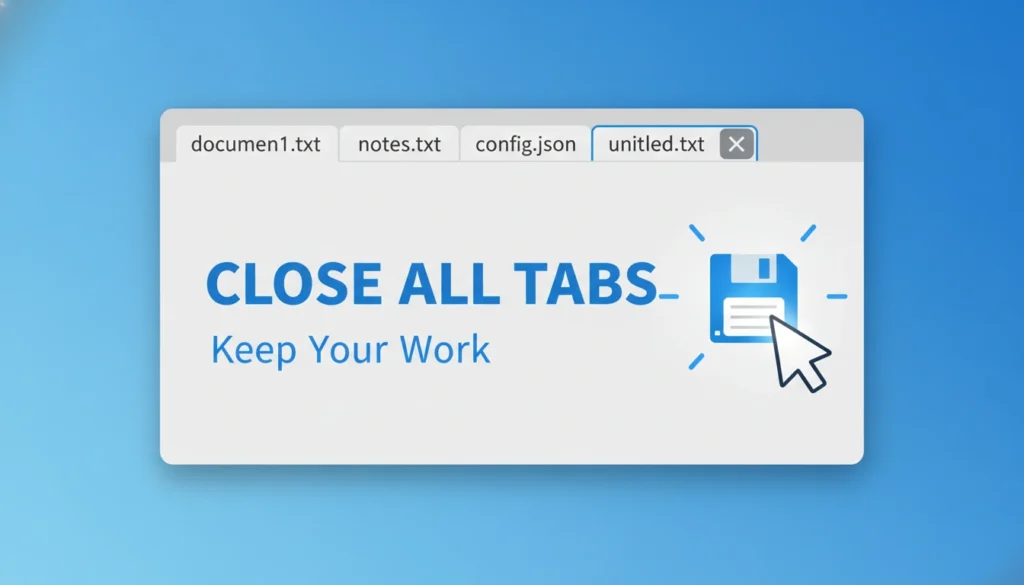
To close all Notepad tabs, open Notepad and select File > Close All Windows. If you’re using the Store version, choose File > Close All Tabs. In Notepad++, go to File > Close All or right-click any tab and choose Close All. Save any unsaved documents when prompted to avoid losing work.
Notepad seems simple, yet it holds surprises. If you’ve ever ended up with ten or twenty text files open, you know the pain of closing each one by hand. Last month I watched a coworker click the X over and over while muttering under his breath. You’ve likely been in that spot too.
Good news: you can close everything in one move—whether you’re using the classic Notepad or a feature-rich editor like Notepad++. And you won’t lose unsaved work if you follow the right steps.
Let’s walk through how to close all Notepad tabs quickly and safely.
Before jumping into the steps, ask yourself: How often do you end up with a cluttered workspace? If you’re like me, you keep quick notes, code snippets, lists, and temporary drafts open throughout the day.
Three common pain points show up often:
Learning a few simple tab-management tricks saves time and avoids frustration.
Microsoft’s modern Notepad supports tabbed editing, which makes it easier to close multiple files at once.
Method 1: Use the “Close All Tabs” Menu Option
It’s straightforward, but it’s also one of those features many users overlook because they rarely explore the File menu.
Method 2: Close the Entire App with One Click
If Notepad has multiple tab groups open:
This feels slower than the menu method, but it’s still a one-click action.
Method 3: Keyboard Shortcut (Fastest)
You can close all tabs by pressing:
Alt + F → AIt triggers the Close All Tabs command instantly. Handy if you’re a keyboard-first kind of person.
If you’re still on an older version of Windows or removed the Store update, Notepad doesn’t support tabs natively.
Instead, Windows opens each file in a separate window.
You can still close everything at once:
Option 1: Use the “Close All Windows” Command
Microsoft included this option for years, even before tabbed editing showed up.
Option 2: Close All Notepad Windows via Taskbar
This shuts down all open instances at once.
Option 3: Shortcut Through Alt+Tab
This works if you want to save first:
Not elegant, but effective.
Notepad++ is a favorite among developers, writers, and power users. It includes multiple commands for closing tabs depending on your workflow.
Option 1: File Menu → Close All
Everything closes instantly—clean and simple.
Option 2: Right-Click Any Tab
Right-click the tab bar and choose:
If you work with code or long document lists, this gives you fine control. For example, during a late-night debugging session, I often use Close All BUT This to narrow my focus to the file I’m actively editing.
Option 3: Keyboard Shortcut
Press:
Ctrl + W → Hold W
Notepad++ closes tabs one by one, rapidly. If you hold it for a second, everything disappears.
Closing everything at once is great—unless you lose an unsaved note.
Before triggering a bulk close, save everything with:
Ctrl + Shift + S doesn’t exist here, but you can use:
In Notepad++
You get a true Save All command:
Go to File > Save All.
If you’re working with lots of temporary files, saving everything gives you peace of mind.
If Notepad freezes—and it happens more often than most people admit—you can still close everything safely.
Method 1: Task Manager
Windows will typically warn you about unsaved files. Sometimes it even recovers content.
Method 2: Batch Script (For Power Users)
If you often need a complete shutdown:
taskkill /IM notepad.exe /F
Save this as a .bat file called close_notepad.bat.
Double-click it to instantly close every Notepad instance.
I use this trick when testing scripts that spawn temporary logs.
You’re clicking. Nothing happens. Why?
A few common reasons:
Reason 1: A File Is Locked
If another app is using the file, Notepad might refuse to exit.
Fix: Save as a copy or close the other app.
Reason 2: Too Many Tabs
Old computers struggle with large tab groups.
Fix: Save all → close manually using X → reopen as needed.
Reason 3: A Plugin or Extension (Notepad++)
Plugins sometimes interfere with closing behavior.
Fix: Disable unnecessary plugins.
| Feature | Notepad | Notepad++ |
|---|---|---|
| Close All Tabs | Yes | Yes |
| Close All BUT This | No | Yes |
| Save All | Partial (new versions only) | Yes |
| Force Close | Task Manager | Task Manager or Plugin |
| Keyboard Close All | Alt + F → A | Ctrl + W (hold) |
You don’t need to close Notepad tabs one by one. Whether you’re on the classic version, the updated tabbed version, or Notepad++, you have quick ways to shut everything down fast—without losing work. Try the method that fits your workflow and save yourself time each day.
What’s the biggest reason you usually have too many Notepad tabs open?