Physical Address
304 North Cardinal St.
Dorchester Center, MA 02124
Physical Address
304 North Cardinal St.
Dorchester Center, MA 02124

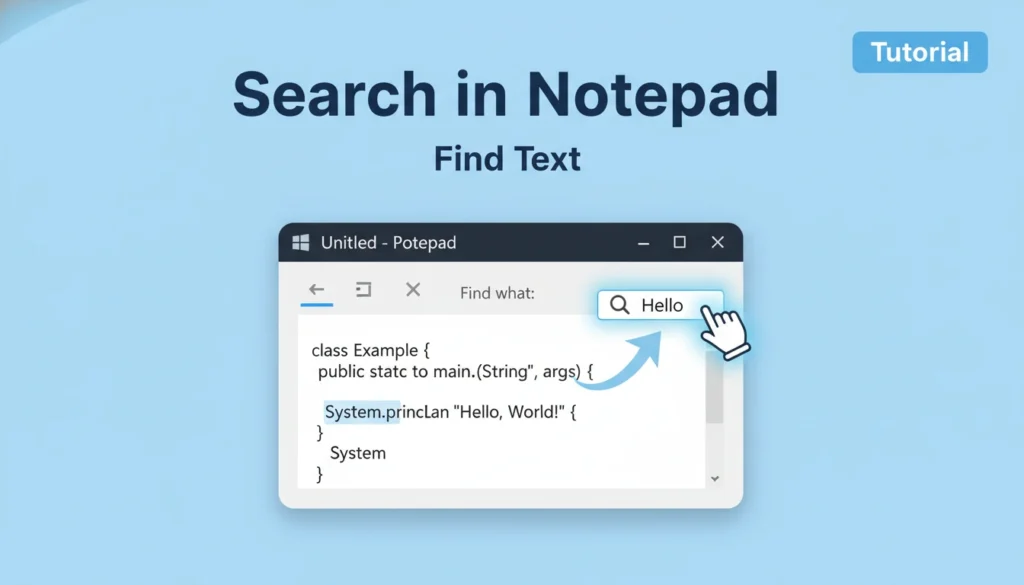
You can search in Notepad by opening your document and pressing Ctrl + F to launch the Find box. Type the word or phrase you want, choose search direction, and click Find Next. For multiple replacements, press Ctrl + H. These shortcuts help you locate text fast without scrolling manually.
Ever stared at a long Notepad file and thought, “Where on earth is that line I need?” I’ve been there. Years ago, I used Notepad for everything—from quick math notes to debugging small scripts—and searching manually felt endless. Once I finally understood the search features, everything clicked. You’ll get the same clarity today.
This guide walks you through how to search in Notepad, step-by-step, using simple language and examples that make sense even if you’re brand new to computers.
You might open Notepad just to jot down notes, but the moment your document grows past a few paragraphs, clarity drops. A quick search helps you:
And here’s the good part: the built-in search tools are simple enough that you’ll grasp them within minutes.
Let’s start with the simplest method you’ll use daily.
Step 1: Open Your Notepad Document
Launch Notepad and load your file. No setup needed.
Step 2: Press Ctrl + F
This opens the Find window instantly.
If you prefer menus, go to Edit → Find.
Step 3: Type What You’re Looking For
Enter the word, phrase, number, filename, or anything you’re trying to locate.
Step 4: Click Find Next
Notepad highlights the first match.
Press Find Next again to jump to the next match.
Quick Question:
Ever searched for a misspelled name and wondered why it didn’t appear? You’ll fix that with match settings—coming up next.
Inside the Find window, you’ll see a few helpful checkboxes. These often go unnoticed, yet they save tons of time.
Match Case
If checked, “apple” won’t match “Apple”.
Useful for notes or coding where uppercase matters.
Match Whole Word Only
Searching “art” won’t match “start” or “article”.
Perfect when you’re looking for exact words instead of partial matches.
Direction (Up or Down)
Choose whether to search:
Wrap Around
If you start your search in the middle of the document, wrap-around lets the search continue from the bottom back to the top.
Real Example
I once had a 300-line log file. Searching for “error” was easy, but I kept missing the uppercase version “ERROR”. Turning off Match Case helped me see everything at once.
Every time you press Find Next, Notepad moves to the next match.
Shortcut: F3
If you search often, you’ll press F3 more than anything. It’s the “jump to the next spot” key.
Sometimes searching isn’t enough. You might want to change every instance of a word.
Step 1: Press Ctrl + H
This opens the Replace window.
Step 2: Enter Your Search Word
Type what you want to find.
Step 3: Enter the Replacement Word
Type what you want to replace it with.
Step 4: Choose
Should you replace all?
If it’s a common word like “is” or “to”, be careful. You might change something unintended. I once replaced “at” across a document and accidentally changed “format” into “form”.
A quick review with Find Next saves you from mishaps.
If you ever feel limited by classic Notepad, you may consider Notepad++. It adds powerful search features:
| Feature | Notepad | Notepad++ |
|---|---|---|
| Basic search | ✓ | ✓ |
| Find & Replace | ✓ | ✓ |
| Search in all open files | ✗ | ✓ |
| Regular expressions | ✗ | ✓ |
| Search with highlighting | Limited | ✓ |
| Search history | ✗ | ✓ |
For most users—especially beginners—Notepad’s basic search is enough.
If you handle large files, logs, or code, Notepad++ might fit better.
Here are a few simple habits that make searching almost effortless.
1. Use Shortcuts
2. Start Search from the Top
Press Ctrl + Home before searching.
This ensures you don’t miss results before the cursor.
3. Use Whole Word Match for Names
Helps you avoid matching partials.
4. Use Match Case for Sensitive Text
Especially helpful in technical notes.
5. Review with Find Next
Even when replacing, scan through a few results first.
“Notepad can’t find the word I typed.”
Try these fixes:
“Find Next stops before the beginning.”
Enable Wrap Around.
“Replace All changed words I didn’t expect.”
Use Whole Word and review with Find Next first.
Imagine the Find box as a small pop-up centered on your screen.
It includes:
If your article needs a real screenshot, you can upload your Notepad image, and I’ll add alt text and placement.
So, you now know exactly how to search in Notepad—from basic find to advanced options and smart tips. These steps may look simple, yet they noticeably cut down the time you spend hunting for information inside your notes.
If you want to build more speed and confidence while typing, don’t stop here.
Discover more Notepad tips to boost your productivity!
Before you go—what part of Notepad slows you down the most?