
Can I Use Notepad to Write HTML and Run It?
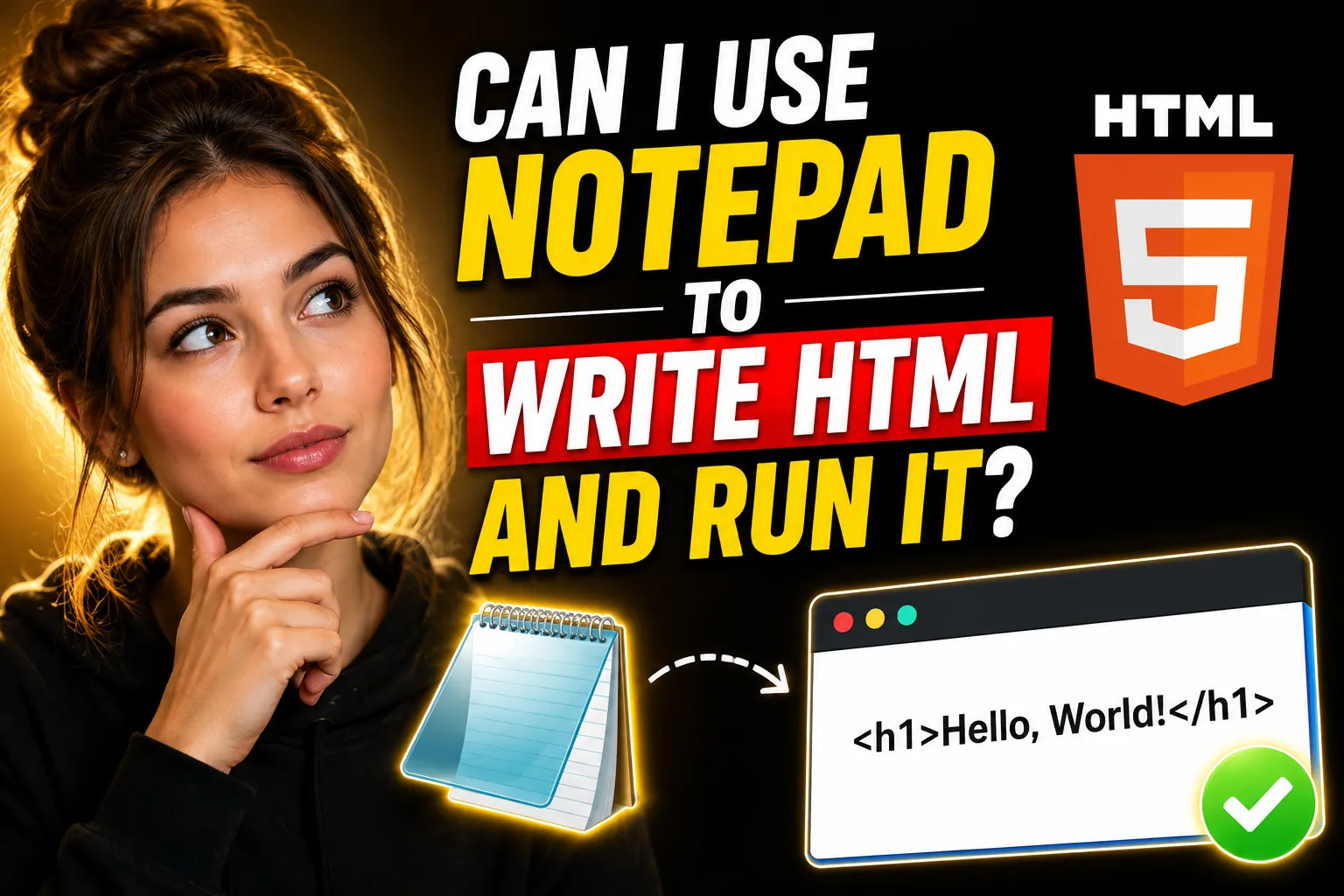
Yes, you can absolutely use Notepad to write HTML and run it in a web browser. In fact, many developers learned HTML using nothing more than Windows Notepad and a browser like Chrome or Firefox.
You do not need expensive software or advanced coding tools to start building web pages. HTML is plain text, and Notepad is a plain text editor. That makes it fully capable of creating simple websites, testing code, and learning the basics of web development.
This guide explains exactly how to write HTML in Notepad, save the file correctly, run it in a browser, troubleshoot common mistakes, and understand the limitations of using a basic text editor.
If you are new to coding, this is one of the easiest ways to get started.
Table of Contents
- What Is HTML?
- Can You Really Use Notepad for HTML?
- How to Write HTML in Notepad
- How to Save an HTML File Correctly
- How to Run HTML in a Browser
- Full Beginner HTML Example
- Common Problems and Fixes
- Advantages of Using Notepad for HTML
- Limitations of Notepad
- Better Alternatives for Beginners
- Using Online Notepad Tools for HTML Practice
- Online Whiteboards for Learning HTML
- Frequently Asked Questions
- Conclusion
What Is HTML?
HTML stands for HyperText Markup Language. It is the standard language used to create web pages.
HTML structures content such as:
- Headings
- Paragraphs
- Images
- Links
- Tables
- Forms
Every website you visit uses HTML in some form.
Here is a simple HTML example:
<!DOCTYPE html>
<html>
<head>
    <title>My First Page</title>
</head>
<body>
    <h1>Hello World</h1>
    <p>This is my first HTML page.</p>
</body>
</html>
When you open this file in a browser, it displays a web page with a heading and paragraph.
Can You Really Use Notepad for HTML?
Yes. Notepad works because HTML files are just text files with .html extensions.
Browsers read the HTML code and render it visually as a webpage.
You do not need:
- An internet connection
- A coding IDE
- Paid software
- Web hosting
You only need:
- A text editor like Notepad
- A browser like Chrome, Edge, or Firefox
This makes Notepad one of the simplest tools for beginners learning HTML.
How to Write HTML in Notepad
Step 1: Open Notepad
On Windows:
- Press
Windows + S - Type
Notepad - Open the app
You will see a blank text editor.
Step 2: Write Basic HTML Code
Copy and paste this example:
<!DOCTYPE html>
<html>
<head>
    <title>My First Website</title>
</head>
<body>

<h1>Welcome to My Website</h1>

<p>I created this page using Notepad.</p>

</body>
</html>
This is a complete HTML document.
Step 3: Understand the Main HTML Tags
Here is what each section does:
| HTML Tag | Purpose |
|---|---|
<!DOCTYPE html> |
Declares HTML5 document |
<html> |
Root element |
<head> |
Contains page information |
<title> |
Browser tab title |
<body> |
Visible page content |
<h1> |
Main heading |
<p> |
Paragraph |
Understanding these basics helps you troubleshoot problems later.
How to Save an HTML File Correctly
This is where most beginners make mistakes.
Correct Way to Save HTML in Notepad
- Click File → Save As
- Choose a folder
- In the filename field, type:
index.html- Change Save as type to:
All Files- Set Encoding to UTF-8
- Click Save
Why “All Files” Matters
If you leave the default setting as Text Documents, Notepad may save the file like this:
index.html.txtThat will not work as an HTML webpage.
Browsers need the file extension to be:
.htmlnot:
.txtHow to Check the File Extension
If you cannot see extensions:
- Open File Explorer
- Click View
- Enable:
- File name extensions
Now you can confirm your file ends with .html.
How to Run HTML in a Browser
Running HTML is very simple.
Method 1: Double Click the File
Locate your HTML file and double-click it.
Your default browser opens the webpage automatically.
Method 2: Open With Browser
Right-click the file and choose:
Open With → Chrome / Edge / FirefoxMethod 3: Drag Into Browser
Open your browser and drag the HTML file into it.
This is useful for quick testing.
Full Beginner HTML Example
Here is a slightly larger beginner project you can try.
<!DOCTYPE html>
<html>
<head>
    <title>My Personal Page</title>
</head>
<body>

<h1>John's Website</h1>

<p>Hello! I am learning HTML using Notepad.</p>

<h2>My Hobbies</h2>

<ul>
    <li>Reading</li>
    <li>Gaming</li>
    <li>Programming</li>
</ul>

<h2>Favorite Website</h2>

<a href="https://www.google.com">Visit Google</a>

</body>
</html>
This example includes:
- Headings
- Paragraphs
- Lists
- Links
It is enough to understand how HTML pages are structured.
What Happens Behind the Scenes?
When you open an HTML file:
- The browser reads the HTML code
- It interprets the tags
- It visually renders the page
The browser acts like a translator between code and visual output.
That is why even a simple text file can become a webpage.
Common Problems and Fixes
Beginners often face the same issues. Here are the most common ones.
Problem: HTML File Opens as Text
Cause
The file was saved incorrectly.
Example:
mypage.html.txtFix
Save again using:
- Save as type → All Files
- Filename ending in
.html
Problem: Browser Shows Raw HTML Code
Cause
The file extension is incorrect.
Fix
Rename the file properly:
mypage.htmlnot:
mypage.txtProblem: Changes Are Not Showing
Cause
The browser cached the page.
Fix
Refresh using:
Ctrl + F5This forces a full reload.
Problem: Images Are Not Appearing
Cause
Incorrect file path.
Example
<img src="photo.jpg">The image must exist in the same folder as the HTML file.
Problem: HTML Tags Not Working
Cause
Missing closing tags.
Example
Incorrect:
<p>HelloCorrect:
<p>Hello</p>Small syntax mistakes can break layouts.
Advantages of Using Notepad for HTML
Using Notepad has several benefits for beginners.
1. It Is Free
Every Windows computer already includes Notepad.
No downloads required.
2. It Helps You Learn Real HTML
Advanced editors often auto-complete code.
Notepad forces you to type everything manually, which improves understanding.
3. No Distractions
You only see the code.
This helps beginners focus on HTML structure instead of complex features.
4. Works Offline
You can practice HTML anywhere without internet access.
5. Very Lightweight
Notepad opens instantly and uses minimal system resources.
Older computers can run it easily.
Limitations of Notepad
Notepad is useful for learning basics, but it has limitations.
No Syntax Highlighting
Modern editors color-code HTML tags for readability.
Notepad shows plain text only.
No Auto-Complete
You must type all tags manually.
This slows down larger projects.
No Error Detection
Notepad does not warn you about mistakes.
You must debug manually.
Harder to Manage Large Projects
For multi-page websites, modern editors become much more efficient.
Better Alternatives for Beginners
Once you understand HTML basics, you may want a more advanced editor.
| Editor | Best For | Free |
|---|---|---|
| Visual Studio Code | Most beginners and professionals | Yes |
| Sublime Text | Fast lightweight coding | Yes |
| Notepad++ | Better version of Notepad | Yes |
| Brackets | Front-end web development | Yes |
These editors include:
- Syntax highlighting
- Auto-complete
- Extensions
- Error detection
However, learning with basic Notepad first can still be valuable.
Using Online Notepad Tools for HTML Practice
If you do not want to install software, online editors can help.
One useful option is Write Notes, an online note taking application that also works as an Online Notepad.
You can use it to:
- Draft HTML code
- Store snippets
- Organize learning notes
- Practice coding from any device
For beginners switching between devices, cloud-based note tools are often more convenient than local text editors.
Another useful tool is the Free Online Notepad, which lets users quickly write and edit plain text directly in the browser.
This is especially helpful when:
- Testing small HTML snippets
- Saving practice examples
- Sharing simple code
- Learning on school or public computers
💡 Key Takeaway:
You do not need professional software to start learning HTML. A simple text editor — even an online notepad — is enough to build and test real webpages.
Online Whiteboards for Learning HTML
Learning HTML becomes easier when collaborating with others.
An Online free Whiteboard with collaboration can help beginners:
- Sketch webpage layouts
- Plan navigation menus
- Brainstorm website structures
- Collaborate with classmates
- Explain HTML concepts visually
This is useful for:
- Coding bootcamps
- School projects
- Remote tutoring
- Team brainstorming
Before writing code, many developers first draw wireframes and page layouts visually.
Using collaborative whiteboards helps beginners understand website structure before they start coding.
Should Beginners Start With Notepad?
Yes, for learning purposes.
Notepad teaches:
- File extensions
- HTML structure
- Manual coding habits
- Browser rendering basics
However, after learning fundamentals, switching to a modern editor is usually the better long-term choice.
A practical learning path looks like this:
| Stage | Recommended Tool |
|---|---|
| Learning HTML basics | Notepad |
| Building small websites | Notepad++ or VS Code |
| Professional development | VS Code or full IDE |
Starting simple helps many beginners understand what the browser is actually doing.
HTML vs CSS vs JavaScript
Many beginners confuse these technologies.
| Technology | Purpose |
|---|---|
| HTML | Structure |
| CSS | Styling |
| JavaScript | Interactivity |
Example:
- HTML creates a button
- CSS changes its color
- JavaScript makes it clickable
Notepad can be used for all three because they are text-based languages.
Can You Build a Real Website Using Notepad?
Technically, yes.
Professional websites are still built using HTML files at their core.
However, modern development usually involves:
- Frameworks
- Libraries
- Advanced editors
- Build tools
For learning and simple websites, Notepad is completely sufficient.
Some experienced developers still use lightweight text editors for quick edits and debugging tasks.
Frequently Asked Questions
Can I use Notepad to write HTML on Windows 11?
Yes. Windows 11 still includes Notepad, and it works perfectly for writing HTML files.
Do I need internet access to run HTML files?
No. HTML files run locally in your browser without internet access.
Internet is only required for external resources like online images or libraries.
Why is my HTML file not opening in Chrome?
Usually the file extension is wrong.
Make sure the file ends in:
.htmland not .txt.
Is Notepad good for beginners?
Yes. It teaches HTML fundamentals clearly without advanced distractions.
Can I write CSS and JavaScript in Notepad too?
Yes. Both CSS and JavaScript are plain text languages and can be written in Notepad.
What is the best free HTML editor after Notepad?
Visual Studio Code is currently one of the best free editors for beginners and professionals.
Can I create a complete website using only Notepad?
Yes, but larger websites become harder to manage without advanced editing tools.
Is an online notepad good for coding practice?
Yes, especially for beginners learning syntax and saving quick code snippets across devices.
Conclusion
If you are asking, “can I use Notepad to write HTML and run it,” the answer is definitely yes.
Notepad is one of the simplest ways to learn HTML because it removes unnecessary complexity and helps you understand how web pages actually work. You can write code, save it as an HTML file, and open it in any browser within minutes.
While modern editors eventually become more practical for larger projects, starting with Notepad is still an effective way to learn core web development concepts.
You can also practice using browser-based tools like Write Notes Online Notepad or plan layouts visually with an Online collaborative whiteboard when learning HTML with others.

Alex Chen
I am a Digital Systems Architect and productivity specialist dedicated to building frictionless workflows. With over 2,000 hours of deep-work experimentation, I've mastered the art of transforming cluttered Write Notes workspaces into high-output engines.Having successfully migrated over 10,000 users into streamlined digital systems, I focus on the intersection of Personal Knowledge Management (PKM) and automated task architecture. When I'm not auditing the latest productivity tools, I manage a 1,500-note research library and consult for teams looking to reclaim their focus.