
Can Notepad in Windows 11 Compare Two Files?
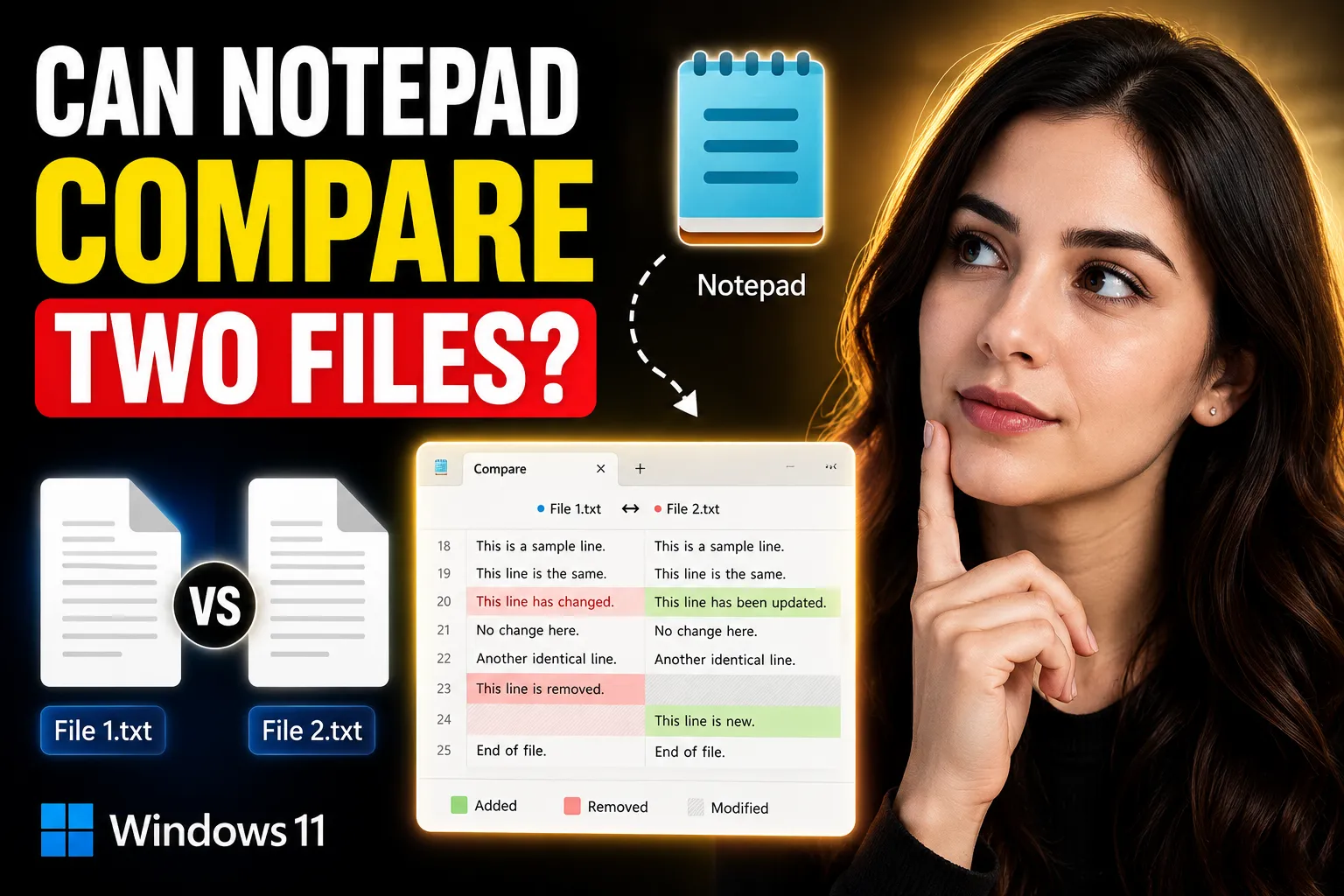
Windows 11 includes a redesigned version of Notepad with tabs, autosave, dark mode, and lightweight text editing improvements. But many users still ask the same practical question: can Notepad in Windows 11 compare two files?
The short answer is no. The default Notepad app in Windows 11 does not include a built-in file comparison feature. You can open multiple text files side by side, but you cannot automatically detect differences between them inside Notepad itself.
If you need to compare two text files, code snippets, notes, logs, or documents, you’ll need either:
- a dedicated comparison tool,
- a modern text editor with diff support,
- or an online alternative.
This guide explains:
- what Notepad can and cannot do,
- the best ways to compare files in Windows 11,
- beginner-friendly methods,
- practical use cases,
- and simpler online alternatives like Write Notes.
Table of Contents
- What Notepad in Windows 11 Can Do
- Can Notepad Compare Two Files?
- Why File Comparison Matters
- How to Compare Two Files in Windows 11
- Using Notepad Side by Side
- Best Free File Comparison Tools
- Comparing Files Online
- When to Use an Online Notepad Instead
- Collaborative Editing and Whiteboards
- Common Problems When Comparing Files
- Best Method for Beginners
- FAQ
- Conclusion
What Notepad in Windows 11 Can Do
Microsoft significantly improved Notepad in Windows 11 compared to older versions.
Current features include:
- tabbed editing,
- dark mode,
- autosave,
- Unicode support,
- search and replace,
- lightweight performance,
- basic formatting improvements.
For quick note-taking and plain text editing, it works well. But it remains intentionally simple.
Notepad is designed for:
- editing plain text,
- viewing logs,
- writing quick notes,
- editing configuration files,
- lightweight coding tasks.
It is not designed for:
- version tracking,
- collaborative editing,
- advanced document management,
- or visual file comparison.
That limitation becomes obvious when trying to compare two documents line by line.
Can Notepad Compare Two Files?
No, the default Notepad application in Windows 11 cannot compare two files automatically.
You can manually:
- open two files,
- arrange windows side by side,
- and visually inspect differences.
But Notepad does not provide:
- highlighted changes,
- line-by-line comparison,
- merge tools,
- version tracking,
- or diff visualization.
That means if you change even a few lines in a large document, Notepad gives you no easy way to identify them.
Why File Comparison Matters
Comparing files is useful in more situations than many beginners realize.
Common use cases include:
| Scenario | Why Comparison Helps |
|---|---|
| Comparing code files | Find modified lines quickly |
| Reviewing notes | Detect edits or missing sections |
| Editing configuration files | Prevent setup mistakes |
| Checking document revisions | Verify changes before sharing |
| Comparing logs | Identify system differences |
| Team collaboration | Track updates from multiple people |
Even small text files become difficult to compare manually once they exceed a few hundred lines.
How to Compare Two Files in Windows 11
There are several beginner-friendly ways to compare files on Windows 11.
Method 1: Use Notepad Side by Side
This is the simplest method but also the least efficient.
Steps:
- Open the first file in Notepad.
- Open the second file in another Notepad window.
- Press
Windows + Left Arrowfor one window. - Press
Windows + Right Arrowfor the other. - Scroll manually and compare lines.
Advantages
- No extra software required
- Works immediately
- Good for tiny files
Limitations
- No automatic difference detection
- Difficult for large documents
- Easy to miss changes
- Time-consuming
This method only works well for very short files.
Best Free File Comparison Tools for Windows 11
If you compare files regularly, dedicated tools are much more effective.
1. WinMerge
WinMerge
WinMerge is one of the most beginner-friendly free comparison tools for Windows.
Features:
- side-by-side comparison,
- highlighted differences,
- folder comparison,
- merge support,
- syntax highlighting.
Best for:
- text files,
- code files,
- configuration files.
Pros
- Free and open source
- Easy visual comparison
- Lightweight
Cons
- Interface looks outdated
- Less modern than newer editors
2. Visual Studio Code
Visual Studio Code
Even though it’s mainly a coding editor, Visual Studio Code includes excellent file comparison features.
How to compare files:
- Open both files.
- Right-click the first tab.
- Select “Select for Compare.”
- Right-click the second file.
- Choose “Compare with Selected.”
Advantages
- Clean interface
- Excellent visual highlighting
- Great for developers and non-developers
- Free
Drawback
- Larger installation than basic editors
3. Notepad++
Notepad++
Notepad++ does not include comparison by default, but its Compare plugin works well.
Features
- line highlighting,
- difference tracking,
- plugin ecosystem,
- lightweight editing.
Good for:
- lightweight text editing,
- coding,
- quick comparisons.
4. Beyond Compare
Beyond Compare
Beyond Compare is more advanced and aimed at professional users.
Best for:
- large projects,
- directory comparison,
- backups,
- enterprise workflows.
Limitation
- Paid software after trial period.
Comparing Files Online
Sometimes you don’t want to install software just to compare text.
Online tools can help with:
- quick comparisons,
- temporary editing,
- collaborative review,
- browser-based note management.
One practical option is Write Notes Online Notepad.
It provides a lightweight browser-based environment for:
- writing notes,
- editing text,
- organizing quick drafts,
- and reviewing content without installing desktop software.
This approach is especially useful on:
- shared computers,
- school devices,
- temporary workstations,
- or Chromebooks.
When to Use an Online Notepad Instead
Traditional desktop Notepad is fine for basic offline editing. But online note-taking tools are often better when you need flexibility.
Online notepads are useful for:
| Task | Why Online Tools Help |
|---|---|
| Quick drafting | No installation needed |
| Device switching | Access notes anywhere |
| Temporary editing | Easy browser access |
| Sharing notes | Faster collaboration |
| Remote work | Cloud accessibility |
| Lightweight workflows | Faster than heavy software |
For example, Write Notes offers a simple online notepad experience designed for fast note-taking and browser-based editing.
Unlike traditional Notepad:
- your workspace is browser accessible,
- collaboration becomes easier,
- and setup time is minimal.
This is particularly useful for beginners who don’t want to configure advanced comparison software.
Collaborative Editing and Whiteboards
File comparison is only one part of modern collaboration.
Many users now combine:
- text editing,
- visual brainstorming,
- shared planning,
- and live collaboration tools.
That’s where online whiteboards become useful.
The Online Free Whiteboard with Collaboration allows teams and individuals to:
- sketch ideas,
- collaborate visually,
- organize concepts,
- and share information in real time.
This matters because many workflows now involve both:
- text comparison,
- and collaborative visual discussion.
For example:
- reviewing document revisions,
- planning software changes,
- discussing edits with teammates,
- or teaching students remotely.
Instead of emailing screenshots back and forth, collaborative whiteboards simplify communication.
Using Microsoft Word Instead of Notepad
Many beginners overlook the fact that Microsoft Word already includes built-in comparison tools.
How to compare documents in Word:
- Open Word.
- Go to the Review tab.
- Click Compare.
- Select the original and revised documents.
- Review highlighted changes.
Best for:
- essays,
- contracts,
- reports,
- collaborative writing.
Not ideal for:
- plain text logs,
- coding files,
- configuration files.
PowerShell File Comparison in Windows 11
Windows 11 also includes a command-line method for comparing files.
PowerShell includes a built-in command called:
Compare-ObjectExample:
Compare-Object (Get-Content file1.txt) (Get-Content file2.txt)This compares file contents line by line.
Advantages
- Built into Windows
- No installation required
- Useful for advanced users
Disadvantages
- Not beginner-friendly
- No visual highlighting
- Harder to interpret
For beginners, graphical tools remain much easier.
Common Problems When Comparing Files
Many users run into avoidable problems when comparing documents.
1. Comparing Different File Encodings
Some files use:
- UTF-8,
- ANSI,
- Unicode,
- or UTF-16.
Encoding mismatches can display strange symbols or incorrect differences.
Solution
Use editors that support encoding detection, such as:
- Visual Studio Code,
- Notepad++,
- WinMerge.
2. Line Ending Differences
Windows and Linux use different line endings:
- Windows: CRLF
- Linux/macOS: LF
Some comparison tools treat these as changes even when content is identical.
Solution
Enable “ignore line endings” if available.
3. Whitespace Differences
Extra spaces or tabs can trigger unnecessary mismatch results.
Solution
Use tools that support:
- ignoring whitespace,
- ignoring formatting,
- or smart comparisons.
4. Large File Performance
Basic editors struggle with:
- huge logs,
- database exports,
- large configuration files.
Better tools for large files:
- Beyond Compare,
- VS Code,
- specialized diff tools.
Best File Comparison Method for Beginners
For most beginners, the easiest workflow is:
| Need | Recommended Tool |
|---|---|
| Very simple comparison | Side-by-side Notepad |
| Regular text comparison | WinMerge |
| Coding and editing | VS Code |
| Lightweight editing | Notepad++ |
| Browser-based notes | Write Notes |
| Collaborative planning | Online Whiteboard |
If your goal is simply:
- taking notes,
- editing quick text,
- or sharing ideas online,
then browser-based tools are often more convenient than desktop-only apps.
Practical Example: Comparing Notes Efficiently
Imagine you have:
- lecture notes,
- project drafts,
- or meeting summaries.
Trying to compare them manually in Notepad becomes frustrating quickly.
A better workflow could be:
- Draft notes in an online editor.
- Save versions regularly.
- Use dedicated comparison tools for major revisions.
- Collaborate visually using a shared whiteboard.
This reduces:
- formatting issues,
- version confusion,
- and missed edits.
Security Considerations When Comparing Files Online
If you use online comparison or note-taking tools, avoid uploading:
- passwords,
- financial data,
- private client information,
- confidential business records.
Browser-based tools are excellent for convenience, but sensitive enterprise workflows may require local-only software.
For highly confidential documents:
- use offline comparison tools,
- encrypt files,
- and follow company security policies.
FAQ
Can Notepad in Windows 11 compare files automatically?
No. Notepad does not include a built-in comparison or diff feature. You must compare files manually or use third-party software.
What is the best free file comparison tool for Windows 11?
WinMerge is one of the best free options for beginners because it highlights differences clearly and is easy to use.
Can I compare Word documents in Windows 11?
Yes. Microsoft Word includes a built-in document comparison feature under the Review tab.
Is there an online notepad for comparing notes?
You can use Write Notes Online Notepad for browser-based note editing and organization, although dedicated diff tools are better for advanced comparisons.
What is the easiest way to compare two small text files?
For tiny files, opening two Notepad windows side by side is usually sufficient.
Can Visual Studio Code compare files?
Yes. Visual Studio Code includes built-in side-by-side file comparison with highlighted differences.
Are online comparison tools safe?
They are generally safe for non-sensitive content, but you should avoid uploading confidential or private information to browser-based services.
Conclusion
So, can Notepad in Windows 11 compare two files?
Not directly. The built-in Notepad app still lacks automatic file comparison features, even in Windows 11. You can open files side by side, but identifying differences manually becomes inefficient very quickly.
For better results:
- use WinMerge or Visual Studio Code for visual comparison,
- use Microsoft Word for document revisions,
- or use browser-based tools for lightweight note workflows.
If your focus is quick editing, note-taking, or collaboration rather than technical diff analysis, tools like Write Notes and the Online Free Whiteboard with Collaboration offer a simpler and more flexible workflow for modern users.

Alex Chen
I am a Digital Systems Architect and productivity specialist dedicated to building frictionless workflows. With over 2,000 hours of deep-work experimentation, I've mastered the art of transforming cluttered Write Notes workspaces into high-output engines.Having successfully migrated over 10,000 users into streamlined digital systems, I focus on the intersection of Personal Knowledge Management (PKM) and automated task architecture. When I'm not auditing the latest productivity tools, I manage a 1,500-note research library and consult for teams looking to reclaim their focus.