
Can Notepad Open Large Text Files? Limits, Problems, and Better Alternatives
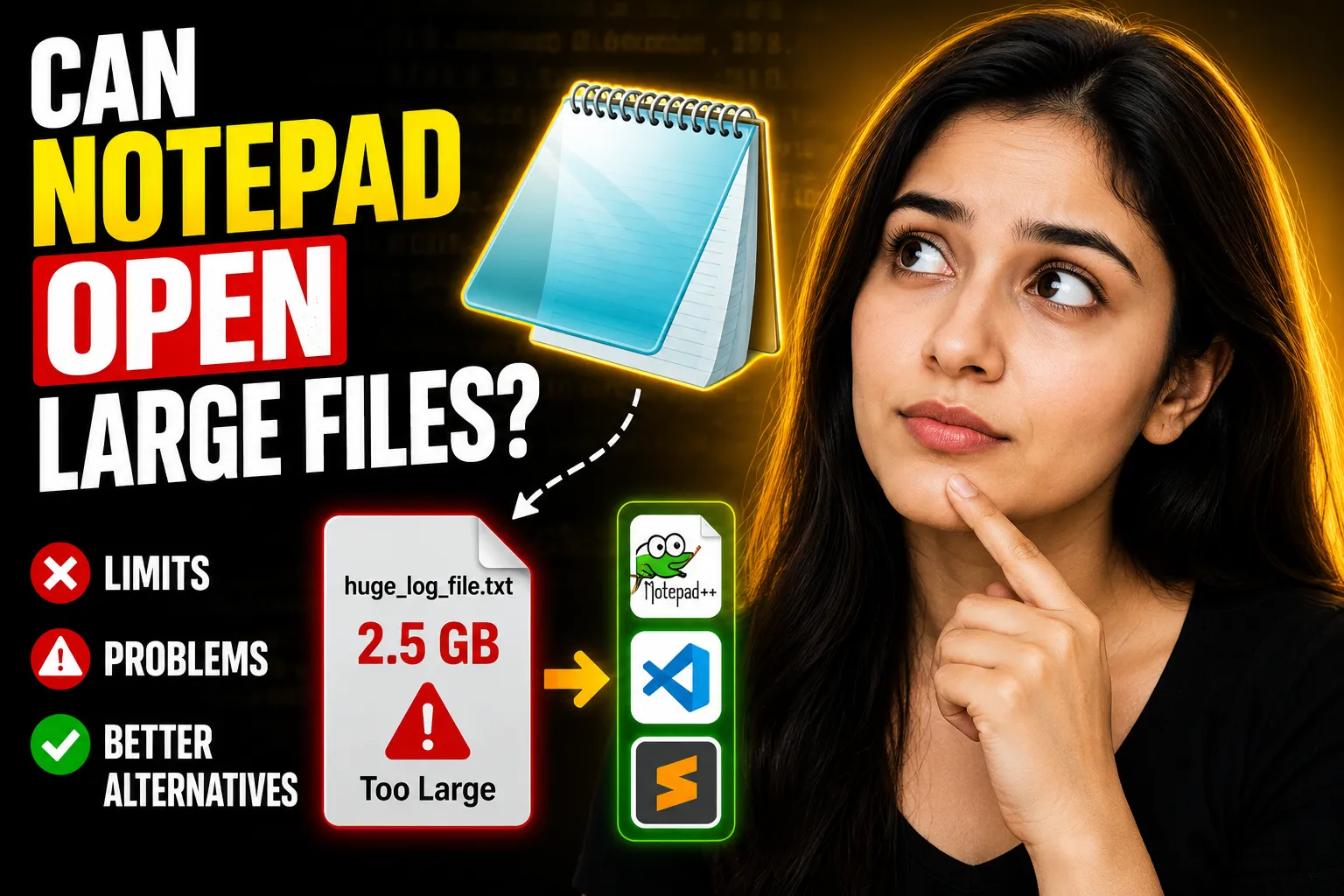
If you've ever tried opening a massive log file, data export, or text document in Windows Notepad, you've probably wondered: can Notepad open large text files?
The short answer is yes—but only up to a point.
While modern versions of Notepad are far better than older releases, they still struggle with very large files. Depending on your computer's memory, file size, and file structure, Notepad may become slow, freeze, crash, or fail to load the file entirely.
In this guide, you'll learn how Notepad handles large files, what its practical limits are, common problems users encounter, and better alternatives for viewing and editing large text documents.
Table of Contents
- What Is Notepad?
- Can Notepad Open Large Text Files?
- Why Large Files Cause Problems in Notepad
- Common Errors When Opening Large Text Files
- How Large a File Can Notepad Open?
- Factors That Affect Notepad Performance
- Best Alternatives to Notepad for Large Files
- Using Online Tools for Notes and Text Editing
- When an Online Whiteboard Makes More Sense
- Tips for Working with Large Text Files
- FAQ
- Conclusion
What Is Notepad?
Notepad is Microsoft's lightweight text editor included with Windows. It is designed for basic text editing tasks such as:
- Creating notes
- Editing configuration files
- Writing plain text documents
- Viewing simple logs
- Removing formatting from copied content
Because Notepad is simple and fast for everyday use, many people assume it can handle any text file. However, large files introduce challenges that go beyond basic text editing.
Can Notepad Open Large Text Files?
Direct Answer
Yes, Notepad can open large text files, but its performance decreases significantly as file sizes grow.
Modern versions of Windows have improved Notepad's ability to handle larger files compared to older versions. However, there is no guaranteed file size that works perfectly in every situation.
In practice:
| File Size | Typical Experience |
|---|---|
| Under 10 MB | Usually opens instantly |
| 10 MB – 50 MB | Generally works well |
| 50 MB – 100 MB | May become slower |
| 100 MB – 500 MB | Performance issues likely |
| 500 MB+ | Freezing or failure possible |
Actual results depend on your computer's available RAM and processor performance.
💡 Key Takeaway:
Notepad can open many large text files, but it is not specifically designed for handling huge datasets, logs, or multi-gigabyte documents.
Why Large Files Cause Problems in Notepad
Many users assume text files are simple because they contain only characters. However, very large files require substantial memory.
When Notepad opens a file, it typically loads the content into memory. The larger the file becomes, the more system resources are needed.
Several issues may occur:
Memory Consumption
A large file can consume hundreds of megabytes of RAM.
If your computer doesn't have enough available memory, Windows may begin using virtual memory, which slows everything down.
Long Loading Times
Instead of opening immediately, Notepad may spend several minutes loading the content.
Scrolling Delays
Once loaded, scrolling through thousands or millions of lines can become sluggish.
Search Function Delays
Finding specific text within a large file may take much longer than expected.
Application Freezing
In extreme cases, Notepad may stop responding entirely.
Common Errors When Opening Large Text Files
Users frequently encounter the following issues.
Notepad Stops Responding
The application window becomes unresponsive while attempting to load the file.
Blank Window Appears
The file opens, but content does not display correctly.
Out of Memory Error
Windows may display memory-related warnings if resources are exhausted.
Extremely Slow Performance
Actions such as:
- Typing
- Scrolling
- Copying
- Searching
may become frustratingly slow.
Unexpected Crashes
Notepad may close unexpectedly when dealing with very large files.
How Large a File Can Notepad Open?
There is no official universal limit because results vary across Windows versions.
Historically:
- Older Windows versions struggled with files larger than 64 MB.
- Windows 10 significantly improved support.
- Windows 11 continues improving Notepad performance.
However, practical limitations still exist.
A computer with:
- 32 GB RAM
- Modern processor
- Fast SSD
will perform much better than a system with:
- 4 GB RAM
- Traditional hard drive
- Older CPU
For most users, once text files exceed several hundred megabytes, specialized tools become a better choice.
Factors That Affect Notepad Performance
Available RAM
More memory allows larger files to load efficiently.
Storage Speed
SSD drives load files much faster than traditional HDDs.
File Structure
A 100 MB file with millions of short lines may behave differently than a 100 MB file with fewer long lines.
Background Applications
Running many programs simultaneously reduces available resources.
Windows Version
Recent Windows releases include performance improvements for Notepad.
Best Alternatives to Notepad for Large Files
If you regularly work with large documents, consider alternatives designed for heavy workloads.
1. Notepad++
Notepad++ is one of the most popular text editors.
Advantages:
- Fast performance
- Syntax highlighting
- Large file support
- Advanced search tools
Best for:
- Developers
- System administrators
- Power users
2. Visual Studio Code
Visual Studio Code offers powerful editing capabilities.
Benefits include:
- Extensions
- Advanced search
- Split editing
- Large community support
Best for technical users.
3. EmEditor
EmEditor is specifically known for handling massive files.
It can manage files measured in gigabytes rather than megabytes.
Best for:
- Data analysts
- Log file inspection
- Enterprise environments
4. Large Text File Viewer Tools
Some applications are designed specifically for viewing huge logs without loading the entire file into memory.
These tools can open multi-gigabyte files efficiently.
Using Online Tools for Notes and Text Editing
Not every text editing task involves massive datasets.
Many users simply need a convenient place to write, store, and organize text without installing software.
In these situations, online note-taking platforms can be extremely useful.
One option is Write Notes, an online note-taking application that allows users to create and manage notes directly in a browser.
You can access Write Notes here:
For users who need a simple browser-based text editor, the platform also offers a free online notepad:
http://www.writenotes.net/free-online-notepad
Benefits of an Online Notepad
An online notepad can help users:
- Create notes instantly
- Access content from different devices
- Avoid software installation
- Save quick ideas
- Draft content on the go
These tools are particularly useful when you're working on lightweight text documents rather than extremely large files.
When an Online Whiteboard Makes More Sense
Text isn't always the best format for collaboration.
Sometimes teams need to:
- Brainstorm ideas
- Plan projects
- Create workflows
- Sketch concepts visually
In these situations, a collaborative whiteboard often works better than a text editor.
Write Notes also provides an Online Free Whiteboard with Collaboration features:
http://www.writenotes.net/online-collaborative-whiteboard
A collaborative whiteboard allows multiple participants to:
- Share ideas visually
- Work together in real time
- Organize information spatially
- Conduct remote brainstorming sessions
For planning and collaboration, visual tools often communicate ideas more effectively than large text documents.
Tips for Working with Large Text Files
If you're forced to use Notepad or another editor for large files, these practices can help.
Split the File
Divide extremely large files into smaller sections.
Benefits include:
- Faster loading
- Easier searching
- Better stability
Use a Dedicated Viewer
For logs and exports, specialized viewers are usually more efficient.
Avoid Multiple Copies
Opening several large files simultaneously can exhaust system memory.
Upgrade Hardware
Additional RAM and SSD storage can improve performance dramatically.
Compress Archived Files
Store old logs and exports in compressed formats when possible.
Use Search Tools Instead of Manual Scrolling
Searching is usually faster than navigating through millions of lines manually.
Notepad vs Online Notepad vs Advanced Editors
| Feature | Windows Notepad | Online Notepad | Advanced Editors |
| Installation Required | No | No | Usually Yes |
| Basic Editing | Yes | Yes | Yes |
| Cloud Access | No | Yes | Depends |
| Collaboration | No | Limited | Some Support |
| Large File Handling | Limited | Limited | Excellent |
| Advanced Search | Basic | Basic | Advanced |
| Developer Features | Minimal | Minimal | Extensive |
This comparison highlights why different tools serve different purposes.
Notepad remains excellent for simple tasks, while advanced editors excel with massive files.
Signs You Need a Better Tool Than Notepad
You should consider alternatives if:
- Files exceed 100 MB regularly
- Notepad freezes often
- Search operations are slow
- You work with server logs
- You analyze exported datasets
- You manage large codebases
For occasional note-taking, Notepad remains perfectly adequate.
For professional data handling, dedicated editors offer a much better experience.
Frequently Asked Questions
Can Notepad open a 1 GB text file?
Sometimes, but performance is often poor. Specialized editors are generally recommended for files of this size.
Why does Notepad freeze when opening large files?
Large files consume significant memory and processing resources, causing delays or application freezes.
Is there a file size limit in Notepad?
There is no single universal limit. Practical limits depend on Windows version, available RAM, and system performance.
What is the best free alternative to Notepad?
Notepad++ is one of the most popular free alternatives for handling larger files and advanced editing tasks.
Can an online notepad replace Windows Notepad?
For basic note-taking and simple text editing, yes. Browser-based tools such as Write Notes can provide convenient access across devices.
Are online collaborative whiteboards useful for text projects?
Yes. They are especially useful during planning, brainstorming, and team collaboration before content is converted into structured documents.
Conclusion
So, can Notepad open large text files?
Yes, but only within practical limits. Modern versions of Notepad handle larger files better than older releases, yet performance issues still appear as file sizes increase. Slow loading, freezing, memory consumption, and search delays are common when dealing with very large documents.
For occasional text editing, Notepad remains a reliable built-in tool. However, if you regularly work with large logs, data exports, or multi-hundred-megabyte files, dedicated editors such as Notepad++, Visual Studio Code, or EmEditor provide a significantly better experience.
For everyday note-taking, browser-based solutions like Write Notes and its Free Online Notepad offer convenient alternatives, while collaborative projects can benefit from an Online Collaborative Whiteboard that enables visual teamwork and brainstorming.

Alex Chen
I am a Digital Systems Architect and productivity specialist dedicated to building frictionless workflows. With over 2,000 hours of deep-work experimentation, I've mastered the art of transforming cluttered Write Notes workspaces into high-output engines.Having successfully migrated over 10,000 users into streamlined digital systems, I focus on the intersection of Personal Knowledge Management (PKM) and automated task architecture. When I'm not auditing the latest productivity tools, I manage a 1,500-note research library and consult for teams looking to reclaim their focus.