
How to Change Default Font in Notepad Windows 11 Permanently
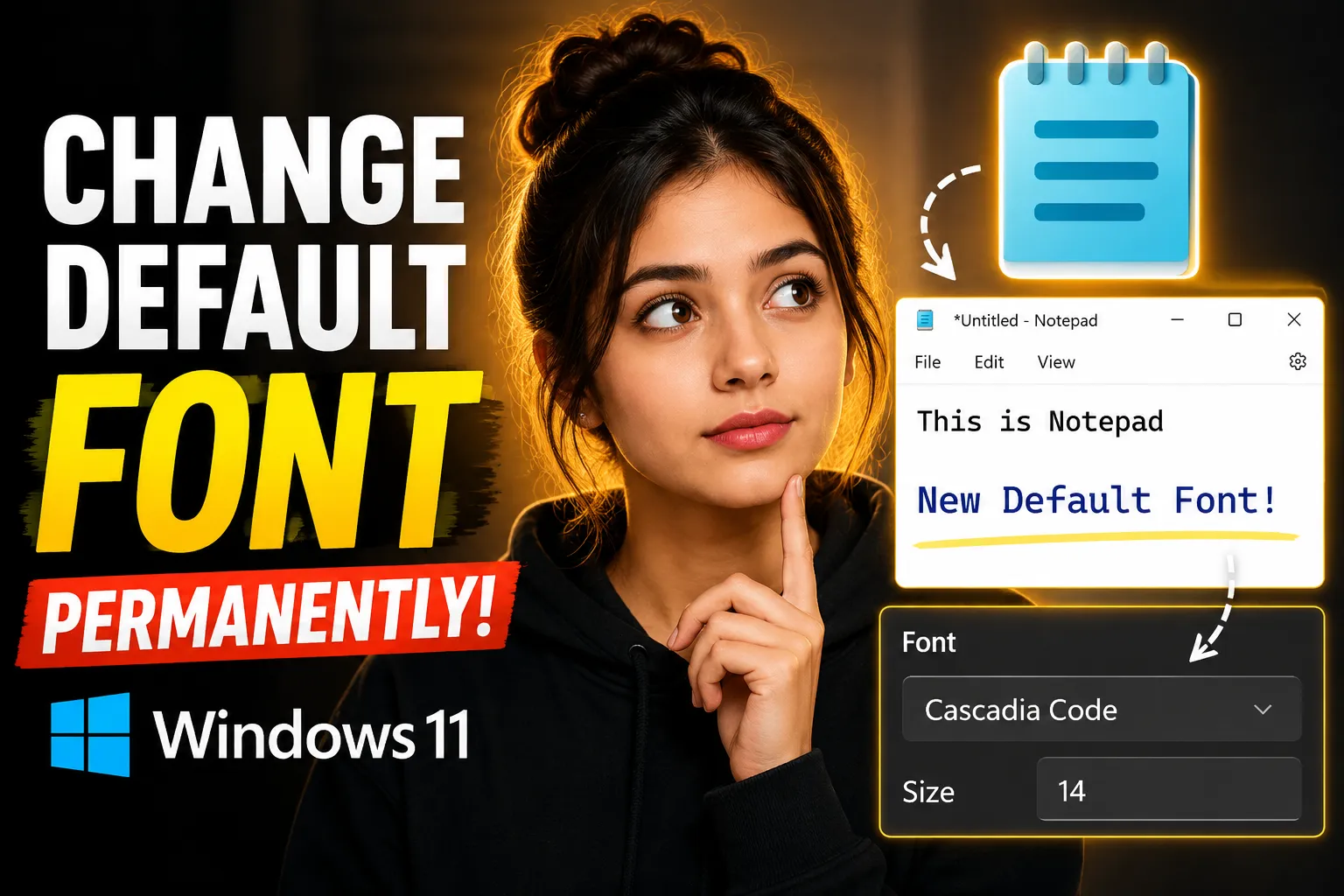
If you use Notepad regularly in Windows 11, changing the default font can make reading and editing text much easier. The good news is that Windows 11 allows you to customize the Notepad font, style, and size permanently through the app settings.
Whether you want a cleaner coding font, a larger text size for readability, or a modern monospace typeface, the process only takes a few minutes. In this guide, you’ll learn exactly how to change the default font in Notepad Windows 11 permanently, how the settings are saved, what to do if the font resets, and which fonts work best for different use cases.
You’ll also learn a few useful productivity alternatives such as Write Notes, an online note taking application and online notepad platform that works directly in your browser.
Table of Contents
- What Happens When You Change the Notepad Font
- How to Change Default Font in Notepad Windows 11 Permanently
- Best Fonts to Use in Notepad
- How to Change Font Size Quickly
- Why Notepad Font Settings Sometimes Reset
- How to Restore Default Notepad Font
- Notepad vs Online Notepad Applications
- When to Use an Online Whiteboard Instead
- Troubleshooting Common Notepad Font Problems
- FAQ
What Happens When You Change the Notepad Font
Changing the font in Notepad affects:
- Text appearance
- Character spacing
- Readability
- Coding visibility
- Document editing comfort
The setting is usually saved automatically in Windows 11. Once changed, Notepad remembers the selected font unless:
- The app data is reset
- Windows profile settings become corrupted
- The Notepad app is reinstalled
- System cleanup tools remove configuration data
Unlike older Windows versions, the newer Windows 11 Notepad app stores settings more reliably.
How to Change Default Font in Notepad Windows 11 Permanently
Here is the fastest method.
Step 1: Open Notepad
Press:
Windows + SType:
NotepadThen open the app.
Step 2: Open Notepad Settings
In the latest Windows 11 version:
- Click the gear icon in the top-right corner
- Open Settings
If you are using an older release of Notepad:
- Click Format
- Select Font
Step 3: Choose Your Preferred Font
You can now select:
- Font family
- Font style
- Font size
Popular choices include:
| Font | Best For | Style |
|---|---|---|
| Consolas | Coding | Clean monospace |
| Cascadia Code | Developers | Modern coding font |
| Courier New | Traditional text editing | Classic monospace |
| Lucida Console | Terminal-style readability | Compact |
| Segoe UI | General writing | Modern UI font |
Step 4: Save the Changes
After selecting the font:
- Click OK
- Close Notepad
- Reopen the application
The selected font should remain active permanently.
💡 Key Takeaway:
Windows 11 stores Notepad font preferences automatically. You usually do not need registry edits or third-party software.
Best Fonts to Use in Notepad
The best Notepad font depends on how you use the application.
Best Fonts for Coding
If you use Notepad for scripts or programming snippets:
| Font | Why It Works Well |
|---|---|
| Consolas | Excellent readability |
| Cascadia Code | Supports ligatures |
| JetBrains Mono | Developer-focused spacing |
| Courier New | Lightweight and familiar |
Recommended Settings
| Setting | Recommended Value |
|---|---|
| Font Size | 12–16 |
| Font Style | Regular |
| Word Wrap | Off for code |
Best Fonts for General Writing
For notes and plain-text writing:
| Font | Advantage |
|---|---|
| Segoe UI | Easy on the eyes |
| Arial | Familiar and readable |
| Verdana | Good spacing |
| Calibri | Balanced appearance |
Best Fonts for Accessibility
If you need larger readable text:
| Font | Benefit |
|---|---|
| Verdana | Wide spacing |
| Tahoma | Clear at small sizes |
| Arial | Strong readability |
Use sizes between:
16–22for easier visibility.
How to Change Font Size Quickly
You can quickly zoom text in modern Notepad.
Keyboard Shortcuts
| Shortcut | Action |
|---|---|
| Ctrl + Plus (+) | Increase font size |
| Ctrl + Minus (-) | Decrease font size |
| Ctrl + Mouse Wheel | Zoom in or out |
| Ctrl + 0 | Reset zoom |
This only changes the viewing scale temporarily unless you save updated settings.
Why Notepad Font Settings Sometimes Reset
Sometimes users change the Notepad font only to find it reverted later.
Here are the most common causes.
1. Microsoft Store App Reset
Windows 11 Notepad is now a Microsoft Store app.
If the app updates or resets, preferences may disappear.
Fix
- Open Settings
- Go to Apps
- Select Installed Apps
- Find Notepad
- Avoid using the Reset option unless necessary
2. Roaming Profile Problems
In work or school environments, profile synchronization can overwrite local preferences.
Fix
- Use a local Windows profile
- Ask IT administrators about roaming policies
3. Registry Cleaning Software
Some optimization tools delete application settings.
Examples include:
- Aggressive cleanup utilities
- Temporary file removers
- Registry cleaners
Fix
Exclude Notepad settings from cleanup scans.
4. Corrupted App Data
Corrupted app storage can prevent settings from saving.
Fix
Reinstall Notepad:
- Open Windows Settings
- Apps → Installed Apps
- Uninstall Notepad
- Reinstall from the Microsoft Store
How to Restore Default Notepad Font
If you want to undo your changes:
Method 1: Use Notepad Settings
- Open Notepad
- Go to Settings
- Select the default font again
Most Windows 11 systems use:
| Setting | Default |
|---|---|
| Font | Consolas |
| Size | 11 |
| Style | Regular |
Method 2: Reset the App
You can fully reset Notepad.
Steps
- Open Windows Settings
- Apps
- Installed Apps
- Notepad
- Advanced Options
- Click Reset
This restores original settings.
Notepad vs Online Notepad Applications
Traditional desktop Notepad is useful for quick offline editing, but browser-based note apps now offer more flexibility.
One example is Write Notes Free Online Notepad.
It allows users to:
- Take notes online
- Access notes from different devices
- Avoid local file dependency
- Use browser-based editing instantly
- Collaborate more easily
This can be especially useful if:
- You switch between devices frequently
- You work remotely
- You need quick note sharing
- You want a lightweight alternative without installing software
Desktop Notepad vs Online Notepad
| Feature | Windows Notepad | Online Notepad |
|---|---|---|
| Offline access | Yes | Usually no |
| Device syncing | Limited | Easier |
| Collaboration | No | Often supported |
| Installation needed | Built into Windows | Browser only |
| Cross-platform | Windows only | Any browser |
When to Use an Online Whiteboard Instead
Plain text editors are useful, but some workflows need visual collaboration.
For brainstorming, diagram planning, teaching, or remote teamwork, a collaborative whiteboard is often better.
An example is the Write Notes Online Collaborative Whiteboard.
It supports visual collaboration for:
- Team discussions
- Brainstorming
- Sketching workflows
- Planning sessions
- Educational explanations
Situations Where a Whiteboard Works Better Than Notepad
| Task | Better Tool |
|---|---|
| Writing code snippets | Notepad |
| Simple text notes | Notepad |
| Brainstorming ideas | Whiteboard |
| Team collaboration | Whiteboard |
| Visual planning | Whiteboard |
| Diagram creation | Whiteboard |
Advanced Tips for Better Notepad Customization
Enable Word Wrap Carefully
Word Wrap changes how long lines display.
Best Practice
| Use Case | Word Wrap |
|---|---|
| Coding | Off |
| Writing notes | On |
| Logs/data | Off |
To enable:
Format → Word WrapUse Dark Mode in Notepad
Modern Windows 11 Notepad supports dark mode.
Enable Dark Mode
- Open Notepad Settings
- Find App Theme
- Select:
- Dark
- Light
- Use system setting
Dark mode reduces eye strain during long editing sessions.
Combine Better Fonts With Better Scaling
Many users increase font size but ignore Windows display scaling.
For improved readability:
- Open Windows Settings
- System → Display
- Scale → 125% or 150%
This helps across all applications, not just Notepad.
Troubleshooting Common Notepad Font Problems
Font Does Not Appear in Notepad
Possible causes:
- Font not installed properly
- Unsupported font
- Corrupted font files
Fix
- Reinstall the font
- Restart Windows
- Reopen Notepad
Font Looks Blurry
This often happens because of scaling issues.
Fix
- Use display scaling at 100% or 125%
- Avoid unusual resolutions
- Try ClearType Text
Enable ClearType:
Windows Search → Adjust ClearType TextFont Size Changes Automatically
This is usually caused by accidental zoom shortcuts.
Fix
Press:
Ctrl + 0to reset zoom.
Notepad Opens With Wrong Formatting
If text spacing appears broken:
Check
- Encoding settings
- Word Wrap
- Font spacing
- Tab width
Plain text editors display formatting differently from word processors like Microsoft Word.
Alternative Applications to Notepad
If Notepad feels too limited, here are some alternatives.
| Application | Best For |
|---|---|
| Notepad++ | Advanced coding |
| VS Code | Development |
| Write Notes | Browser-based note taking |
| OneNote | Organized notebooks |
| Obsidian | Linked knowledge management |
Should You Use Notepad in 2026?
Notepad remains useful because it is:
- Lightweight
- Fast
- Simple
- Preinstalled
- Reliable for plain text
However, modern workflows often require:
- Cloud syncing
- Collaboration
- Multi-device access
- Rich formatting
- Visual brainstorming
That is why many users combine desktop Notepad with tools like Write Notes for browser-based productivity.
FAQ
How do I permanently change the font in Notepad Windows 11?
Open Notepad, go to Settings or Format → Font, choose your preferred font and size, then close the app. Windows 11 usually saves the preference automatically.
Why does my Notepad font keep resetting?
This can happen after app resets, Windows updates, corrupted app data, or cleanup software removing saved settings.
What is the best font for Notepad coding?
Consolas and Cascadia Code are among the best choices because they improve readability and spacing for code.
Can I use custom fonts in Notepad?
Yes. Any font installed in Windows can usually be selected inside Notepad.
Does Notepad support dark mode in Windows 11?
Yes. The latest Windows 11 Notepad app supports dark mode through the settings menu.
Is there an online alternative to Notepad?
Yes. Platforms like Write Notes Free Online Notepad provide browser-based note taking without requiring installation.
Conclusion
Changing the default font in Notepad Windows 11 permanently is straightforward once you know where the settings are stored. For most users, the built-in customization options are enough to improve readability, coding clarity, and overall comfort.
The best setup depends on your workflow. Developers often prefer fonts like Consolas or Cascadia Code, while general users may prefer Segoe UI or Verdana for readability. If your settings keep resetting, the issue is usually tied to app resets, profile syncing, or cleanup utilities.
Traditional Notepad still works well for lightweight offline editing, but browser-based tools such as Write Notes and collaborative platforms like the Write Notes Online Whiteboard can provide more flexibility for modern workflows.

Alex Chen
I am a Digital Systems Architect and productivity specialist dedicated to building frictionless workflows. With over 2,000 hours of deep-work experimentation, I've mastered the art of transforming cluttered Write Notes workspaces into high-output engines.Having successfully migrated over 10,000 users into streamlined digital systems, I focus on the intersection of Personal Knowledge Management (PKM) and automated task architecture. When I'm not auditing the latest productivity tools, I manage a 1,500-note research library and consult for teams looking to reclaim their focus.