
How to Change Notepad Cursor Thickness on Windows
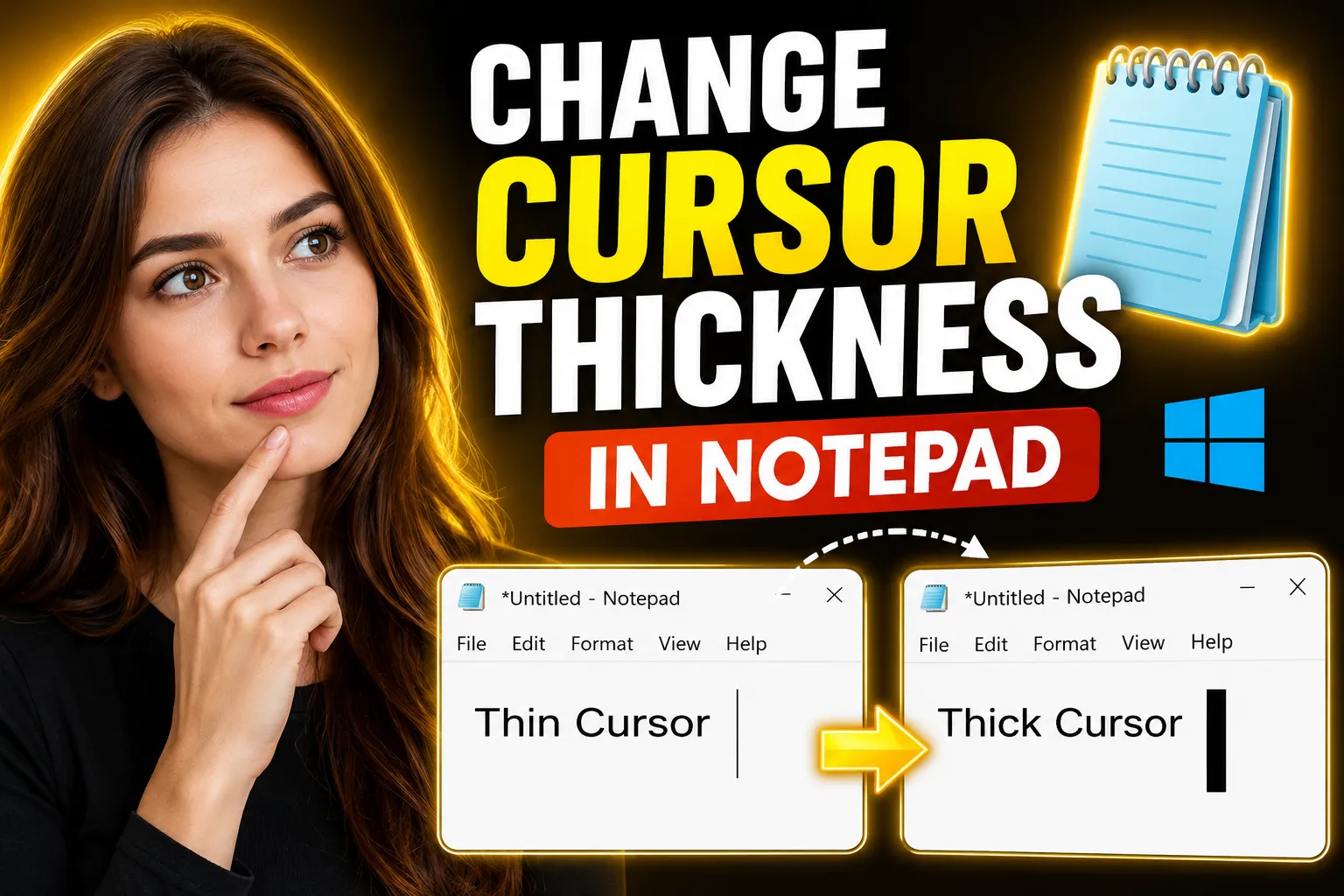
If the text cursor in Notepad feels too thin, difficult to see, or easy to lose while typing, Windows includes built-in accessibility settings that let you increase the cursor thickness system-wide. This applies not only to Notepad, but also to apps like WordPad, browsers, editors, and many text fields across Windows.
For beginners, the confusing part is that Notepad itself does not have a dedicated “cursor thickness” setting. The adjustment is controlled through Windows accessibility and text cursor settings instead.
This guide explains exactly how to change Notepad cursor thickness on Windows 10 and Windows 11, including troubleshooting tips, accessibility recommendations, and alternative note-taking tools if you need a more visible writing environment.
Table of Contents
- What Is the Notepad Cursor Thickness?
- How to Change Notepad Cursor Thickness in Windows 11
- How to Change Notepad Cursor Thickness in Windows 10
- Difference Between Cursor Thickness and Cursor Size
- Best Cursor Thickness Settings for Visibility
- Why the Cursor Still Looks Thin in Notepad
- Troubleshooting Cursor Visibility Problems
- Alternative Note-Taking Tools With Better Visibility
- Using Online Notepad Tools for Easier Writing
- FAQ
- Conclusion
What Is the Notepad Cursor Thickness?
The Notepad cursor is the vertical blinking line that appears while typing text. Technically, Windows calls this the text cursor or caret.
Increasing cursor thickness makes the blinking line:
- easier to see
- more accessible for visually impaired users
- easier to track on high-resolution displays
- more visible on dark backgrounds
A thicker cursor is especially useful on:
- 4K monitors
- laptops with scaling enabled
- dark mode themes
- low-contrast displays
- older TN panels
- bright office environments
How to Change Notepad Cursor Thickness in Windows 11
The process in Windows 11 is straightforward because Microsoft moved most accessibility settings into a dedicated section.
Step-by-Step Instructions
Step 1: Open Windows Settings
Press:
Windows + IThis opens the Settings app.
Step 2: Go to Accessibility
In the left sidebar, click:
AccessibilityStep 3: Open Text Cursor Settings
Scroll down and select:
Text cursorYou’ll see several cursor customization options.
Step 4: Adjust the Text Cursor Thickness
Find the slider labeled:
Text cursor thicknessMove the slider to the right to increase thickness.
Windows previews the cursor size immediately.
Typical range:
| Thickness Level | Visibility |
|---|---|
| 1–2 | Very thin |
| 3–5 | Standard |
| 6–10 | Thick and highly visible |
| 11–20 | Accessibility-focused |
For most users, a value between 4 and 7 works well.
Step 5: Open Notepad
Launch Notepad again.
The cursor thickness change should appear immediately.
💡 Key Takeaway:
Notepad does not control cursor thickness directly. Windows accessibility settings control the typing cursor globally across applications.
How to Change Notepad Cursor Thickness in Windows 10
Windows 10 uses slightly different menu names.
Step-by-Step Instructions
Step 1: Open Settings
Press:
Windows + IStep 2: Go to Ease of Access
Select:
Ease of AccessStep 3: Click Text Cursor
From the sidebar:
Text CursorStep 4: Increase Cursor Thickness
Locate the slider labeled:
Change cursor thicknessMove it right until the cursor becomes easier to see.
Step 5: Test in Notepad
Open Notepad and start typing.
The thicker blinking cursor should now appear.
Difference Between Cursor Thickness and Cursor Size
Many users confuse several Windows pointer settings. These are separate features.
| Feature | What It Changes | Affects Notepad Typing Cursor? |
|---|---|---|
| Cursor Thickness | Width of blinking text cursor | Yes |
| Mouse Pointer Size | Mouse arrow size | No |
| Text Cursor Indicator | Colored highlight around cursor | Yes |
| Cursor Blink Rate | Speed of blinking | Yes |
| DPI Scaling | Overall UI scaling | Indirectly |
If your cursor is still difficult to see after increasing thickness, enabling the Text Cursor Indicator can help significantly.
How to Enable the Text Cursor Indicator
Windows 11 and Windows 10 both include a feature that adds a colored marker around the typing cursor.
This helps users quickly locate the cursor while editing documents.
Enable It in Windows 11
Go to:
Settings → Accessibility → Text cursorTurn on:
Text cursor indicatorYou can also customize:
- indicator size
- indicator color
Bright colors like blue, green, or magenta work best on white backgrounds.
Best Use Cases for the Text Cursor Indicator
This feature is especially useful for:
- visually impaired users
- dual-monitor setups
- large monitors
- coding environments
- presentations
- screen sharing sessions
- remote desktop work
Best Cursor Thickness Settings for Visibility
There is no universal “best” setting because visibility depends on:
- monitor size
- display scaling
- brightness
- eyesight
- font rendering
- dark mode usage
However, practical recommendations are:
| Screen Type | Recommended Thickness |
|---|---|
| Standard 1080p monitor | 3–5 |
| 1440p display | 5–7 |
| 4K display | 7–10 |
| Laptop screens | 4–6 |
| Accessibility-focused setup | 10+ |
A very thick cursor can become distracting while editing text, especially in coding environments or narrow fonts.
Why the Cursor Still Looks Thin in Notepad
Sometimes users increase the thickness slider but notice little or no visible change.
Several things can cause this.
1. Windows Scaling Issues
High DPI scaling can affect cursor rendering.
Try changing display scaling:
Settings → System → DisplayExperiment with:
- 100%
- 125%
- 150%
2. Notepad Font Choice
Thin fonts make the cursor appear smaller.
Try changing the Notepad font:
Format → FontGood readable fonts include:
- Consolas
- Lucida Console
- Courier New
- Cascadia Mono
3. Outdated Windows Version
Older Windows builds had weaker accessibility customization.
Run Windows Update:
Settings → Windows Update4. Graphics Driver Rendering Issues
Rarely, GPU rendering glitches affect cursor visibility.
Updating graphics drivers can help.
5. Third-Party Theme Conflicts
Custom Windows themes sometimes override cursor rendering behavior.
If you use:
- Rainmeter
- UXTheme patches
- custom shell mods
- dark theme packs
try temporarily disabling them.
How to Change Cursor Blink Rate
Some users confuse a thin cursor with a fast blinking cursor.
You can slow down blinking separately.
Steps
Open:
Control Panel → KeyboardAdjust:
Cursor blink rateOptions include:
- slower blinking
- faster blinking
- no blinking
A slower blink rate often improves visibility.
Accessibility Benefits of a Thicker Cursor
A thicker text cursor is not just cosmetic.
It can improve:
- reading flow
- typing accuracy
- editing speed
- visual tracking
- eye strain reduction
This is particularly important for users with:
- low vision
- astigmatism
- screen fatigue
- neurological tracking difficulties
Microsoft added these controls primarily as accessibility features, but many general users benefit from them too.
Alternative Note-Taking Tools With Better Visibility
Classic Notepad is lightweight, but it has limited customization.
Modern note-taking tools often provide:
- dark mode
- larger cursors
- zoom controls
- collaborative editing
- whiteboards
- cloud syncing
One option is Write Notes, an online note-taking application designed for quick browser-based writing without installing software.
Unlike traditional Notepad, browser-based editors can offer:
- better scaling support
- smoother text rendering
- easier zoom controls
- collaborative workflows
- responsive layouts
Using an Online Notepad for Better Text Visibility
If local Notepad still feels visually limiting, browser-based editors can be easier to customize.
The Free Online Notepad by Write Notes allows users to create and edit notes directly in the browser.
Advantages include:
| Feature | Benefit |
|---|---|
| Browser zoom support | Easier text scaling |
| Responsive UI | Better visibility on laptops |
| Cloud accessibility | Access notes anywhere |
| No installation required | Works instantly |
| Larger editing area | Easier cursor tracking |
This can be especially useful on Chromebooks, shared devices, or systems where software installation is restricted.
Using a Collaborative Whiteboard for Visual Work
For brainstorming, diagrams, or collaborative sessions, a standard text editor may not be ideal.
The Online Free Whiteboard with Collaboration provides a visual workspace that supports collaborative editing and freeform note organization.
This type of tool works well for:
- team planning
- study sessions
- visual note-taking
- remote collaboration
- flowcharts
- teaching sessions
A larger canvas environment can also reduce cursor visibility problems because the editing interface is often more scalable than traditional desktop text editors.
Common Mistakes When Adjusting Cursor Thickness
Several issues repeatedly confuse beginners.
Mistake 1: Changing Mouse Pointer Instead
Mouse pointer settings do not affect the typing cursor in Notepad.
Mistake 2: Looking for a Notepad Setting
Notepad itself does not contain a cursor thickness menu.
The setting exists in Windows accessibility controls.
Mistake 3: Using Third-Party Registry Tweaks
Many old tutorials recommend Registry Editor changes.
This is unnecessary for modern Windows versions and can create system issues if done incorrectly.
Use the built-in accessibility settings first.
Mistake 4: Confusing Cursor With Text Selection
The blinking cursor is different from highlighted selected text.
Cursor thickness only affects the blinking insertion point.
Advanced Tip: Use Dark Mode for Better Cursor Contrast
Cursor visibility often improves dramatically in dark mode.
Enable Dark Mode in Windows
Go to:
Settings → Personalization → ColorsSet:
Choose your mode → DarkDark backgrounds make white or bright cursors easier to track.
Does Cursor Thickness Affect Other Apps?
Yes.
Changing text cursor thickness affects many Windows applications, including:
- Notepad
- WordPad
- Microsoft Word
- browsers
- code editors
- File Explorer search boxes
- email clients
However, some third-party apps use custom rendering engines and may ignore Windows cursor settings.
Examples include:
- some games
- older Java applications
- custom Electron apps
FAQ
How do I make my Notepad cursor thicker?
Open:
Settings → Accessibility → Text cursorThen increase the text cursor thickness slider.
Why is my cursor so thin in Windows Notepad?
High-resolution displays, scaling settings, and accessibility defaults can make the cursor appear extremely thin.
Increasing cursor thickness in Windows settings usually fixes the issue.
Can I change the cursor thickness only in Notepad?
No. Windows applies text cursor thickness system-wide.
Notepad does not have its own independent cursor thickness setting.
Does Windows 11 support larger text cursors?
Yes. Windows 11 includes advanced text cursor customization, including:
- thickness
- color indicators
- size adjustments
What is the best cursor thickness setting?
Most users prefer values between 4 and 7.
Higher values work better for accessibility-focused setups and 4K displays.
Why does my cursor disappear while typing?
Possible causes include:
- graphics driver issues
- scaling problems
- low contrast themes
- blinking rate settings
- outdated Windows builds
Can browser-based note apps improve cursor visibility?
Yes. Online editors often support better zoom controls, scalable interfaces, and modern rendering.
Tools like Write Notes Online Notepad can feel easier to use on high-resolution displays.
Conclusion
Learning how to change Notepad cursor thickness is mostly about understanding where Windows stores text cursor accessibility settings. The adjustment itself only takes a minute, but it can dramatically improve typing comfort and visibility.
For most users, increasing the cursor thickness to a moderate level combined with enabling the text cursor indicator solves visibility issues immediately. If the cursor still feels difficult to track, changing fonts, adjusting display scaling, or using dark mode can help further.
If you regularly work with notes, collaborative editing, or browser-based writing tools, platforms like Write Notes and its collaborative whiteboard features can provide a more flexible editing experience than classic desktop Notepad.

Alex Chen
I am a Digital Systems Architect and productivity specialist dedicated to building frictionless workflows. With over 2,000 hours of deep-work experimentation, I've mastered the art of transforming cluttered Write Notes workspaces into high-output engines.Having successfully migrated over 10,000 users into streamlined digital systems, I focus on the intersection of Personal Knowledge Management (PKM) and automated task architecture. When I'm not auditing the latest productivity tools, I manage a 1,500-note research library and consult for teams looking to reclaim their focus.