
How to Change Notepad Default Font in Windows 10
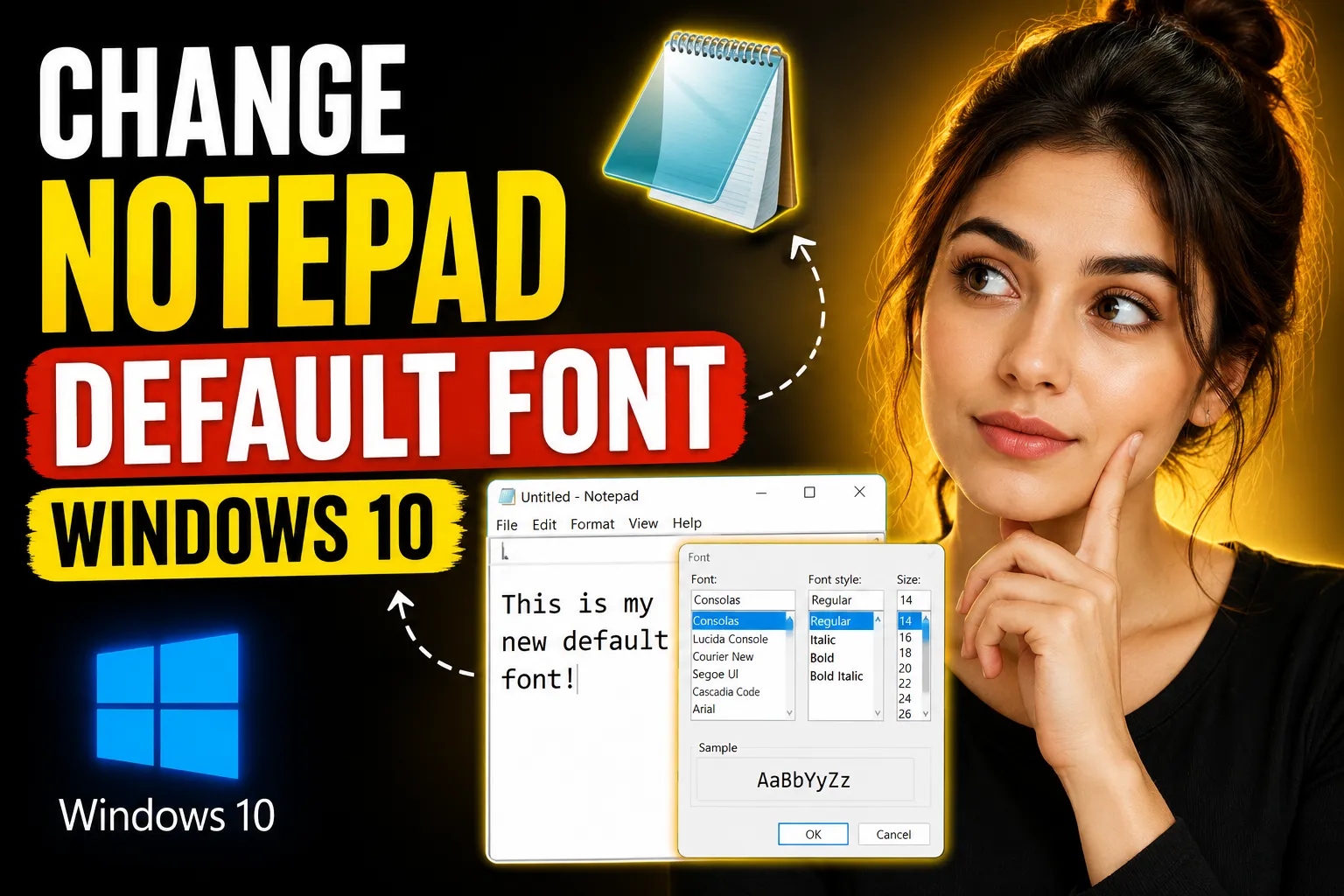
Notepad remains one of the simplest text editors included with Windows 10. It launches fast, uses very little memory, and works well for quick notes, coding snippets, logs, and plain text editing.
However, many users eventually run into the same problem: the default Notepad font is too small, difficult to read, or simply not comfortable for long sessions.
The good news is that Windows 10 allows you to change the Notepad default font in just a few steps. You can customize the font family, style, and size without installing additional software.
This article explains exactly how to change the default Notepad font in Windows 10, what settings matter most, common issues users face, and when it makes sense to use more advanced note-taking tools instead.
Table of Contents
-
What Happens When You Change the Notepad Font
-
How to Change Notepad Default Font in Windows 10
-
Best Fonts to Use in Notepad
-
How Font Settings Affect Readability
-
Common Problems and Fixes
-
Can You Set Different Fonts for Different Files?
-
Notepad Limitations You Should Know
-
Better Alternatives for Online Notes and Collaboration
-
Using an Online Whiteboard for Brainstorming
-
FAQ
-
Conclusion
What Happens When You Change the Notepad Font
Changing the Notepad font only affects how text appears inside the editor.
It does not:
-
modify the actual text content
-
change formatting in saved TXT files
-
affect other applications
-
alter system-wide font settings
For example, if you save a TXT file using Arial in Notepad and open it later on another computer, the text itself remains plain text. Notepad simply displays it using your chosen viewing font.
This distinction matters because Notepad is a plain text editor, not a word processor like Microsoft Word.
How to Change Notepad Default Font in Windows 10
Changing the default font in Notepad takes less than a minute.
Step-by-Step Instructions
Step 1: Open Notepad
You can open Notepad in several ways:
-
Press
Windows + S -
Type
Notepad -
Click the Notepad application
Alternatively:
-
Press
Windows + R -
Type
notepad -
Press Enter
Step 2: Open the Format Menu
Once Notepad opens:
-
Look at the top menu bar
-
Click
Format -
Select
Font
This opens the font customization window.
[IMAGE ALT: Notepad font settings window in Windows 10 showing font family, style, and size options.]
Step 3: Choose a Font Family
You can now select a different font.
Popular beginner-friendly choices include:
| Font | Best For | Notes |
|---|---|---|
| Consolas | Coding and readability | Default modern monospace font |
| Courier New | Traditional text editing | Older but still reliable |
| Arial | General reading | Clean and simple |
| Lucida Console | Terminal-style appearance | Compact and sharp |
| Cascadia Code | Developers | Modern Microsoft coding font |
For general note-taking, Arial and Consolas are usually the easiest to read.
Step 4: Select Font Style
You can choose:
-
Regular
-
Bold
-
Italic
-
Bold Italic
Most users should stick with:
-
Regular for everyday writing
-
Bold only if visibility is difficult
Using italic fonts for long sessions can reduce readability.
Step 5: Adjust Font Size
This setting has the biggest impact on usability.
Recommended sizes:
| Screen Type | Recommended Size |
|---|---|
| Laptop | 14–16 |
| Desktop Monitor | 16–18 |
| High-Resolution Display | 18–22 |
If the text still feels cramped, increasing line spacing is not possible in standard Notepad. That is one of its limitations.
Step 6: Save the Settings
Click OK.
Your selected font settings become the new default for future Notepad sessions.
Windows 10 remembers these settings automatically.
Best Fonts to Use in Notepad
The best font depends on how you use Notepad.
Best Font for General Writing
Arial works well because:
-
letters are clean
-
spacing is balanced
-
readability is high on most displays
Best Font for Coding
Consolas is typically the best option because:
-
characters align evenly
-
punctuation is easier to distinguish
-
zero and O look different
-
braces and symbols remain readable
Best Font for Older Displays
Courier New still performs surprisingly well on lower-resolution monitors.
Best Font for Long Reading Sessions
Larger sans-serif fonts usually reduce eye strain.
Good options include:
-
Segoe UI
-
Arial
-
Verdana
How Font Settings Affect Readability
Many people underestimate how much font settings affect productivity.
Small text forces your eyes to constantly refocus. Over time, this can cause:
-
eye strain
-
headaches
-
reduced reading speed
-
typing fatigue
A poor font choice becomes even more noticeable during:
-
coding
-
editing logs
-
writing long notes
-
studying
-
transcription work
Practical Recommendation
For most Windows 10 users:
-
Font: Consolas or Arial
-
Size: 16
-
Style: Regular
This setup balances readability with screen space.
💡 Key Takeaway:
If Notepad feels uncomfortable to use, font size is usually the problem — not the application itself.
Common Problems and Fixes
Some users change the font settings but still encounter issues.
Here are the most common problems.
Notepad Font Changes Are Not Saving
Possible Causes
-
Windows profile corruption
-
permission issues
-
outdated Windows version
-
third-party cleanup tools resetting settings
Fixes
-
Restart Notepad completely
-
Reboot the PC
-
Update Windows 10
-
Avoid registry cleaners that remove app preferences
In rare cases, deleting Notepad configuration entries from the registry may help, but most users should avoid manual registry edits.
Text Still Looks Blurry
Blurry fonts often come from display scaling issues rather than Notepad itself.
Fix
-
Right-click the desktop
-
Open
Display Settings -
Check
Scale and Layout -
Use recommended scaling values
Windows 10 sometimes applies incorrect scaling on external monitors.
Font Option Is Missing
If the Format > Font option is unavailable:
-
Word Wrap may be disabled in certain modified Notepad versions
-
enterprise-managed systems may restrict customization
-
third-party Notepad replacements can behave differently
Using the official Windows Notepad usually resolves this.
Can You Set Different Fonts for Different Files?
No.
Classic Notepad uses one global font setting for all text files.
This means:
-
every TXT file uses the same display font
-
per-document customization is unavailable
-
formatting is not stored inside plain text documents
If you need document-level formatting, consider:
-
WordPad
-
Microsoft Word
-
Markdown editors
-
note-taking applications
Notepad Limitations You Should Know
Notepad is intentionally lightweight.
That simplicity is useful, but it also creates limitations.
Major Limitations
| Feature | Supported in Notepad |
|---|---|
| Rich text formatting | No |
| Multiple tabs (older versions) | Limited |
| Real-time collaboration | No |
| Cloud syncing | No |
| Drawing tools | No |
| Embedded images | No |
| Task organization | Minimal |
For quick editing, Notepad works well.
For modern workflows, users often outgrow it quickly.
Better Alternatives for Online Notes and Collaboration
If you regularly switch between devices or collaborate with others, browser-based note tools are usually more practical than local TXT files.
One lightweight option is Write Notes.
It functions as an online notepad that works directly inside the browser without requiring software installation.
Some advantages include:
-
quick access from multiple devices
-
simple interface
-
instant note editing
-
no dependency on local TXT files
-
easier sharing
For users who primarily use Notepad for temporary writing, brainstorming, or drafting, browser-based tools can remove many of the limitations built into Windows Notepad.
You can also try the free browser-based editor here:
This approach is especially useful for:
-
Chromebook users
-
shared computers
-
remote work
-
quick drafts
-
temporary text storage
[INTERNAL LINK: "best online note-taking apps" → productivity tools]
Using an Online Whiteboard for Brainstorming
Text editors solve only part of the problem.
Sometimes users need:
-
visual planning
-
diagrams
-
collaborative sketching
-
team brainstorming
-
flowcharts
This is where online whiteboards become more useful than traditional note apps.
A tool like the Online Collaborative Whiteboard allows multiple users to work together visually in real time.
That makes it useful for:
-
classrooms
-
remote teams
-
project planning
-
tutoring sessions
-
UI brainstorming
-
mind maps
Unlike Notepad, collaborative whiteboards focus on visual organization rather than plain text editing.
[IMAGE ALT: Online collaborative whiteboard interface showing shared brainstorming and visual note-taking.]
When Notepad Is Still the Best Option
Despite its limitations, Notepad remains useful for several tasks.
Notepad Works Best For
-
quick temporary notes
-
editing configuration files
-
simple coding snippets
-
log inspection
-
distraction-free writing
-
lightweight systems
Not every workflow needs advanced software.
The key is understanding where Notepad helps and where it becomes restrictive.
Tips to Make Notepad Easier to Use
Here are a few practical improvements many users overlook.
Enable Word Wrap
Go to:Format > Word Wrap
This prevents long lines from extending horizontally across the screen.
Use Dark Mode
Newer Notepad versions support dark mode through Windows settings.
To enable it:
-
Open Windows Settings
-
Go to
Personalization -
Select
Colors -
Choose dark mode
Dark backgrounds can reduce eye fatigue during long sessions.
Increase Zoom Using Mouse and Keyboard
Modern Notepad versions support zoom shortcuts:
-
Ctrl + Plus -
Ctrl + Minus -
Ctrl + Mouse Wheel
This is often faster than repeatedly changing font settings.
Save Frequently Used Notes Separately
Many beginners accidentally overwrite important TXT files.
A better approach:
-
keep drafts organized in folders
-
use clear filenames
-
back up important notes to cloud storage
Plain text files are small and easy to manage, but they also lack recovery tools.
FAQ
How do I change the default font size in Notepad Windows 10?
Open Notepad, click Format, select Font, then choose a larger size and click OK.
What is the best font for Notepad?
Consolas is usually best for coding, while Arial and Segoe UI work well for general writing and readability.
Why does my Notepad font keep resetting?
This can happen because of Windows profile issues, corrupted preferences, or third-party cleanup utilities removing saved settings.
Can I make Notepad use different fonts for different files?
No. Classic Notepad applies one font setting globally across all text documents.
Is there an online alternative to Notepad?
Yes. Tools like Write Notes Online Notepad provide browser-based note-taking without requiring local software installation.
Does changing the Notepad font affect saved TXT files?
No. TXT files remain plain text. The font setting only changes how the text appears inside Notepad on your computer.
Conclusion
Changing the default Notepad font in Windows 10 is simple, but it can significantly improve readability and comfort.
For most users, increasing the font size and switching to a cleaner font like Consolas or Arial immediately makes Notepad easier to use. Small adjustments often reduce eye strain and improve typing accuracy during long sessions.
At the same time, it is important to understand Notepad’s limitations. It works well for lightweight text editing, but it lacks collaboration, cloud syncing, advanced organization, and visual planning tools.
If your workflow extends beyond simple TXT files, browser-based tools like Write Notes and collaborative whiteboards may provide a more flexible experience without adding unnecessary complexity.

Alex Chen
I am a Digital Systems Architect and productivity specialist dedicated to building frictionless workflows. With over 2,000 hours of deep-work experimentation, I've mastered the art of transforming cluttered Write Notes workspaces into high-output engines.Having successfully migrated over 10,000 users into streamlined digital systems, I focus on the intersection of Personal Knowledge Management (PKM) and automated task architecture. When I'm not auditing the latest productivity tools, I manage a 1,500-note research library and consult for teams looking to reclaim their focus.