
How to Change Notepad Default Font Size for Printing
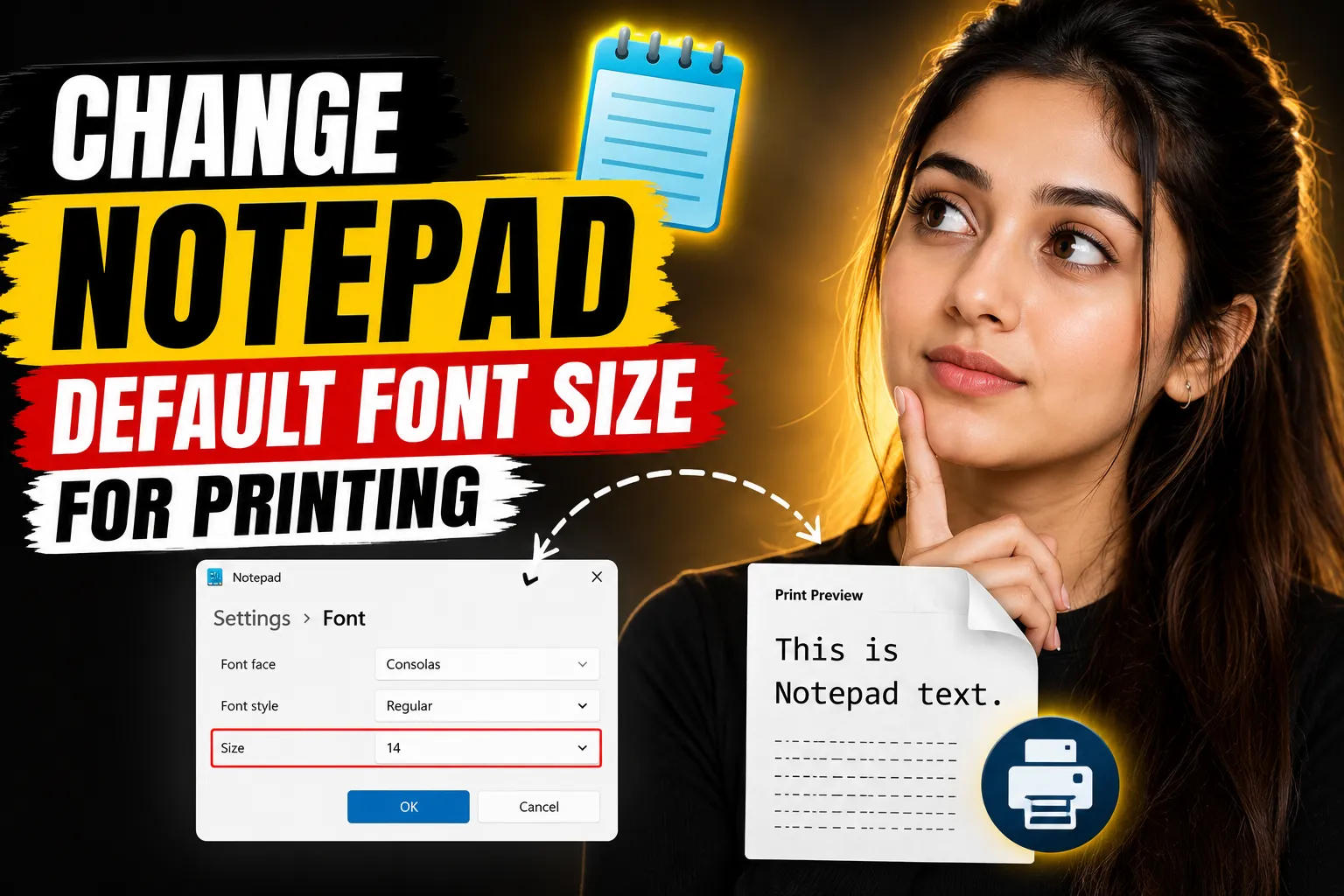
Printing text from Notepad sounds simple until the printed page comes out too small, too large, or difficult to read. Many Windows users run into this issue because Notepad uses basic formatting controls and doesn’t automatically optimize text for printing.
If you want larger printed text, cleaner formatting, or better readability on paper, you need to adjust Notepad’s font settings before printing. The good news is that the process is straightforward once you know where the settings are located.
This guide explains how to change the Notepad default font size for printing, how Windows handles Notepad fonts, common printing problems, and better alternatives for taking notes and collaborating online.
Table of Contents
- Why Notepad Prints Small Text
- How to Change Notepad Font Size Before Printing
- How to Make Printed Text Larger in Notepad
- Best Font Settings for Printing
- How Page Setup Affects Printed Font Size
- Common Notepad Printing Problems
- How to Reset Notepad Font Settings
- Better Alternatives to Notepad for Modern Workflows
- When to Use an Online Notepad Instead
- FAQ
- Conclusion
Why Notepad Prints Small Text
Notepad is designed as a lightweight plain-text editor. Unlike Microsoft Word or Google Docs, it has limited formatting controls.
The font size you see on screen is usually the same font size used during printing. If the font is set too small, your printed document will also appear small.
Several factors affect printed output:
- Font type
- Font size
- Margins
- Page orientation
- Printer scaling settings
- DPI settings
- Windows print preferences
Many users assume the printer is causing the issue when the real problem is the Notepad font configuration.
💡 Key Takeaway:
Notepad does not have separate display and print font settings. The font you select inside Notepad directly affects print output.
How to Change Notepad Font Size Before Printing
Changing the default font size in Notepad only takes a few steps.
Step-by-Step Instructions
Step 1: Open Notepad
Press:
Windows + RType:
notepadThen press Enter.
Step 2: Open the Font Settings
In the top menu:
Format → FontA new font settings window will appear.
Step 3: Select a New Font Size
Inside the Font window, you can change:
- Font style
- Font family
- Font size
For printing, common readable sizes include:
| Font Size | Best Use |
|---|---|
| 10 | Compact notes |
| 12 | Standard readability |
| 14 | Easier printed reading |
| 16+ | Large-print documents |
Step 4: Click OK
The text inside Notepad will immediately update.
Step 5: Print the File
Go to:
File → PrintOr press:
Ctrl + PYour printed output should now reflect the updated font size.
How to Make Printed Text Larger in Notepad
If your printouts still appear small after changing the font size, additional printer or page settings may be overriding the layout.
Increase the Font Size Further
Sometimes users only increase the font slightly, which may not noticeably affect printed pages.
Try:
- 14 pt
- 16 pt
- 18 pt
before printing again.
Use a More Readable Font
Certain fonts naturally print smaller.
Good fonts for printing include:
| Font | Readability |
| Arial | Excellent |
| Consolas | Good |
| Verdana | Excellent |
| Courier New | Traditional but narrow |
| Calibri | Modern and clean |
Verdana and Arial are often easier to read in print compared to Courier New.
Check Printer Scaling
Some printers reduce content automatically.
Open:
Printer PreferencesLook for options such as:
- Fit to page
- Scale
- Shrink oversized pages
- Reduce/enlarge
Disable unnecessary scaling.
Best Font Settings for Printing
The ideal font settings depend on what you’re printing.
For General Text Documents
Recommended:
| Setting | Value |
| Font | Arial |
| Size | 12 or 14 |
| Style | Regular |
For Code or Technical Notes
Recommended:
| Setting | Value |
| Font | Consolas |
| Size | 11 or 12 |
| Style | Regular |
For Large-Print Accessibility
Recommended:
| Setting | Value |
| Font | Verdana |
| Size | 16–20 |
| Style | Bold optional |
Accessibility-focused printing is especially useful for presentations, teaching materials, or printed instructions.
How Page Setup Affects Printed Font Size
Notepad’s Page Setup settings can indirectly affect how large the printed content appears.
Go to:
File → Page SetupHere you can adjust:
- Margins
- Header
- Footer
- Orientation
Reduce Margins for Larger Content
Large margins leave less room for text.
Recommended margins:
| Margin | Suggested Value |
| Top | 0.5 |
| Bottom | 0.5 |
| Left | 0.5 |
| Right | 0.5 |
Reducing margins gives your text more printable space.
Use Landscape Mode for Wide Content
If lines wrap awkwardly:
Orientation → LandscapeThis works especially well for:
- Code snippets
- Tables
- Long text entries
Common Notepad Printing Problems
Several issues commonly affect Notepad printing.
Text Is Still Too Small
Possible causes:
- Printer scaling enabled
- Font not increased enough
- Windows DPI mismatch
Solution:
- Increase font size further
- Check printer preferences
- Update printer drivers
Printed Text Looks Blurry
Possible causes:
- Low printer DPI
- Poor font choice
- Draft print mode
Solution:
- Use Arial or Verdana
- Switch printer quality to “Normal” or “Best”
- Avoid bitmap fonts
Lines Break Incorrectly
Possible causes:
- Window width mismatch
- Long text strings
- Wrong orientation
Solution:
- Enable word wrap
- Use landscape orientation
- Reduce font size slightly
Enable Word Wrap here:
Format → Word WrapHeaders and Footers Look Wrong
Notepad automatically inserts headers and footers during printing.
To remove them:
- Open Page Setup
- Delete text from:
- Header
- Footer
This creates cleaner printed pages.
How to Reset Notepad Font Settings
If your Notepad formatting becomes inconsistent, you can reset it manually.
Method 1: Choose Default Font Settings Again
Open:
Format → FontThen select:
- Font: Consolas
- Style: Regular
- Size: 11
This is close to the Windows default.
Method 2: Reset Notepad Preferences via Registry
Advanced users can reset saved settings through Windows Registry Editor.
However, editing the registry incorrectly can cause system issues.
For most users, manually changing the font is safer and faster.
Better Alternatives to Notepad for Modern Workflows
Traditional Notepad works for quick text editing, but it lacks modern features like:
- cloud saving
- collaboration
- formatting
- syncing
- whiteboard support
- team sharing
If you regularly work with notes, printable documents, or shared content, online tools are usually more practical.
Use Write Notes for Online Note Taking
Write Notes is an online note taking application and Online Notepad designed for quick writing, editing, and saving notes directly from your browser.
Unlike Windows Notepad, it offers:
- browser access
- easier note organization
- online accessibility
- simple interface
- quick editing without installation
It works well for:
- students
- office notes
- meeting summaries
- quick drafting
- temporary text storage
For users who frequently switch devices, online note-taking tools are far more flexible than desktop-only applications.
[INTERNAL LINK: "best online note-taking apps" → topic]
Online Free Whiteboard With Collaboration
For brainstorming, visual planning, or team collaboration, plain text editors become limiting very quickly.
Online Collaborative Whiteboard provides an online free whiteboard with collaboration features that allow multiple users to work together visually.
This is useful for:
- remote teams
- online tutoring
- project planning
- design discussions
- workflow mapping
- collaborative teaching
Compared to Notepad, a collaborative whiteboard offers significantly better visual communication.
[IMAGE ALT: "Team members collaborating on an online whiteboard with diagrams and notes"]
Free Online Notepad for Quick Writing
If you simply need a browser-based replacement for Notepad, Free Online Notepad provides a lightweight writing environment without requiring downloads or installation.
This type of tool is especially useful when:
- using public computers
- working across multiple devices
- creating temporary notes
- avoiding software installation
- sharing text quickly
Many users now prefer browser-based note editors because they remove the dependency on a single Windows device.
When to Use an Online Notepad Instead
Desktop Notepad still has value for simple offline tasks, but modern workflows often require more flexibility.
Use Windows Notepad When:
- you need basic offline text editing
- you are editing configuration files
- you want minimal distractions
- formatting is unnecessary
Use an Online Notepad When:
- you need cloud access
- collaboration matters
- you switch devices frequently
- you want easier sharing
- browser access is more convenient
The right choice depends on your workflow rather than the tool itself.
FAQ
Does changing the Notepad font size affect printing?
Yes. Notepad uses the same font settings for both on-screen viewing and printed output.
Why is my Notepad printout still small after increasing the font?
Printer scaling settings or large margins may still reduce the visible text size.
What is the best font size for printing in Notepad?
For most users, 12 pt or 14 pt provides the best balance between readability and page space.
Can I set a permanent default font in Notepad?
Yes. Notepad remembers the last selected font settings after closing the application.
Why does printed text wrap incorrectly in Notepad?
Long lines, narrow margins, or portrait orientation can cause awkward line wrapping during printing.
Is there a better alternative to Notepad for collaboration?
Yes. Browser-based note tools and collaborative whiteboards provide better sharing, accessibility, and teamwork features.
Conclusion
Changing the default font size in Notepad for printing is usually a simple matter of adjusting the font settings and checking page layout options. Most printing issues happen because the default font is too small or printer scaling overrides the formatting.
For basic offline text editing, Notepad still works well. But if you regularly create notes, collaborate with others, or work across multiple devices, online tools provide far more flexibility and convenience.
Platforms like Write Notes and browser-based collaborative whiteboards can streamline note-taking and improve productivity without requiring software installation.
The best setup depends on how you work, what you print, and whether you need offline simplicity or modern collaboration features.

Alex Chen
I am a Digital Systems Architect and productivity specialist dedicated to building frictionless workflows. With over 2,000 hours of deep-work experimentation, I've mastered the art of transforming cluttered Write Notes workspaces into high-output engines.Having successfully migrated over 10,000 users into streamlined digital systems, I focus on the intersection of Personal Knowledge Management (PKM) and automated task architecture. When I'm not auditing the latest productivity tools, I manage a 1,500-note research library and consult for teams looking to reclaim their focus.