
How to Change Notepad Line Spacing in Windows 11
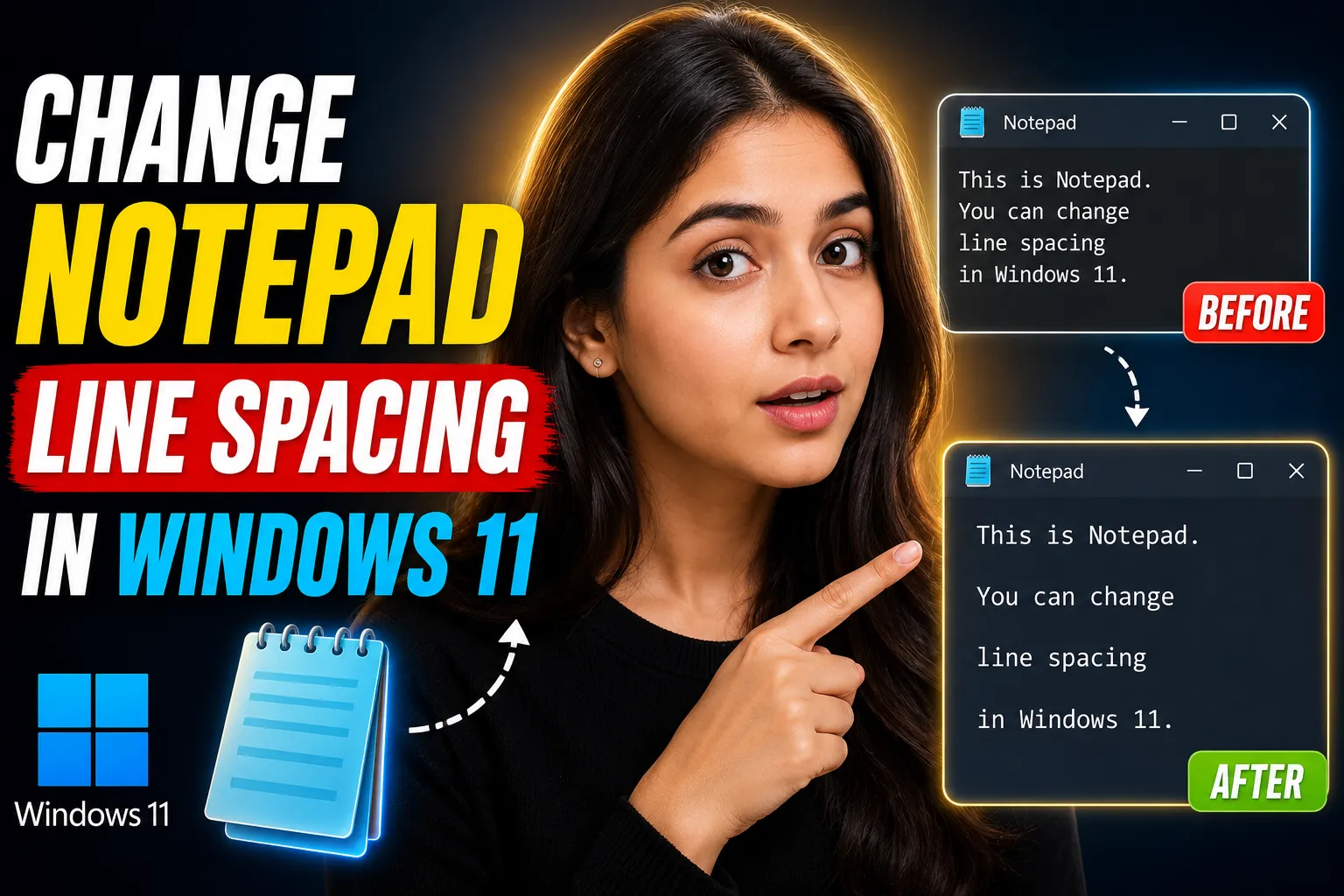
Microsoft Notepad is still one of the fastest and simplest text editors available in Windows 11. It opens instantly, uses almost no system resources, and works well for quick notes, code snippets, logs, and plain text editing.
But many users run into the same limitation: Notepad does not include a built-in line spacing option.
If you're trying to make text easier to read, reduce cramped lines, or improve formatting for longer notes, the default spacing can feel restrictive. The good news is that there are several practical ways to improve readability in Windows 11 — even though Notepad itself lacks direct spacing controls.
This guide explains:
- whether you can change Notepad line spacing in Windows 11
- the best workarounds
- accessibility settings that help
- alternative editors with better formatting controls
- online tools for note-taking and collaboration
Table of Contents
- Does Windows 11 Notepad Support Line Spacing?
- Why Notepad Has Limited Formatting
- How to Improve Readability in Notepad
- Change Font Size and Style in Notepad
- Use Windows Accessibility Settings
- Better Alternatives to Notepad for Formatting
- Using an Online Notepad Instead
- When a Collaborative Whiteboard Makes More Sense
- Common Problems and Troubleshooting
- FAQ
Does Windows 11 Notepad Support Line Spacing?
No. Windows 11 Notepad does not currently support custom line spacing settings.
Unlike Microsoft Word or advanced text editors, Notepad is designed for plain text only.
That means it intentionally avoids:
- paragraph formatting
- rich text styling
- margin adjustments
- custom line heights
- advanced typography controls
The spacing you see is determined automatically by:
- the selected font
- the font size
- Windows rendering behavior
There is no hidden registry tweak or official settings panel that enables line spacing inside standard Notepad.
💡 Key Takeaway:
If you want precise control over line spacing, you will need to either:
- adjust font settings for readability, or
- switch to another editor that supports formatting.
Why Notepad Has Limited Formatting
Notepad was originally built as a lightweight plain-text editor. Its primary goals are:
- speed
- simplicity
- compatibility
- minimal formatting
This design is intentional.
Plain text editors avoid hidden formatting characters and styling metadata. That makes them useful for:
- coding
- configuration files
- logs
- scripts
- quick notes
Adding full formatting support would fundamentally change how Notepad works.
That’s why Windows 11 Notepad still lacks features like:
- line spacing
- bold or italic text
- tables
- bullets
- rich paragraph formatting
Microsoft has modernized Notepad with:
- tabs
- dark mode
- autosave
- improved search
- AI-assisted features in some builds
But line spacing controls remain absent.
How to Improve Readability in Notepad
Even though you cannot directly adjust line spacing, you can still make text easier to read.
Method 1: Increase Font Size
Larger fonts naturally create more vertical space between lines.
Steps
- Open Notepad
- Click Settings or use the gear icon
- Go to Font
- Increase the font size
You can also use:
Ctrl + PlusCtrl + Mouse Wheel Up
Larger text increases effective spacing because each line occupies more height.
Method 2: Change the Font Family
Some fonts have naturally wider spacing than others.
Fonts with Better Readability
| Font | Characteristics |
|---|---|
| Consolas | Clean spacing, coding-friendly |
| Lucida Console | More open character spacing |
| Courier New | Traditional monospace layout |
| Segoe UI | Modern Windows readability |
| Cascadia Code | Spacious developer font |
Consolas and Cascadia Code usually provide the best balance between readability and compactness.
Method 3: Enable Word Wrap
Long horizontal lines can make text feel cramped.
To enable Word Wrap:
- Open Notepad
- Click View
- Select Word Wrap
This does not change line spacing directly, but it improves visual structure significantly for long notes.
Change Font Size and Style in Notepad
The updated Windows 11 Notepad includes better font customization than older Windows versions.
How to Access Font Settings
- Open Notepad
- Click the gear icon
- Open Font
- Adjust:
- font family
- style
- size
These settings affect:
- line height
- character spacing
- readability
- overall text density
Recommended Font Settings for Beginners
| Setting | Recommendation |
|---|---|
| Font | Consolas |
| Size | 14–16 |
| Word Wrap | Enabled |
| Theme | Dark mode for long sessions |
This setup usually creates enough visual spacing for casual note-taking.
Use Windows Accessibility Settings
Windows 11 accessibility settings can improve readability across all applications, including Notepad.
Adjust Text Size System-Wide
Steps
- Open Settings
- Go to Accessibility
- Select Text Size
- Move the slider
- Click Apply
This scales text across Windows applications.
Increase Display Scaling
Steps
- Open Settings
- Go to System > Display
- Under Scale, choose:
- 125%
- 150%
- or higher
Larger scaling increases spacing visually without changing Notepad itself.
Use High Contrast Themes
High contrast improves readability for users who struggle with:
- eye strain
- low contrast text
- dense layouts
Enable High Contrast
- Open Accessibility
- Select Contrast Themes
- Choose a theme
- Apply changes
Better Alternatives to Notepad for Formatting
If line spacing matters regularly, switching editors is usually more efficient than trying to force Notepad to behave differently.
Option 1: WordPad
Although Microsoft is gradually phasing out WordPad, some systems still include it.
WordPad supports:
- line spacing
- paragraph formatting
- rich text
- bullets
- alignment
It feels like a lightweight version of Word.
Option 2: Notepad++
Notepad++
Notepad++ is one of the best advanced replacements for Notepad.
Features include:
- customizable fonts
- plugins
- syntax highlighting
- zoom controls
- tabbed editing
While it does not directly expose traditional paragraph spacing like Word, it offers far more visual customization.
Option 3: Visual Studio Code
Visual Studio Code
VS Code allows extensive editor customization, including:
- line height adjustments
- font spacing
- zoom scaling
- theme customization
You can modify line height directly in settings:
"editor.lineHeight": 28This is one of the few editors that gives true line spacing control.
Using an Online Notepad Instead
Sometimes the easiest solution is moving to a browser-based editor with better flexibility.
A good option is Write Notes.
It works as:
- an online note-taking application
- an online notepad
- a lightweight browser-based writing tool
Unlike traditional Notepad, browser-based editors often provide:
- cleaner spacing
- modern typography
- autosave
- accessibility improvements
- device syncing
This is especially useful if you:
- switch between devices
- work remotely
- need quick temporary notes
- prefer browser tools over installed software
You can also use the dedicated Free Online Notepad for fast note-taking without installing anything.
Advantages of Online Notepads
| Feature | Traditional Notepad | Online Notepad |
|---|---|---|
| Custom formatting | Limited | Better |
| Device access | Single PC | Multi-device |
| Collaboration | No | Often supported |
| Autosave | Limited | Common |
| Sharing | Manual | Easier |
When a Collaborative Whiteboard Makes More Sense
Text editors are not always the best solution for brainstorming or collaborative work.
If you need:
- diagrams
- planning sessions
- team collaboration
- visual note organization
- shared editing
a whiteboard tool is often more practical.
The Online Collaborative Whiteboard from Write Notes provides:
- free online whiteboarding
- collaborative editing
- visual organization
- browser-based access
This is useful for:
- remote teams
- students
- tutoring
- brainstorming
- workflow planning
Instead of fighting with spacing limitations inside Notepad, collaborative tools often solve the underlying productivity problem more effectively.
[IMAGE ALT: Browser-based collaborative whiteboard interface with shared notes and diagrams.]
Common Problems and Troubleshooting
Problem: Text Still Looks Cramped
Solutions
- Increase font size
- Switch fonts
- Enable display scaling
- Use dark mode
- Try another editor
Notepad itself cannot override internal line rendering behavior.
Problem: Settings Reset After Restart
Older Notepad versions occasionally failed to preserve preferences.
Fixes
- Update Windows 11
- Use the latest Notepad version from Microsoft Store
- Check roaming profile restrictions on work PCs
Problem: Fonts Look Blurry
This is usually related to scaling settings.
Fix
- Open Display Settings
- Set scaling to recommended values
- Enable ClearType text
Problem: Word Wrap Causes Strange Formatting
Word Wrap changes visual layout but not actual file structure.
This can:
- affect code readability
- confuse alignment
- break manual spacing
For code files, Word Wrap is often better disabled.
Comparing Notepad With Other Editors
| Feature | Notepad | Notepad++ | VS Code | Online Notepad |
|---|---|---|---|---|
| Plain text editing | Yes | Yes | Yes | Yes |
| Custom line spacing | No | Limited | Yes | Depends |
| Collaboration | No | No | Extensions | Often |
| Cloud access | No | No | Partial | Yes |
| Beginner-friendly | Very | Moderate | Moderate | High |
| Installation required | No | Yes | Yes | No |
Should You Still Use Notepad in Windows 11?
Yes — for simple text editing.
Notepad remains excellent for:
- quick notes
- temporary text
- logs
- scripts
- configuration edits
But once formatting becomes important, its limitations appear quickly.
If you frequently need:
- cleaner layouts
- adjustable spacing
- collaboration
- rich formatting
- synced notes
then switching tools saves time and frustration.
FAQ
Can I directly change line spacing in Windows 11 Notepad?
No. Windows 11 Notepad does not include a built-in line spacing feature.
Does changing the font affect line spacing?
Yes. Larger fonts and different font families change the visual spacing between lines.
Which font works best in Notepad?
Consolas and Cascadia Code are usually the most readable options for Windows 11 Notepad.
Is there a registry hack for Notepad line spacing?
No reliable official registry method exists for enabling custom line spacing in Notepad.
What is the best free alternative to Notepad?
It depends on your needs:
- Notepad++ for advanced text editing
- VS Code for development
- browser-based editors for accessibility and collaboration
Can online notepads replace Windows Notepad?
For many users, yes.
Browser-based tools like Write Notes provide:
- easy access
- modern interfaces
- collaboration
- better usability across devices
Is a collaborative whiteboard better than text notes?
For brainstorming and team planning, often yes.
A tool like the Online Collaborative Whiteboard works better for:
- visual organization
- live collaboration
- diagrams
- workflow mapping
Conclusion
If you're searching for how to change Notepad line spacing in Windows 11, the short answer is simple: native line spacing controls do not exist in Microsoft Notepad.
You can still improve readability by:
- changing fonts
- increasing font size
- adjusting Windows scaling
- enabling accessibility settings
For users who need better formatting or collaboration, modern alternatives provide a much smoother experience. Browser-based tools like Write Notes offer a cleaner environment for online note-taking, while collaborative whiteboards help with planning and visual workflows.
The best option depends on how you actually use your notes. For quick plain text, Notepad still works well. For anything beyond that, specialized tools are usually more efficient.

Alex Chen
I am a Digital Systems Architect and productivity specialist dedicated to building frictionless workflows. With over 2,000 hours of deep-work experimentation, I've mastered the art of transforming cluttered Write Notes workspaces into high-output engines.Having successfully migrated over 10,000 users into streamlined digital systems, I focus on the intersection of Personal Knowledge Management (PKM) and automated task architecture. When I'm not auditing the latest productivity tools, I manage a 1,500-note research library and consult for teams looking to reclaim their focus.