
How to Clear Recent Files in Notepad on Windows 11
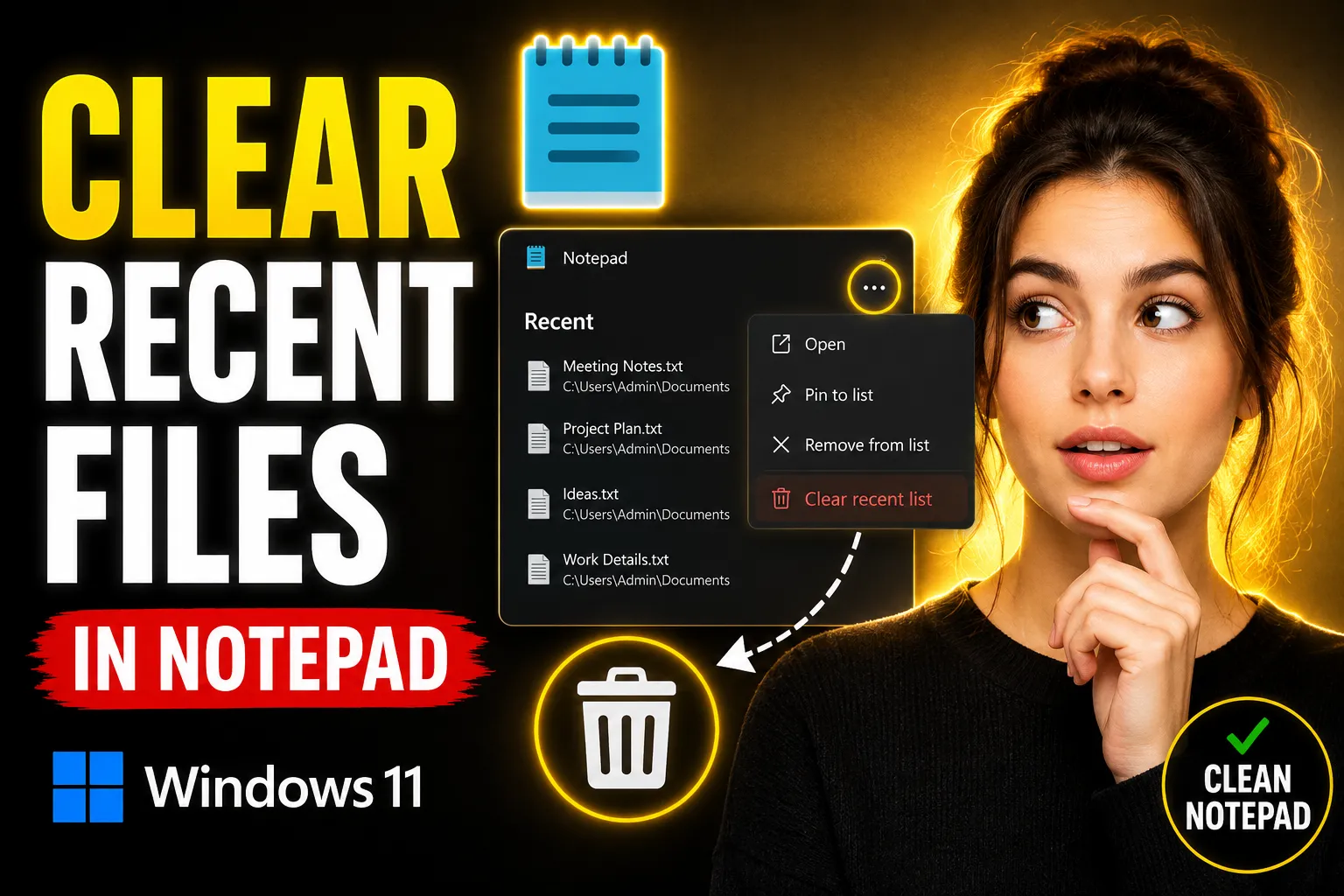
Windows 11 includes a redesigned Notepad app with tabs, autosave, dark mode, and a recent files section. While the recent files feature is useful for reopening notes quickly, many users prefer to clear the list for privacy, organization, or troubleshooting reasons.
If you share your computer, work with sensitive text files, or simply want a cleaner workspace, learning how to clear recent files in Notepad on Windows 11 can help.
This article explains every reliable method, including clearing recent files directly inside Notepad, resetting the app, removing individual files, and handling situations where the history does not disappear properly.
Table of Contents
- What Are Recent Files in Windows 11 Notepad?
- How to Clear Recent Files in Notepad on Windows 11
- Remove Individual Recent Files
- Reset Notepad to Clear File History
- Clear Recent Files Using Windows Settings
- How Windows 11 Stores Notepad History
- Why Recent Files Sometimes Reappear
- Alternative Tools for Private Note Taking
- Using an Online Whiteboard for Collaboration
- Common Problems and Fixes
- FAQ
- Conclusion
What Are Recent Files in Windows 11 Notepad?
The newer version of Notepad in Windows 11 keeps track of recently opened text files. These appear when you launch the app or click the File menu.
The feature is designed for convenience. Instead of searching through folders manually, you can reopen files instantly.
Recent files may include:
- TXT documents
- LOG files
- Markdown notes
- Configuration files
- Temporary drafts
The problem is that the list can expose private or work-related file names to anyone using the computer.
For example:
- passwords.txt
- client-notes.txt
- meeting-summary.txt
Even if the file itself is deleted, the recent history may still appear inside Notepad.
How to Clear Recent Files in Notepad on Windows 11
Quick Method
The fastest way to clear recent files in Notepad on Windows 11 is:
- Open Notepad
- Click the gear icon or open Settings
- Locate the “Recent Files” section
- Choose “Clear File History” or disable recent files
Microsoft occasionally changes the wording slightly depending on the Notepad version.
Step-by-Step Instructions
Step 1: Open Notepad
Press the Windows key and type:
NotepadOpen the app.
[IMAGE ALT: Windows 11 Start menu showing the Notepad app search result.]
Step 2: Access Notepad Settings
Click the settings gear icon in the upper-right corner.
If your Notepad version does not show the gear icon:
- Click the three-dot menu
- Select Settings
Step 3: Find the Recent Files Option
Scroll until you see:
- Recent files
- File history
- Recently opened files
Depending on the app version, you may see:
- A toggle switch
- A “Clear” button
- A privacy setting
Step 4: Clear the History
Click:
Clearor disable:
Show recent filesOnce cleared, the recent documents list disappears immediately.
💡 Key Takeaway:
Disabling recent files prevents Notepad from storing future history, while clearing history only removes the current list.
Remove Individual Recent Files
Sometimes you do not want to erase the entire history. You may only want to remove one file.
Windows 11 Notepad supports removing individual entries.
How to Remove One File
- Open Notepad
- Go to the recent files list
- Right-click the file
- Choose:
- Remove from list
- Forget file
- Remove recent item
This is useful when:
- One file contains sensitive information
- You want to keep the rest of your shortcuts
- A deleted file keeps showing up
Reset Notepad to Clear File History
If recent files refuse to disappear, resetting the app usually fixes the issue.
How to Reset Notepad
-
Open:
Settings → Apps → Installed Apps -
Search for:
Notepad -
Click:
Advanced Options - Scroll down
-
Click:
Reset
This removes:
- cached data
- recent file history
- temporary settings
However, it may also reset:
- theme preferences
- font settings
- tab behavior
| Action | Removes Recent Files | Removes Settings |
|---|---|---|
| Clear History | Yes | No |
| Disable Recent Files | Prevents future history | No |
| Reset App | Yes | Yes |
Clear Recent Files Using Windows Settings
In some cases, Windows stores document history separately from Notepad itself.
Clearing Windows recent items can help.
Method
Open Privacy Settings
Go to:
Settings → Personalization → StartTurn off:
Show recently opened itemsThen restart your PC.
This clears parts of Windows activity history that may affect Notepad suggestions.
How Windows 11 Stores Notepad History
Understanding where Notepad stores recent files helps explain why some entries keep returning.
Windows 11 Notepad may store information in:
- App cache
- Microsoft Store app data
- Windows recent items
- Cloud sync settings
- Session restore data
The newer Notepad app behaves differently from the classic Windows 7-era Notepad.
Older versions barely tracked anything. The Windows 11 version behaves more like a lightweight document editor.
That includes:
- autosave
- tab recovery
- session restoration
- file suggestions
This is convenient, but it also creates more traces of previous activity.
Why Recent Files Sometimes Reappear
A common complaint is:
“I cleared recent files, but they came back.”
This happens for several reasons.
1. Notepad Session Restore
Modern Notepad restores previously opened tabs automatically.
If tabs are still active in memory, they may reappear after reopening the app.
Fix
Close all tabs before clearing history.
Then:
- Exit Notepad completely
- Reopen it
- Clear the history again
2. Windows Cloud Sync
If you use a Microsoft account, some settings may sync across devices.
This is less common with Notepad but still possible.
Fix
Temporarily disable settings sync:
Settings → Accounts → Windows Backup3. Corrupted App Cache
Broken cache files can prevent history from updating correctly.
Fix
Use the Reset method described earlier.
4. File Is Still Open Somewhere
If another app references the same document, Windows may continue showing it.
Examples include:
- File Explorer quick access
- third-party editors
- backup software
Alternative Tools for Private Note Taking
Some users clear Notepad history because they want better privacy or easier note organization.
Traditional desktop apps are not always ideal for temporary notes or shared workspaces.
A cleaner alternative is using an online notepad that does not clutter local recent file history.
One option is Write Notes, an online note-taking application designed for quick browser-based notes without installing software.
You can also use the dedicated Free Online Notepad for lightweight text editing directly in the browser.
Benefits include:
- no local file clutter
- quick access from multiple devices
- simple interface
- no need to manage desktop text files manually
This can be useful for:
- temporary drafts
- quick reminders
- shared systems
- classroom environments
- public computers
Using an Online Whiteboard for Collaboration
Notepad works well for plain text, but it is limited for visual collaboration.
If you need brainstorming, diagrams, or team planning, an online whiteboard is often more practical.
The Online Collaborative Whiteboard provides a browser-based workspace where multiple users can collaborate in real time.
This type of tool is useful for:
- remote teams
- online tutoring
- project planning
- design discussions
- workflow mapping
Unlike local Notepad files, collaborative whiteboards are designed around shared access instead of isolated desktop documents.
Common Problems and Fixes
Notepad Does Not Show a Clear History Button
This usually means:
- your Notepad version is outdated
- Microsoft changed the interface
- the feature is hidden inside Settings
Fix
Update Notepad through the Microsoft Store.
Recent Files Keep Returning After Restart
Likely causes:
- session restore
- sync settings
- app cache corruption
Best Fix
- Close all tabs
- Clear history
- Reset Notepad
- Restart Windows
Deleted Files Still Appear
Removing a file from your computer does not automatically remove it from the recent files list.
Fix
Remove the entry manually from inside Notepad.
The Reset Button Is Greyed Out
This may happen if:
- you are using a managed work computer
- administrator restrictions are enabled
- Windows policies block resets
Fix
Contact the system administrator or use another local Windows account.
Best Practices for Keeping Notepad History Clean
If privacy matters, these habits help reduce leftover file traces.
Disable Recent Files Entirely
This is the most reliable long-term option.
Use Temporary Browser Notes
Online editors avoid local recent file buildup.
For quick drafts, browser-based tools can be simpler than creating multiple TXT files.
Store Sensitive Notes Securely
Notepad is not encrypted.
Avoid storing:
- passwords
- banking details
- confidential client data
inside plain TXT documents.
Clear Windows Recent Items Regularly
Windows itself stores activity history beyond Notepad.
Periodic cleanup improves privacy.
When You Should Avoid Clearing Recent Files
There are situations where recent file history is genuinely useful.
Examples:
- development work
- log analysis
- recurring task notes
- system administration
- coding projects
If you rely on the same text files daily, recent files save time.
A better approach may be removing only sensitive entries instead of deleting the entire history.
Comparison: Notepad vs Browser-Based Note Apps
| Feature | Windows Notepad | Browser-Based Notes |
|---|---|---|
| Local file storage | Yes | Optional |
| Recent file tracking | Yes | Usually minimal |
| Cross-device access | Limited | Yes |
| Collaboration | No | Often included |
| Installation required | No | No |
| Visual whiteboard support | No | Available in some tools |
This is why many users now combine lightweight desktop editing with browser-based note platforms.
FAQ
How do I clear recent files in Notepad on Windows 11 quickly?
Open Notepad, go to Settings, and use the Clear Recent Files option. If the option is unavailable, reset the app through Windows Settings.
Why does Notepad still show old files after I deleted them?
Deleting a file does not remove its entry from the recent files list. You must remove the item manually or clear the entire history.
Can I disable recent files in Notepad permanently?
Yes. In newer versions of Windows 11 Notepad, you can disable recent files from the Settings menu.
Does resetting Notepad delete my text files?
No. Resetting Notepad removes app settings and cached history, but it does not delete your saved TXT files.
Is Notepad secure for private notes?
Not really. Notepad saves plain text without encryption. Sensitive information should be stored in secure apps instead of regular TXT files.
Why is my Notepad history syncing between devices?
If you use a Microsoft account with sync enabled, some preferences or sessions may transfer between Windows devices.
Conclusion
Learning how to clear recent files in Notepad on Windows 11 is straightforward once you know where Microsoft placed the controls.
For most users, the built-in clear history option is enough. If entries keep returning, resetting the app or disabling recent files entirely usually solves the problem.
It is also worth considering how you use text notes overall. Local TXT files are convenient, but they can leave traces in Windows history and recent activity lists. For temporary notes, browser-based tools like Write Notes or a collaborative workspace such as the Online Collaborative Whiteboard can reduce clutter while improving accessibility across devices.

Alex Chen
I am a Digital Systems Architect and productivity specialist dedicated to building frictionless workflows. With over 2,000 hours of deep-work experimentation, I've mastered the art of transforming cluttered Write Notes workspaces into high-output engines.Having successfully migrated over 10,000 users into streamlined digital systems, I focus on the intersection of Personal Knowledge Management (PKM) and automated task architecture. When I'm not auditing the latest productivity tools, I manage a 1,500-note research library and consult for teams looking to reclaim their focus.