
How to Convert Notepad Text to Bold for Printing
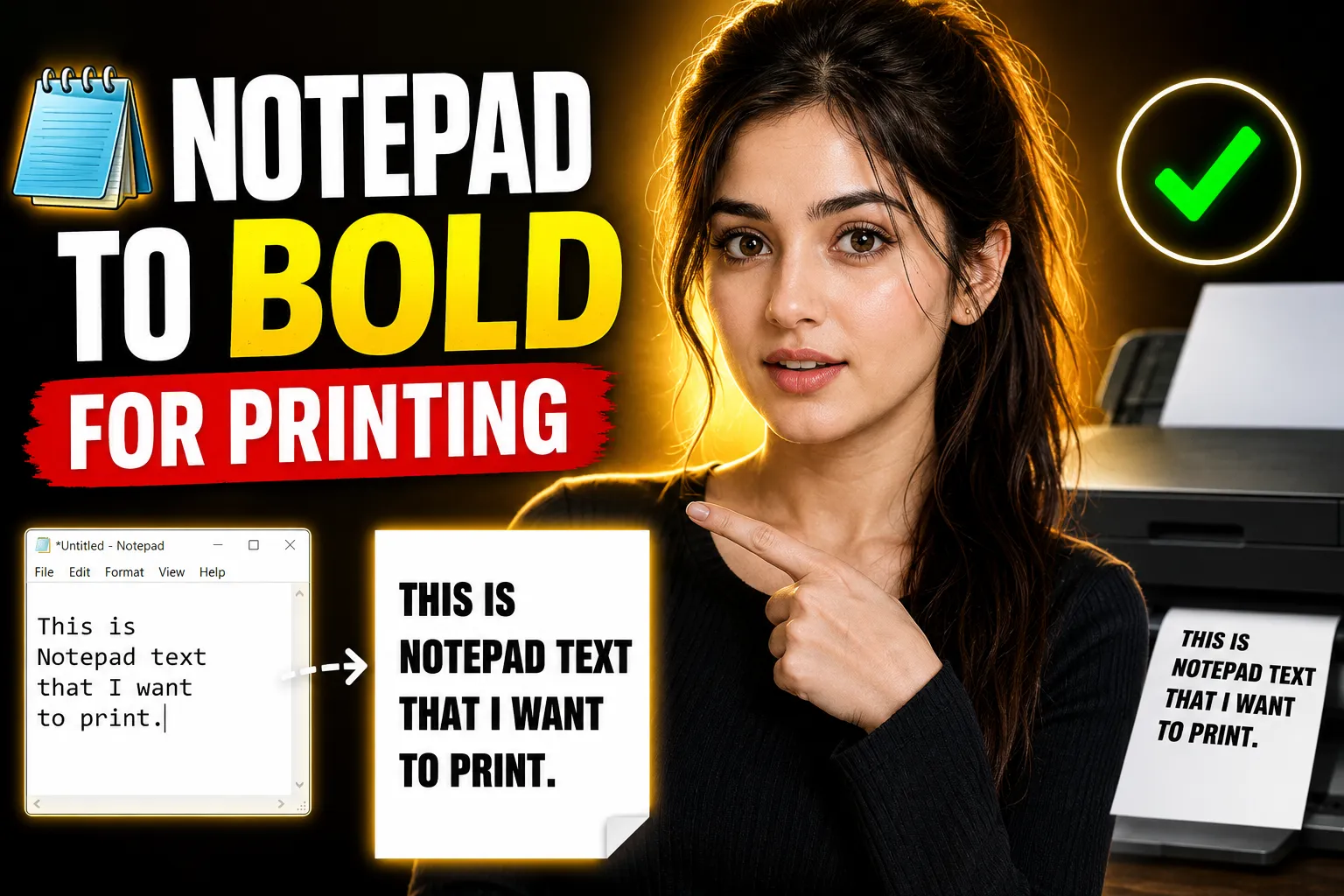
Plain text editors like Notepad are useful for quick notes, code snippets, and lightweight writing. But one limitation frustrates many users: you cannot directly make text bold in classic Windows Notepad.
If you try printing text from standard Notepad, everything appears in the same plain style. That becomes a problem when you want headings, emphasized sections, labels, or cleaner formatting for printed documents.
The good news is that there are several easy ways to convert Notepad text to bold for printing — even if you are a beginner. Some methods involve copying text into a richer editor, while others use modern online note-taking tools that support formatting from the start.
This guide explains the simplest and most practical ways to make your Notepad text bold before printing, including free online tools like Write Notes that make formatting much easier.
Table of Contents
- Why Notepad Cannot Make Text Bold
- The Easiest Way to Print Bold Text
- How to Make Notepad Text Bold Using WordPad
- Using Microsoft Word for Better Print Formatting
- Convert Plain Text to Bold with Online Editors
- Using Write Notes for Bold Text and Printing
- How to Print Bold Notes Properly
- Common Problems and Fixes
- Best Alternatives to Basic Notepad
- When You Should Avoid Plain Notepad
- FAQ
- Conclusion
Why Notepad Cannot Make Text Bold
Classic Windows Notepad is a plain text editor. It is designed to handle simple .txt files without formatting styles like:
- Bold
- Italic
- Underline
- Font sizes
- Colors
- Rich layouts
That means the text itself contains no formatting instructions. Even if you change the font globally inside Notepad settings, you cannot selectively bold specific words or headings.
Direct answer:
Standard Notepad cannot apply bold formatting to selected text because it only supports plain text formatting.
This limitation exists by design. Notepad focuses on simplicity and lightweight performance rather than document styling.
The Easiest Way to Print Bold Text
The fastest solution is:
- Copy your text from Notepad
- Paste it into a formatting editor
- Apply bold formatting
- Print the formatted version
You can use:
- WordPad
- Microsoft Word
- Google Docs
- Online note-taking apps
- Rich text editors
For beginners, WordPad or an online editor is usually the easiest option.
How to Make Notepad Text Bold Using WordPad
WordPad comes pre-installed on many Windows systems and supports rich text formatting.
Step-by-Step Instructions
Step 1: Open Your Notepad File
Open your .txt file in Notepad.
Step 2: Copy the Text
Press:
Ctrl + AThen:
Ctrl + CThis copies all the text.
Step 3: Open WordPad
Search for “WordPad” in the Windows Start menu and open it.
Step 4: Paste the Text
Press:
Ctrl + VStep 5: Select the Text You Want Bold
Highlight:
- titles
- headings
- important lines
- labels
Step 6: Apply Bold Formatting
Press:
Ctrl + BOr click the Bold (B) button in the toolbar.
Step 7: Print the Document
Go to:
File → PrintYour bold formatting will appear correctly on paper.
Using Microsoft Word for Better Print Formatting
If you need cleaner printing, Microsoft Word provides more control.
Advantages of Word Over Notepad
| Feature | Notepad | Microsoft Word |
|---|---|---|
| Bold text | No | Yes |
| Font sizes | Limited | Full control |
| Headers | No | Yes |
| Tables | No | Yes |
| Print layouts | Basic | Advanced |
| Images | No | Yes |
Recommended Workflow
- Copy text from Notepad
- Paste into Word
- Use styles for headings
- Apply bold formatting
- Preview before printing
Why This Works Better
Word handles:
- margins
- spacing
- print scaling
- page breaks
- alignment
That produces much cleaner printed documents compared to plain text editors.
Convert Plain Text to Bold with Online Editors
Online note-taking applications are often easier than desktop software, especially for beginners who want quick formatting without installing programs.
Modern online editors allow:
- bold text
- headings
- collaborative editing
- cloud saving
- browser-based printing
One beginner-friendly option is Write Notes, an online note-taking application and online notepad that supports formatted writing directly in your browser.
Instead of writing plain text and fixing formatting later, you can:
- create formatted notes immediately
- apply bold headings
- organize sections
- print clean documents
This removes many of the limitations of traditional Notepad.
Using Write Notes for Bold Text and Printing
Write Notes Free Online Notepad provides a more flexible way to create printable notes with formatting support.
How to Use It
Step 1: Open the Online Notepad
Visit the online notepad page.
Step 2: Paste or Write Your Content
You can:
- type directly
- paste existing Notepad text
- organize notes
Step 3: Apply Bold Formatting
Highlight text and use the formatting toolbar to make selected sections bold.
Typical uses include:
- titles
- instructions
- warnings
- section headings
- keywords
Step 4: Preview the Layout
Before printing:
- check spacing
- verify bold sections
- confirm readability
Step 5: Print
Use your browser print function:
Ctrl + PThe formatting will remain intact.
Why Online Note Editors Are Better Than Basic Notepad
Many users still rely on Windows Notepad out of habit, but modern online editors solve several problems at once.
Benefits of Online Note Editors
| Feature | Basic Notepad | Online Note App |
|---|---|---|
| Bold text | No | Yes |
| Cloud access | No | Yes |
| Collaboration | No | Yes |
| Formatting tools | Minimal | Rich formatting |
| Printing support | Limited | Better layouts |
| Device syncing | No | Often supported |
For users who frequently print notes, formatted online editors save time and reduce frustration.
Using an Online Collaborative Whiteboard for Visual Notes
Sometimes bold text alone is not enough. For teaching, planning, brainstorming, or presentations, visual organization matters too.
An online whiteboard allows you to:
- organize ideas visually
- highlight important sections
- collaborate with others
- create printable layouts
Write Notes Online Collaborative Whiteboard is useful for:
- classroom collaboration
- team planning
- project mapping
- remote brainstorming
- visual note sharing
This becomes especially helpful when printing diagrams, workflows, or collaborative notes where emphasis and structure matter more than plain text.
How to Print Bold Notes Properly
Formatting alone does not guarantee a good print result.
Here are several practical printing tips beginners often overlook.
Choose a Readable Font
Good printing fonts include:
- Arial
- Calibri
- Verdana
- Times New Roman
Avoid:
- decorative fonts
- extremely thin fonts
- oversized headings
Use Proper Font Sizes
Recommended print sizes:
| Content Type | Recommended Size |
|---|---|
| Main text | 11–12 pt |
| Headings | 14–18 pt |
| Labels | 12–14 pt bold |
Check Print Preview First
Always open:
Print Previewbefore printing.
This helps catch:
- cutoff text
- bad spacing
- oversized formatting
- page overflow
Avoid Overusing Bold
Bold text works best when used selectively.
Good uses:
- headings
- warnings
- instructions
- key points
Bad uses:
- entire paragraphs
- long blocks of text
- everything on the page
Too much bold formatting reduces readability.
Common Problems and Fixes
Problem: Bold Formatting Disappears
Cause
You saved the file as plain .txt.
Fix
Save the document as:
.docx.rtf- formatted online note
Plain text formats cannot preserve bold styling.
Problem: Printed Text Looks Different
Cause
Printer scaling or browser print settings.
Fix
Check:
- scale settings
- margins
- orientation
- paper size
Use print preview before final printing.
Problem: Browser Printing Cuts Off Content
Cause
Default browser margins.
Fix
Adjust:
Print Settings → Margins → Narrowor use landscape orientation when needed.
Problem: Online Formatting Is Not Saving
Cause
Browser cache issues or unsaved sessions.
Fix
- refresh carefully
- save copies
- export documents if available
Best Alternatives to Basic Notepad
If you regularly need formatting, standard Notepad may no longer be the best tool.
Here are better alternatives.
| Tool | Best For | Formatting | Beginner Friendly |
|---|---|---|---|
| WordPad | Simple formatting | Yes | Yes |
| Microsoft Word | Professional documents | Advanced | Yes |
| Google Docs | Cloud editing | Advanced | Yes |
| Write Notes | Fast online notes | Yes | Yes |
| Notion | Structured workspaces | Advanced | Moderate |
| OneNote | Research and organization | Advanced | Moderate |
When You Should Avoid Plain Notepad
Classic Notepad still works well for:
- coding
- logs
- quick temporary notes
- configuration files
But avoid it when you need:
- printed reports
- formatted notes
- visual organization
- collaborative editing
- document styling
A richer editor saves time and improves readability.
Practical Example: Converting a Plain Text Note into a Printable Document
Original Notepad Text
meeting agenda
project updates
budget discussion
new deadlines
Improved Formatted Version
MEETING AGENDA

• Project Updates
• Budget Discussion
• New Deadlines
With formatting:
- headings become easier to scan
- printed pages look cleaner
- important sections stand out
This small formatting change improves readability significantly.
Why Beginners Often Struggle with Notepad Printing
Most beginners assume:
- changing the font makes text bold
- printer settings can force bold formatting
.txtfiles support rich styling
But plain text files only store characters, not formatting instructions.
That misunderstanding causes confusion when printing.
The real solution is switching from plain text editing to rich text formatting before printing.
A Better Workflow for Printable Notes
A practical beginner workflow looks like this:
| Step | Action |
|---|---|
| 1 | Draft quick notes |
| 2 | Move content into formatted editor |
| 3 | Add bold headings |
| 4 | Organize sections |
| 5 | Preview print layout |
| 6 | Print final version |
This avoids most formatting issues entirely.
FAQ
Can I make text bold directly inside Windows Notepad?
No. Standard Windows Notepad does not support selective bold formatting because it is a plain text editor.
What is the easiest way to print bold text from Notepad?
Copy the text into:
- WordPad
- Microsoft Word
- Google Docs
- an online notepad with formatting support
Then apply bold formatting before printing.
Does saving as TXT preserve bold formatting?
No. TXT files remove formatting styles like:
- bold
- italics
- colors
- font sizes
You need formats like .docx or .rtf to preserve styling.
Is an online notepad better for printable notes?
For many users, yes. Online note editors provide:
- formatting tools
- cloud access
- easier printing
- collaboration features
without requiring software installation.
Can I collaborate with others while preparing printable notes?
Yes. Collaborative whiteboard and online note tools allow multiple users to organize ideas and format content together before printing.
Why does my printed text look smaller than expected?
This usually happens because of:
- browser scaling
- printer settings
- margin configuration
Check print preview and scaling settings before printing.
Should I still use classic Notepad?
Yes, for:
- code
- logs
- plain text editing
- configuration files
But for formatted printable documents, richer editors are more practical.
Conclusion
If you are trying to learn how to convert Notepad text to bold for printing, the key thing to understand is that classic Notepad does not support rich formatting. The simplest solution is moving your content into a tool that supports bold text and better print layouts.
For quick formatting, WordPad works well. For professional documents, Microsoft Word offers more control. And for browser-based editing, tools like Write Notes provide a simple way to create, format, and print notes online without installing extra software.
If you also need brainstorming or collaboration features, the online collaborative whiteboard can help organize ideas visually before printing.
The best approach is choosing the right editor before formatting becomes a problem.

Alex Chen
I am a Digital Systems Architect and productivity specialist dedicated to building frictionless workflows. With over 2,000 hours of deep-work experimentation, I've mastered the art of transforming cluttered Write Notes workspaces into high-output engines.Having successfully migrated over 10,000 users into streamlined digital systems, I focus on the intersection of Personal Knowledge Management (PKM) and automated task architecture. When I'm not auditing the latest productivity tools, I manage a 1,500-note research library and consult for teams looking to reclaim their focus.