
How to Disable Notepad Word Wrap Keyboard Shortcut
Microsoft Notepad is still one of the simplest text editors available on Windows. It launches quickly, consumes very little memory, and works well for plain-text editing. But one small issue frustrates many users: accidentally enabling Word Wrap through keyboard shortcuts or menu navigation.
If you frequently work with logs, code snippets, formatted text, or long single-line entries, Word Wrap can disrupt readability instantly. Text that should remain horizontal suddenly breaks into multiple lines, making editing frustrating.
This guide explains how to disable Notepad Word Wrap keyboard shortcut behavior, how Word Wrap actually works in modern Windows versions, and what alternatives exist if you need better control over text formatting.
You’ll also learn when Word Wrap helps, when it becomes a problem, and how tools like Write Notes can simplify online note-taking without dealing with desktop editor limitations.
Table of Contents
- What Word Wrap Does in Notepad
- Is There a Dedicated Keyboard Shortcut for Word Wrap?
- How to Disable Word Wrap in Notepad
- Preventing Accidental Word Wrap Activation
- Why Word Wrap Causes Problems for Some Users
- Best Situations to Keep Word Wrap Enabled
- Alternative Editors With Better Formatting Control
- Using an Online Notepad Instead of Desktop Notepad
- Collaborative Whiteboard Tools for Teams and Students
- Common Word Wrap Problems and Fixes
- FAQ
- Conclusion
What Word Wrap Does in Notepad
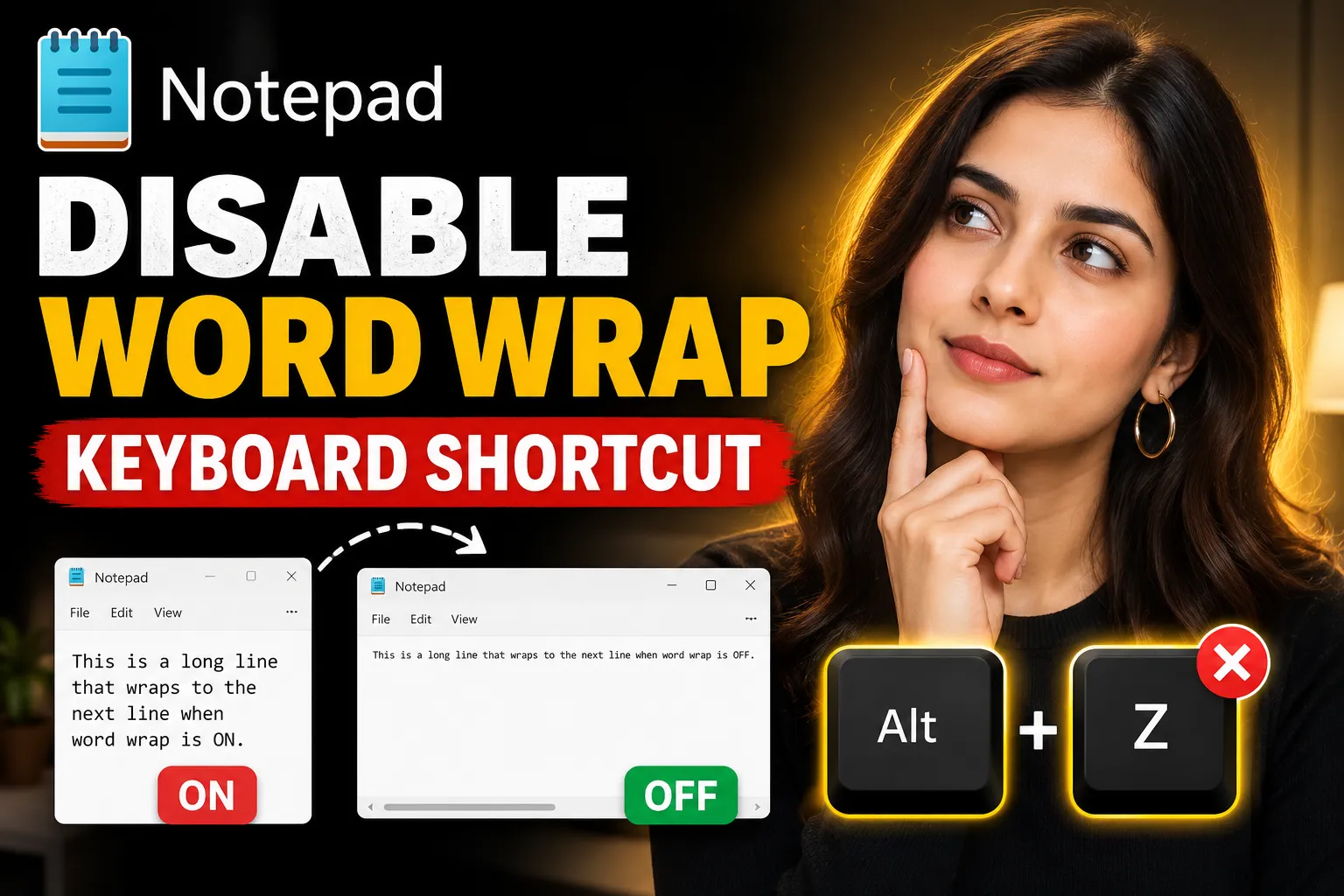
Word Wrap changes how text is displayed inside Notepad.
When Word Wrap is:
- Enabled → long lines automatically continue onto the next visible line
- Disabled → long lines stay on a single horizontal line and require scrolling
The actual file content does not change. Only the display changes.
For example:
Without Word Wrap:
This is a very long sentence that continues horizontally across the screen...With Word Wrap enabled:
This is a very long sentence
that continues horizontally
across the screen...This matters because some users rely on exact line formatting.
Common examples include:
- programming code
- server logs
- CSV data
- JSON files
- command-line output
- configuration files
In these situations, wrapped text can make structure harder to follow.
Is There a Dedicated Keyboard Shortcut for Word Wrap?
Direct answer:
No, modern Windows Notepad does not include a dedicated default keyboard shortcut specifically for toggling Word Wrap.
However, many users accidentally trigger it using:
- keyboard navigation shortcuts
- Alt menu combinations
- accessibility key sequences
- third-party keyboard remapping tools
The most common accidental sequence is:
Alt + O → WOlder versions of Notepad used the “Format” menu under the “O” mnemonic internally in some localized keyboard layouts or legacy Windows behavior.
In newer Windows 11 builds, menu structures have changed slightly, but accidental activation still happens through keyboard navigation.
How to Disable Word Wrap in Notepad
Disabling Word Wrap is straightforward.
Method 1: Disable Word Wrap From the Menu
Steps
- Open Notepad
- Click the “View” or “Format” menu depending on your Windows version
- Locate “Word Wrap”
- If checked, click it once to disable it
Once disabled:
- long lines remain horizontal
- text formatting becomes consistent
- accidental line display breaks stop occurring
Method 2: Use Keyboard Navigation Carefully
Even without a dedicated shortcut, keyboard navigation can toggle Word Wrap.
For example:
Alt → Format → Word Wrapor
Alt + O + Wdepending on the version and language settings.
To avoid accidental activation:
- avoid rapid Alt-key menu navigation
- disable conflicting macro tools
- check keyboard remapping apps
- inspect automation software like AutoHotkey
Method 3: Reset Notepad Settings
Sometimes Notepad remembers previous wrap settings.
To reset:
- Close Notepad
- Press:
Windows + R- Type:
%AppData%- Navigate to:
Microsoft- Locate Notepad-related preference files if available
- Restart Notepad
This may restore default behavior.
Preventing Accidental Word Wrap Activation
Many users are not intentionally enabling Word Wrap. The issue often comes from overlapping keyboard tools.
Common Causes
| Cause | Explanation |
|---|---|
| AutoHotkey scripts | May remap Alt combinations |
| Keyboard macro software | Gaming keyboards sometimes trigger macros |
| Accessibility features | Sticky Keys can alter key behavior |
| Remote desktop lag | Delayed inputs may open menus unexpectedly |
| Language layouts | Different keyboard mappings change menu shortcuts |
Practical Fixes
Disable Macro Utilities Temporarily
If you use:
- Logitech G Hub
- Razer Synapse
- Corsair iCUE
- AutoHotkey
test Notepad with those tools disabled.
Avoid Alt-Key Menu Navigation
Many accidental toggles happen because the Alt key activates menu focus.
Example:
Alt → Wmight unexpectedly interact with menu options.
Update Windows Notepad
Microsoft has updated Notepad significantly in Windows 11.
Newer versions include:
- tabs
- autosave
- improved search
- better rendering
- dark mode support
Older Notepad builds behave differently with menu shortcuts.
Updating Windows may reduce inconsistent keyboard behavior.
Why Word Wrap Causes Problems for Some Users
Word Wrap is useful for casual writing, but problematic for technical workflows.
Problem 1: Misaligned Code
Developers often need exact horizontal formatting.
Wrapped code becomes harder to scan.
Example issues:
- broken indentation visibility
- difficult debugging
- harder line comparison
- inaccurate visual spacing
Problem 2: Log File Analysis
System administrators often inspect:
- server logs
- error reports
- diagnostic dumps
These files may contain extremely long lines.
Wrapped display makes patterns difficult to track.
Problem 3: CSV and Data Editing
Comma-separated values depend on structured rows.
Wrapped text can visually distort:
- column relationships
- imported data
- delimiters
- formatting consistency
Problem 4: Terminal Output Review
Command-line results frequently rely on fixed-width formatting.
Word Wrap can make outputs unreadable.
This especially affects:
- PowerShell exports
- Linux terminal logs
- Git outputs
- JSON API responses
Best Situations to Keep Word Wrap Enabled
Word Wrap is not always bad.
For many users, it improves readability dramatically.
Keep Word Wrap Enabled For:
| Use Case | Why It Helps |
| General note-taking | Easier reading |
| Writing drafts | Cleaner paragraphs |
| Simple text editing | No horizontal scrolling |
| Journaling | Better readability |
| Brainstorming | More natural flow |
If your work is mostly writing-focused rather than technical, Word Wrap usually improves the experience.
Alternative Editors With Better Formatting Control
Notepad is intentionally minimal.
If you frequently switch Word Wrap on and off, you may benefit from more advanced editors.
Better Desktop Alternatives
| Editor | Best For |
| Notepad++ | Developers and power users |
| VS Code | Programming and large files |
| Sublime Text | Fast editing |
| Obsidian | Markdown notes |
| Typora | Clean writing workflow |
These tools provide:
- customizable shortcuts
- line numbering
- syntax highlighting
- wrap settings per file
- keyboard shortcut management
Using an Online Notepad Instead of Desktop Notepad
For quick writing and simple note-taking, browser-based editors are often more convenient than desktop Notepad.
One useful option is Write Notes.
It functions as an online note-taking application and online notepad that works directly in your browser without installing software.
Why Browser-Based Notepads Are Useful
Online editors solve several common Notepad frustrations:
- no installation required
- automatic saving
- accessible from multiple devices
- easier sharing
- cleaner interfaces
- fewer shortcut conflicts
This is especially useful for:
- students
- remote workers
- quick drafting
- temporary notes
- collaborative editing
Free Online Notepad Option
If you want a lightweight text editor in the browser, try the Free Online Notepad by Write Notes.
It works well for:
- quick notes
- temporary text storage
- writing drafts
- copy-paste workflows
- distraction-free editing
Unlike desktop Notepad, browser-based editors often avoid accidental operating-system keyboard conflicts.
Online Free Whiteboard With Collaboration
Text editors solve one problem. Brainstorming and visual collaboration solve another.
For teams, classrooms, and remote planning sessions, a collaborative whiteboard is often more effective than plain text.
The Online Collaborative Whiteboard from Write Notes allows users to work visually in real time.
Useful Scenarios
Team Brainstorming
Remote teams can:
- sketch ideas
- map workflows
- organize concepts
- collaborate live
Student Collaboration
Students can use collaborative whiteboards for:
- project planning
- group assignments
- concept mapping
- online tutoring
Creative Planning
Writers and designers often use whiteboards for:
- outlining articles
- organizing research
- visual thinking
- content structure planning
Common Word Wrap Problems and Fixes
Word Wrap Keeps Turning Back On
Possible causes:
- settings not saved
- Windows profile corruption
- third-party automation
- synced configurations
Fix
Try:
- Updating Windows
- Resetting Notepad preferences
- Testing another keyboard
- Disabling macro tools
Text Suddenly Looks Broken
This usually means Word Wrap was enabled accidentally.
Fix
Disable Word Wrap immediately from the menu.
Your actual file content is normally unaffected.
Horizontal Scrolling Disappeared
Horizontal scrolling only appears when Word Wrap is disabled.
Fix
Turn off Word Wrap.
Keyboard Shortcuts Behave Incorrectly
This may involve:
- keyboard layout conflicts
- accessibility settings
- macro utilities
- outdated drivers
Fix Checklist
| Action | Purpose |
| Update keyboard drivers | Fix compatibility issues |
| Disable Sticky Keys | Prevent altered shortcuts |
| Test Safe Mode | Isolate software conflicts |
| Remove macro apps | Eliminate remapped keys |
When Notepad Is No Longer Enough
Notepad works well because it is simple.
But simplicity becomes limiting when you need:
- collaboration
- cloud syncing
- formatting control
- advanced shortcuts
- autosave
- version history
That’s why many users eventually switch to:
- browser-based editors
- collaborative writing tools
- markdown editors
- cloud note apps
The transition usually happens once workflows become more complex.
Practical Workflow Recommendation
Here’s a realistic setup many users adopt:
| Task | Recommended Tool |
| Quick offline text edits | Notepad |
| Code editing | Notepad++ or VS Code |
| Browser note-taking | Write Notes |
| Shared brainstorming | Collaborative Whiteboard |
| Long-form writing | Markdown editor |
Using the right tool for each task reduces frustration significantly.
FAQ
Can I completely disable the Word Wrap shortcut in Notepad?
Not directly. Notepad does not provide built-in shortcut customization. You usually need third-party tools or keyboard remapping utilities to block certain key combinations.
Why does Word Wrap keep enabling automatically?
This often happens because of accidental menu activation, macro software, keyboard remapping tools, or accessibility settings like Sticky Keys.
Does Word Wrap change the actual file?
No. Word Wrap only changes how text is displayed inside Notepad. The file contents remain unchanged.
Is there a default keyboard shortcut for Word Wrap in Windows 11 Notepad?
There is no official dedicated shortcut assigned specifically to Word Wrap in modern Windows 11 Notepad versions.
What is the best alternative to Notepad for online note-taking?
Browser-based tools like Write Notes provide simple online note-taking without requiring software installation.
Can I collaborate with others using an online whiteboard?
Yes. Tools like the Write Notes Collaborative Whiteboard allow multiple users to brainstorm and work visually together online.
Conclusion
Accidentally enabling Word Wrap in Notepad is a surprisingly common annoyance, especially for users working with code, logs, structured data, or command-line output.
The good news is that Word Wrap itself is easy to disable. The harder part is identifying what keeps triggering it. In many cases, the cause is keyboard navigation, macro utilities, accessibility settings, or outdated software behavior.
If you only need lightweight text editing, modern browser-based tools can simplify the workflow significantly. Platforms like Write Notes provide a cleaner online note-taking experience, while collaborative whiteboards help teams and students organize ideas visually.
The best setup depends on how you actually work. Simple tools remain effective — as long as they don’t interrupt the workflow you rely on.

Alex Chen
I am a Digital Systems Architect and productivity specialist dedicated to building frictionless workflows. With over 2,000 hours of deep-work experimentation, I've mastered the art of transforming cluttered Write Notes workspaces into high-output engines.Having successfully migrated over 10,000 users into streamlined digital systems, I focus on the intersection of Personal Knowledge Management (PKM) and automated task architecture. When I'm not auditing the latest productivity tools, I manage a 1,500-note research library and consult for teams looking to reclaim their focus.