
How to Disable Spell Check in Notepad on Windows 11
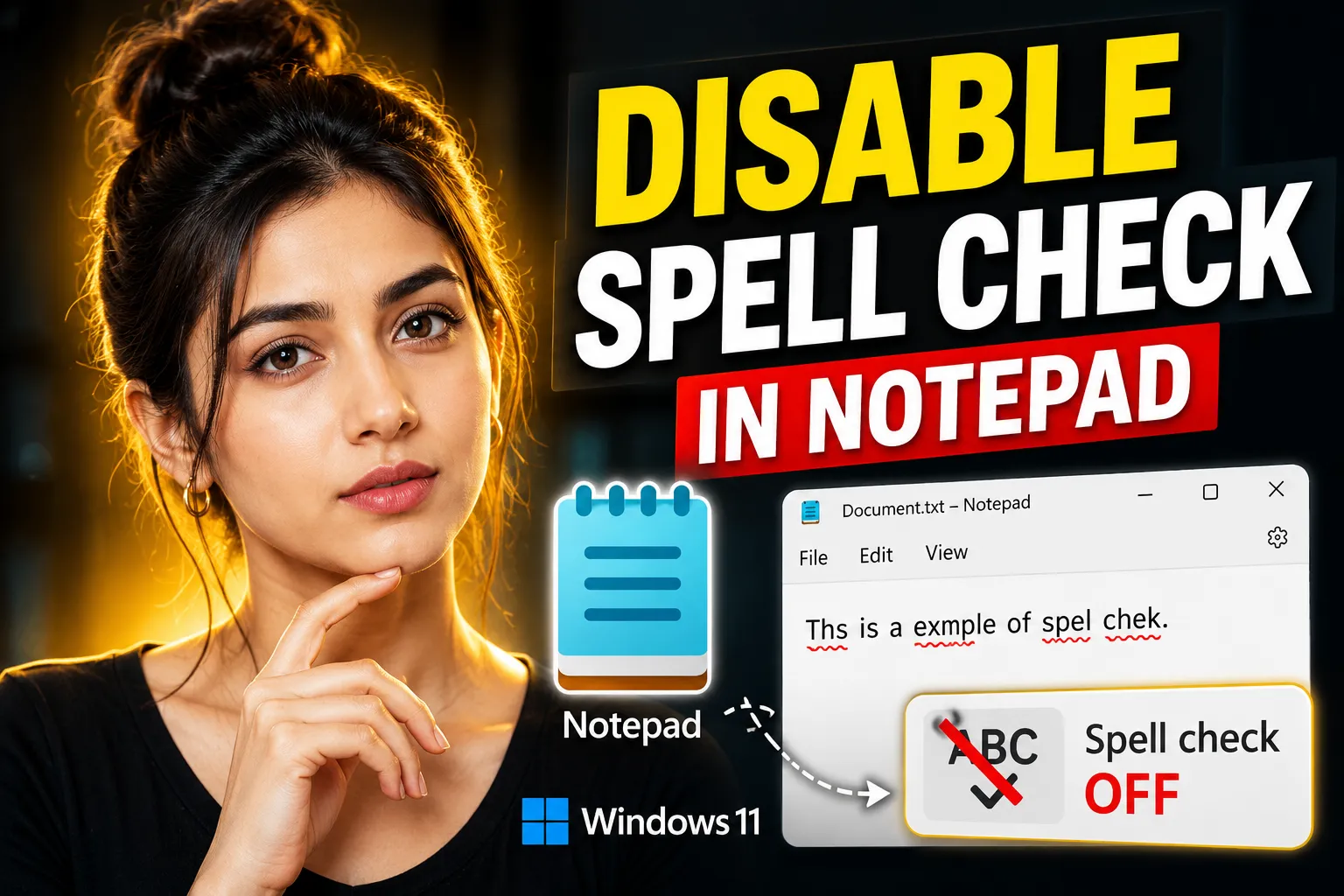
Microsoft updated Notepad in Windows 11 with modern editing features, including spell check and autocorrect. While some users find these features useful, others consider them distracting — especially when writing code, editing configuration files, taking raw notes, or working with technical terminology.
If you want to disable spell check in Notepad on Windows 11, the process is straightforward once you know where the settings are located. This guide explains multiple methods, what changes after disabling spell check, and how to troubleshoot cases where the option does not appear correctly.
You’ll also learn how Windows 11 handles spell checking system-wide and when using an online note-taking alternative may make more sense.
Table of Contents
- What Spell Check Does in Windows 11 Notepad
- How to Disable Spell Check in Notepad
- How to Turn Off Autocorrect in Notepad
- Disable Spell Check System-Wide in Windows 11
- Why Some Users Disable Notepad Spell Check
- What Happens After Disabling Spell Check
- Troubleshooting Common Issues
- Alternatives to Notepad for Notes and Collaboration
- Frequently Asked Questions
- Conclusion
What Spell Check Does in Windows 11 Notepad
The newer version of Notepad in Windows 11 includes built-in spelling correction similar to what you see in Microsoft Word or web browsers.
Features include:
- Red underline for misspelled words
- Autocorrect suggestions
- Automatic typo correction
- Multi-language dictionary support
- Right-click spelling suggestions
Microsoft gradually introduced these features through updated Notepad versions from the Microsoft Store.
Spell check is enabled by default for many users, although behavior can vary depending on:
- Windows version
- Installed language packs
- Keyboard settings
- Notepad app version
For casual note-taking, the feature is often useful. But for developers, system administrators, students working with formulas, or users writing commands, spell check can become noisy and inaccurate.
How to Disable Spell Check in Notepad on Windows 11
The fastest way to disable spell check is directly inside the Notepad app settings.
Method 1: Disable Spell Check from Notepad Settings
Follow these steps:
- Open Notepad
- Click the gear icon in the top-right corner
- Open Settings
- Find the Spelling section
- Toggle off:
- Spell check
- Autocorrect
After turning these off, Notepad will stop highlighting misspelled words and automatically changing text.
This change applies immediately. You usually do not need to restart the app.
Method 2: Disable Spell Check for Specific File Types
Windows 11 Notepad may automatically disable spell check for some coding-related file extensions such as:
.txt.md.srt.gitignore.json.cfg
However, behavior can differ between updates.
To manually adjust settings:
- Open Notepad Settings
- Navigate to spelling options
- Look for supported file-type preferences
- Disable spell check where applicable
This is useful if you want spell check enabled for regular notes but disabled for scripts or technical files.
How to Turn Off Autocorrect in Notepad
Spell check and autocorrect are separate features.
Even after disabling spell check, Windows may still automatically replace words while typing.
To fully stop automatic corrections:
- Open Notepad
- Go to Settings
- Disable:
- Autocorrect
- Highlight misspelled words
This prevents Windows from replacing text unexpectedly.
Common Examples of Annoying Autocorrect Behavior
Users often disable autocorrect when working with:
| Content Type | Example |
|---|---|
| Coding | Variable names |
| Server commands | PowerShell commands |
| Technical notes | API endpoints |
| Gaming terms | Usernames or slang |
| Research notes | Scientific terminology |
Autocorrect frequently misinterprets these as spelling mistakes.
Disable Spell Check System-Wide in Windows 11
Sometimes Notepad continues showing corrections because Windows typing settings remain enabled globally.
To disable system-wide spelling assistance:
- Open Settings
- Go to Time & Language
- Select Typing
- Turn off:
- Autocorrect misspelled words
- Highlight misspelled words
These settings affect multiple Windows apps, not just Notepad.
Windows 11 Typing Settings Explained
Windows uses a centralized typing engine for many built-in applications.
That means disabling spell check globally can also affect:
- Sticky Notes
- Some Microsoft Store apps
- Touch keyboard suggestions
- Search fields
- Other lightweight text editors
When Global Disable Makes Sense
You may want system-wide disabling if you:
- Write code regularly
- Use multiple languages
- Work with command-line tools
- Create raw text documentation
- Use shorthand or abbreviations heavily
When You Should Keep It Enabled
Keeping spell check enabled may still help if you:
- Write articles
- Draft emails
- Create academic notes
- Use Windows primarily for office work
Why Some Users Disable Notepad Spell Check
The main reason is accuracy.
Spell check systems are designed for standard language writing, not technical workflows.
Common Problems Users Experience
False Positives
Notepad may flag:
- file paths
- Linux commands
- registry keys
- programming syntax
- usernames
- acronyms
as spelling mistakes.
Performance Distractions
On lower-powered systems or very large text files, constant real-time checking can occasionally feel distracting.
While modern hardware usually handles this well, users editing logs or long raw text files sometimes prefer a cleaner interface.
Unwanted Formatting Interruptions
Red underlines can clutter technical notes.
This becomes especially annoying when:
- editing scripts
- documenting server setups
- writing markdown
- taking classroom notes quickly
Multilingual Typing Problems
Users switching between languages often see unnecessary corrections because Windows detects the wrong input language.
Disabling spell check avoids constant language mismatches.
What Happens After Disabling Spell Check
Once disabled:
- Red underlines disappear
- Autocorrect stops replacing text
- Suggestions no longer appear automatically
- Technical terms remain untouched
However, this also means:
- actual typos will not be highlighted
- grammar errors go unnoticed
- typo correction becomes manual
For many technical users, that tradeoff is worth it.
Does Disabling Spell Check Improve Performance?
Usually, the performance difference is small.
However, some users notice smoother editing when:
- opening massive text files
- editing logs
- working remotely through virtual desktops
- using older hardware
The bigger benefit is typically reduced visual distraction rather than major speed gains.
Troubleshooting Common Issues
Sometimes the spell check settings do not appear or behave inconsistently.
Here are the most common fixes.
Spell Check Option Missing in Notepad
If you cannot find spelling settings:
Possible Causes
| Cause | Explanation |
|---|---|
| Outdated Notepad version | Older builds lack the feature |
| Windows update pending | Newer features not installed |
| Enterprise restrictions | Managed PCs may disable options |
| Regional rollout delay | Features sometimes release gradually |
Fix
Update Notepad through the Microsoft Store.
Steps:
- Open Microsoft Store
- Search for Notepad
- Click Update if available
Then reopen the app.
Spell Check Keeps Turning Back On
This can happen if:
- Windows sync settings are enabled
- Microsoft account sync restores preferences
- Enterprise policies override settings
Try This
- Disable spell check in Notepad
- Disable global typing settings
- Restart Windows
- Test again
If settings still reset, check whether your organization manages device policies.
Red Underlines Still Appear
Sometimes another application layer is responsible.
Examples include:
- browser-based editors
- third-party typing tools
- grammar extensions
- accessibility software
Verify that:
- you are using actual Notepad
- browser spell check is disabled
- no third-party grammar software is active
Alternatives to Notepad for Notes and Collaboration
Notepad works well for lightweight editing, but it has limitations for organization, syncing, and collaboration.
If you regularly work across devices or share notes with others, an online note-taking platform can be more practical.
Write Notes
Write Notes is an online note-taking application designed for quick writing, editing, and browser-based note management.
It functions as an Online Notepad without requiring complicated setup or heavy desktop software.
Useful scenarios include:
- temporary notes
- quick drafts
- coding snippets
- classroom notes
- collaborative brainstorming
- browser-based text editing
Because it runs online, you can access notes across devices without depending entirely on local Windows apps.
Free Online Notepad
For users who want a lightweight browser-based editor, the Free Online Notepad provides a cleaner alternative to desktop note apps.
This can help when:
- using shared computers
- switching between devices
- avoiding local file clutter
- taking quick temporary notes
Unlike traditional Notepad, online editors also reduce dependence on Windows-specific settings like built-in spell check behavior.
Online Collaborative Whiteboard
Text notes are not always enough for planning or teamwork.
The Online Collaborative Whiteboard adds visual collaboration features for brainstorming, diagrams, and shared editing sessions.
This is especially useful for:
- remote teams
- students
- project planning
- flowcharts
- teaching sessions
- collaborative ideation
Combining text notes with visual collaboration tools often works better than relying only on basic desktop editors.
When an Online Note App Makes More Sense Than Notepad
| Use Case | Notepad | Online Note App |
|---|---|---|
| Offline text editing | Excellent | Limited |
| Collaboration | No | Yes |
| Device syncing | No | Yes |
| Whiteboard support | No | Yes |
| Browser access | No | Yes |
| Quick raw text editing | Excellent | Good |
Notepad remains ideal for lightweight local editing, but browser-based tools provide better flexibility for collaboration and organization.
Best Practices After Disabling Spell Check
Once spell check is disabled, you should still avoid avoidable typing mistakes.
Here are practical habits that help.
Use Separate Tools for Final Editing
Many users:
- draft quickly in Notepad
- review later in Word or browser editors
This workflow keeps technical writing distraction-free while preserving proofreading later.
Keep Technical and Regular Writing Separate
Consider:
- disabling spell check in Notepad
- keeping it enabled in office apps
This balance works well for mixed workflows.
Save Important Notes Properly
Notepad has minimal recovery features.
For important work:
- use cloud backups
- save versioned copies
- sync critical notes
Online note platforms can help reduce accidental data loss.
[INTERNAL LINK: "best note-taking apps for Windows" → productivity tools]
Frequently Asked Questions
Can I disable spell check only for Notepad?
Yes. Newer versions of Windows 11 Notepad allow spell check and autocorrect to be disabled directly from the app settings without affecting the entire system.
Why does Notepad underline technical words?
The built-in dictionary is designed for standard language patterns, so commands, file paths, code snippets, and acronyms may appear as misspellings.
Does disabling spell check remove autocorrect too?
Not always. Spell check and autocorrect are separate settings. You may need to disable both individually.
Is spell check available in older versions of Notepad?
No. Older Notepad versions in Windows 10 and early Windows 11 releases did not include integrated spell checking.
Will disabling spell check affect Microsoft Word?
No. Microsoft Word uses its own spelling and grammar system separate from Notepad settings.
Can I re-enable spell check later?
Yes. Simply return to Notepad Settings and toggle spell check back on at any time.
Conclusion
Disabling spell check in Notepad on Windows 11 is simple once you know where the settings are located. For technical users, developers, and anyone working with raw text, turning off spelling assistance can create a cleaner and less distracting editing experience.
The key is understanding the difference between Notepad-specific settings and Windows-wide typing controls. In some cases, you may need to disable both to fully stop corrections and underlines.
If your workflow goes beyond simple text editing, browser-based tools like Write Notes and collaborative platforms such as the Online Collaborative Whiteboard can provide more flexibility for note-taking, organization, and teamwork.

Alex Chen
I am a Digital Systems Architect and productivity specialist dedicated to building frictionless workflows. With over 2,000 hours of deep-work experimentation, I've mastered the art of transforming cluttered Write Notes workspaces into high-output engines.Having successfully migrated over 10,000 users into streamlined digital systems, I focus on the intersection of Personal Knowledge Management (PKM) and automated task architecture. When I'm not auditing the latest productivity tools, I manage a 1,500-note research library and consult for teams looking to reclaim their focus.