
How to Enable Dark Mode in Notepad on Windows 10
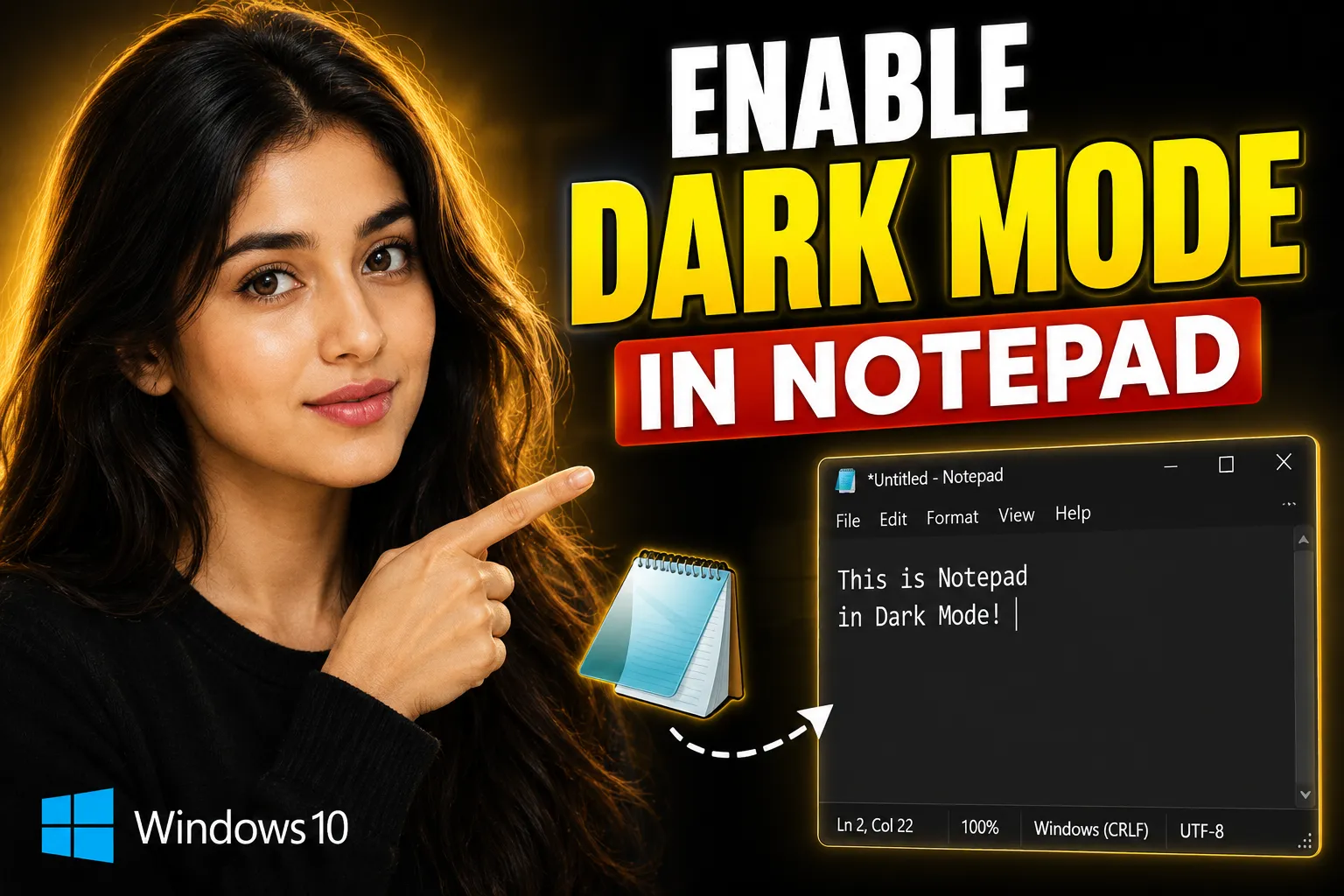
Notepad has been part of Windows for decades because it’s lightweight, fast, and reliable. But the default white background can become uncomfortable during long writing or coding sessions, especially at night. Many Windows 10 users want a dark interface in Notepad but discover that the feature is not always enabled by default.
The good news is that you can manually enable dark mode in Notepad on Windows 10 using built-in Windows settings and a few additional customization methods. This guide explains every working method, including troubleshooting steps for systems where the dark theme option is missing.
You’ll also learn how to customize Notepad for better readability and discover a few browser-based alternatives for note-taking and collaboration.
Table of Contents
- What Is Dark Mode in Notepad?
- Does Windows 10 Support Notepad Dark Mode?
- How to Enable Dark Mode in Notepad on Windows 10
- How to Enable System-Wide Dark Theme
- What to Do If Dark Mode Is Missing in Notepad
- Alternative Method: Use High Contrast Themes
- Customize Notepad for Better Dark Mode Readability
- Best Online Alternatives to Notepad
- Common Problems and Fixes
- Frequently Asked Questions
- Conclusion
What Is Dark Mode in Notepad?
Dark mode changes Notepad’s interface from a bright white background to darker colors with light text. This reduces screen glare and can make text easier to read in low-light environments.
In Windows 10, dark mode support in Notepad depends on:
- Your Windows version
- Whether the app is updated
- System personalization settings
Older Windows 10 builds do not include native Notepad dark mode support, while newer versions support it through Windows personalization settings.
Does Windows 10 Support Notepad Dark Mode?
Yes, but only newer Windows 10 versions support native dark mode in Notepad.
Microsoft gradually added dark mode support to Notepad through updates. If your PC runs an outdated Windows 10 build, you may not see the dark theme option immediately.
Windows 10 versions with better dark mode support
| Windows Version | Dark Mode Support in Notepad |
|---|---|
| Older builds (before 21H2) | Limited or unavailable |
| Windows 10 21H2 and newer | Supported |
| Windows 11 | Fully supported |
If your system is outdated, updating Windows is often the easiest fix.
How to Enable Dark Mode in Notepad on Windows 10
The simplest method is enabling Windows dark mode through personalization settings.
Step 1: Open Windows Settings
Press:
Windows + IThis opens the Settings app.
Step 2: Go to Personalization
Inside Settings:
Personalization → ColorsThis section controls Windows theme behavior.
Step 3: Change Your Default App Mode
Scroll down until you find:
Choose your default app modeSelect:
DarkWindows will immediately switch supported apps to dark mode.
Step 4: Open Notepad
Launch Notepad normally.
If your Windows version supports it, the interface should now appear with:
- dark background
- light text
- dark menus
How to Enable System-Wide Dark Theme
Some systems require full Windows dark theme activation before Notepad changes appearance.
Enable Full Dark Theme
Go to:
Settings → Personalization → ColorsUnder:
Choose your colorSelect:
DarkThis changes:
- supported apps
- Start menu
- taskbar
- File Explorer
- Notepad (if supported)
What to Do If Dark Mode Is Missing in Notepad
Many users follow the standard instructions and still see the classic white Notepad interface.
Usually, one of these issues is responsible.
Check Your Windows Version
To verify your Windows build:
Press:
Windows + RType:
winverThen press Enter.
If your build is outdated, update Windows through:
Settings → Update & Security → Windows UpdateInstall all available updates and restart the PC.
Update Notepad from Microsoft Store
Some Windows 10 systems receive Notepad updates separately from core Windows updates.
To update Notepad:
- Open Microsoft Store
- Search for “Notepad”
- Click Update if available
This often adds newer interface features, including dark mode support.
Restart Notepad After Changing Theme
Notepad sometimes caches the old theme.
Close the app completely and reopen it after changing Windows theme settings.
If that does not work:
- restart Windows
- reopen Notepad
- check again
Alternative Method: Use High Contrast Themes
If your version of Notepad still does not support native dark mode, you can simulate it using Windows High Contrast settings.
Enable High Contrast
Go to:
Settings → Ease of Access → High ContrastTurn on:
High ContrastChoose a dark theme preset.
This changes the appearance of legacy apps, including older versions of Notepad.
Advantages of High Contrast Mode
| Benefit | Explanation |
|---|---|
| Better visibility | Easier reading in dark rooms |
| Works on older builds | Useful for unsupported systems |
| Strong text contrast | Helps accessibility |
Drawbacks
| Limitation | Impact |
|---|---|
| Affects entire Windows UI | Not limited to Notepad |
| Some apps look unusual | Interface inconsistencies |
| Colors may feel harsh | Less refined than native dark mode |
Customize Notepad for Better Dark Mode Readability
Even after enabling dark mode, readability depends heavily on font settings.
You can manually customize Notepad for a better experience.
Change the Font
Inside Notepad:
Format → FontRecommended fonts for dark themes:
| Font | Best Use |
|---|---|
| Consolas | Coding |
| Cascadia Code | Modern coding setup |
| Courier New | Classic terminal style |
| Segoe UI | General writing |
Increase Font Size
Larger fonts reduce eye strain in dark interfaces.
Recommended range:
14–18 ptThis is especially useful on high-resolution monitors.
Enable Word Wrap
For note-taking and long writing sessions:
Format → Word WrapThis prevents horizontal scrolling.
Best Online Alternatives to Notepad
While Windows Notepad is useful for simple text editing, browser-based tools offer additional features like syncing, collaboration, and whiteboards.
Write Notes – Online Notepad Alternative
Write Notes is an online note-taking application designed for quick writing, drafting, and saving notes directly in the browser.
Features include:
- browser-based editing
- simple interface
- fast access
- no software installation
- accessible from multiple devices
This is useful for users who want a lightweight Notepad-style experience without depending entirely on desktop software.
Free Online Notepad
Free Online Notepad provides a distraction-free writing environment similar to classic Notepad but accessible online.
This can be useful when:
- using shared computers
- switching between devices
- writing temporary notes
- avoiding local file clutter
Online Collaborative Whiteboard
For brainstorming and visual collaboration, Online Collaborative Whiteboard adds features beyond traditional text editors.
It supports:
- collaborative planning
- visual sketching
- remote teamwork
- idea mapping
- shared editing
This is especially useful for students, remote teams, and project discussions.
Common Problems and Fixes
Notepad Still Shows White Background
Possible causes
- outdated Windows version
- unsupported Notepad build
- Windows theme not fully enabled
Fixes
- update Windows
- update Notepad
- restart the app
- reboot the computer
Dark Mode Works in Windows but Not in Notepad
This usually means your Notepad version predates native dark mode support.
Solution
Update the app through Microsoft Store or Windows Update.
Text Is Hard to Read in Dark Mode
Recommended fixes
- increase font size
- switch to Consolas
- adjust monitor brightness
- enable ClearType text
High Contrast Looks Too Aggressive
High Contrast mode prioritizes accessibility over aesthetics.
If it feels visually harsh:
- disable High Contrast
- use native dark mode instead
- consider browser-based editors with customizable themes
Why Some Users Prefer Dark Mode
Dark mode is not just cosmetic. Many users prefer it for practical reasons.
Common benefits
| Benefit | Why It Matters |
|---|---|
| Reduced eye strain | More comfortable at night |
| Lower glare | Easier on bright monitors |
| Better focus | Less visual fatigue |
| Modern appearance | Cleaner interface |
That said, dark mode is not universally better. Some users still prefer light themes for daytime reading because black text on white backgrounds can improve readability in bright environments.
💡 Key Takeaway:
Dark mode improves comfort for many users, but the best setup depends on lighting conditions, monitor quality, and personal preference.
Dark Mode vs Third-Party Text Editors
Some users move beyond Notepad entirely and use editors with advanced theme systems.
Comparison
| Editor | Dark Mode Support | Best For |
|---|---|---|
| Notepad | Basic | Quick edits |
| Notepad++ | Extensive | Coding |
| Visual Studio Code | Advanced | Development |
| Browser-based Notepads | Flexible | Cross-device access |
If your needs are simple, Windows Notepad remains fast and lightweight. For advanced formatting, syncing, or collaboration, online tools often provide more flexibility.
[INTERNAL LINK: "best online note-taking apps" → productivity tools]
Security Considerations for Online Notepads
Browser-based editors are convenient, but sensitive information should be handled carefully.
Good practices
- avoid storing passwords in plain text
- use secure internet connections
- sign out on shared devices
- review platform privacy policies
For temporary notes and collaborative work, online tools are usually more than sufficient.
When Dark Mode Does Not Improve Comfort
Dark mode helps many users, but there are situations where it can reduce readability.
Examples
- very bright office environments
- low-quality displays
- small font sizes
- poor contrast settings
Some people also experience “halation,” where light text on dark backgrounds appears blurry.
In those cases:
- use gray backgrounds instead of pure black
- increase font weight
- reduce screen brightness
- try alternative color schemes
Frequently Asked Questions
Can I enable dark mode in Notepad without updating Windows?
Sometimes, but support depends on your current Windows build. Older versions usually require updates or High Contrast mode.
Why does Notepad stay white after enabling dark mode?
Your Notepad version may not support dark themes yet, or the app may need updating through Microsoft Store.
Does dark mode reduce eye strain?
For many users, yes. It reduces glare in low-light conditions, though some people still prefer light themes during daytime use.
Is dark mode available on all Windows 10 PCs?
No. Native Notepad dark mode support depends on Windows version and installed updates.
Can I customize Notepad colors manually?
Classic Notepad offers limited customization. For advanced color control, third-party editors provide better theme systems.
Are online Notepad tools safe?
Most are reasonably safe for normal note-taking, but avoid storing highly sensitive information in plain text online.
Conclusion
Enabling dark mode in Notepad on Windows 10 is usually straightforward once your system supports it. In most cases, switching Windows to dark mode through personalization settings immediately changes the Notepad interface.
If dark mode does not appear, the issue is typically caused by outdated Windows builds or older Notepad versions. Updating Windows and the Microsoft Store app usually resolves the problem.
For users who want additional flexibility, browser-based tools like Write Notes and its Free Online Notepad provide lightweight alternatives, while the Online Collaborative Whiteboard supports collaborative planning and visual brainstorming.
The best setup depends on how you use Notepad: quick local editing, online note-taking, coding, or collaborative work.

Alex Chen
I am a Digital Systems Architect and productivity specialist dedicated to building frictionless workflows. With over 2,000 hours of deep-work experimentation, I've mastered the art of transforming cluttered Write Notes workspaces into high-output engines.Having successfully migrated over 10,000 users into streamlined digital systems, I focus on the intersection of Personal Knowledge Management (PKM) and automated task architecture. When I'm not auditing the latest productivity tools, I manage a 1,500-note research library and consult for teams looking to reclaim their focus.