
How to Export Notepad Tabs to Individual Files
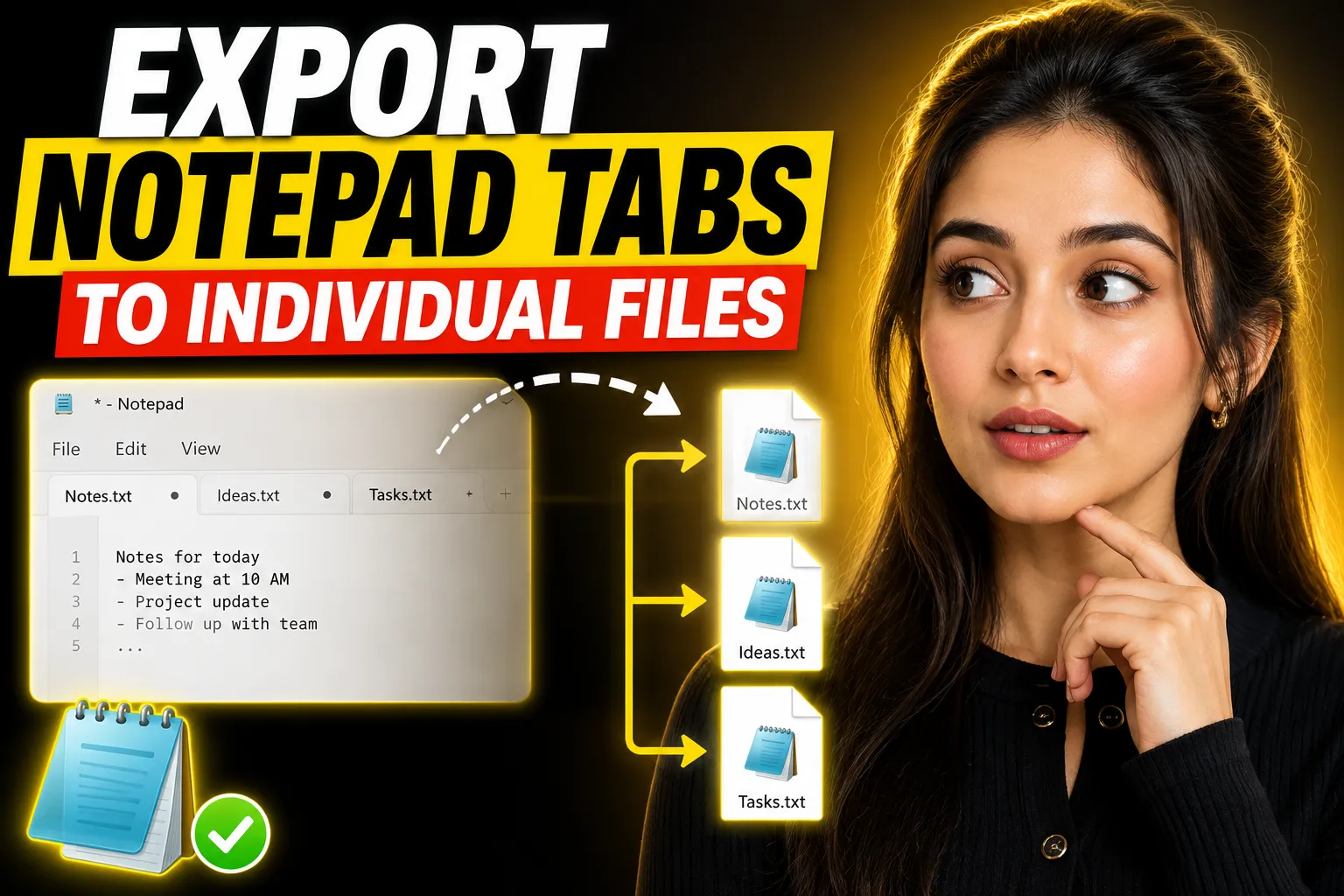
Modern versions of Notepad support tabs, which makes it much easier to work with multiple text documents in a single window. The problem starts when you want to export Notepad tabs to individual files quickly and cleanly.
Unlike full-featured code editors, Notepad still lacks advanced tab management and bulk export features. If you have several unsaved tabs open, saving them one by one can become repetitive and error-prone.
This guide explains how to export Notepad tabs to individual files on Windows, what limitations exist, how to avoid losing data, and when an online note-taking tool may be a better option for managing multiple notes.
You’ll also learn alternative workflows using:
- Batch saving techniques
- Keyboard shortcuts
- Automation tools
- Browser-based note apps
- Collaborative whiteboards for organizing ideas visually
Table of Contents
- Understanding How Notepad Tabs Work
- Can You Export All Notepad Tabs Automatically?
- How to Save Each Notepad Tab as an Individual File
- Fastest Method for Bulk Saving Multiple Tabs
- What Happens to Unsaved Tabs in Notepad
- Common Problems When Exporting Tabs
- Better Alternatives for Managing Multiple Notes
- Using Online Notepad Tools Instead of Desktop Tabs
- When a Collaborative Whiteboard Makes More Sense
- FAQ
- Conclusion
Understanding How Notepad Tabs Work
Microsoft added tab support to Notepad in recent versions of Windows 11. Instead of opening separate windows for every text document, you can now keep multiple notes inside a single Notepad window.
Each tab behaves like an independent text file:
- It can contain unsaved content
- It can have its own file path
- It can remain open between sessions
- It can be restored after restarting Windows
This is useful for:
- Quick note-taking
- Temporary drafts
- Code snippets
- To-do lists
- Research notes
However, Notepad tabs are still relatively simple compared to advanced editors like Visual Studio Code or Notepad++.
There is currently no built-in “Export All Tabs” button.
That means every tab usually needs to be saved manually.
Can You Export All Notepad Tabs Automatically?
Short answer: not natively.
Windows Notepad does not currently provide:
- Bulk export options
- Batch save features
- Multi-tab export commands
- Automatic naming systems for tabs
If your tabs are already saved as files, they already exist individually on your computer. In that case, there is nothing additional to export.
The issue mainly affects:
- Unsaved tabs
- Temporary notes
- Restored session tabs
- Tabs with unnamed content
Important Limitation
Unsaved tabs in Notepad exist temporarily in memory until you explicitly save them.
That means:
- They do not automatically become files
- They can still be lost under certain conditions
- They require manual naming and location selection
How to Save Each Notepad Tab as an Individual File
The safest and most reliable method is still manual saving.
Step-by-Step Instructions
Step 1: Open the First Tab
Click the first tab you want to export.
Step 2: Open the Save Dialog
Use either:
Ctrl + S- Or click File → Save
Step 3: Choose a File Name
Select:
- File name
- Save location
- File type
Most users should use:
.txtfor plain text.mdfor Markdown notes.logfor logs
Step 4: Repeat for Every Tab
Repeat the same process for all remaining tabs.
Faster Workflow Using Keyboard Shortcuts
If you have many tabs open, keyboard shortcuts help significantly.
| Action | Shortcut |
|---|---|
| Save current tab | Ctrl + S |
| Switch to next tab | Ctrl + Tab |
| Switch to previous tab | Ctrl + Shift + Tab |
| Create new tab | Ctrl + N |
| Close current tab | Ctrl + W |
Using these shortcuts reduces repetitive mouse usage when exporting many tabs.
Fastest Method for Bulk Saving Multiple Tabs
If you regularly work with many temporary notes, manual exporting becomes inefficient.
Here are better approaches.
Option 1: Save Tabs Immediately When Creating Them
Instead of leaving tabs unnamed:
- Create a new tab
- Save it immediately
- Continue editing afterward
This avoids:
- Accidental data loss
- Untitled tabs
- Confusion later
It also ensures every tab already exists as a separate file.
Option 2: Use Structured Naming
When saving multiple tabs, use consistent naming such as:
meeting-notes-01.txt
meeting-notes-02.txt
research-draft-a.txt
research-draft-b.txt
This helps when exporting large sets of notes.
Option 3: Use a Dedicated Online Note-Taking App
Desktop Notepad is intentionally minimal. Once your workflow involves:
- dozens of notes
- multi-device syncing
- organization
- collaboration
- recovery history
…it becomes easier to use an online system instead.
One lightweight option is Write Notes, an online note-taking application and online notepad designed for quick browser-based note management.
Unlike traditional Notepad tabs:
- Notes are easier to organize
- You can work directly in the browser
- There’s no dependency on local session restoration
- Access is simpler across devices
For users who mainly use Notepad for quick drafts and temporary text storage, browser-based note systems can reduce the friction of exporting and managing separate files.
What Happens to Unsaved Tabs in Notepad
This is one of the most misunderstood parts of modern Notepad.
Recent versions of Notepad attempt to restore tabs after:
- restarting Windows
- reopening the app
- accidental closures
However, restoration is not guaranteed forever.
Situations Where Unsaved Tabs May Be Lost
You can still lose unsaved tabs due to:
- corrupted app state
- forced Windows updates
- profile issues
- storage cleanup
- crashes
- syncing conflicts
Important Recommendation
If the information matters:
- save it as a real file immediately
- avoid depending entirely on tab restoration
Notepad session recovery is a convenience feature, not a guaranteed backup system.
💡 Key Takeaway:
Unsaved Notepad tabs should never be treated as permanent storage.
Common Problems When Exporting Tabs
1. Tabs Have No Names
Untitled tabs become difficult to identify during export.
Solution
Use:
- descriptive titles
- immediate saving
- separate folders for projects
2. Accidentally Overwriting Files
This often happens when users repeatedly save tabs using similar names.
Solution
Use:
- version numbers
- timestamps
- dedicated folders
Example:
draft-2026-05-27.txt
notes-v2.txt
3. Losing Formatting
Notepad only supports plain text.
That means:
- no rich formatting
- no embedded images
- no tables
- no advanced layouts
Solution
Use:
- Markdown editors
- note-taking apps
- collaborative document systems
4. Too Many Tabs Become Hard to Manage
Notepad tabs work well for a few documents but become messy at scale.
Once you reach:
- 20+ tabs
- multiple projects
- research-heavy workflows
…navigation becomes inefficient.
Solution
Move long-term workflows into structured systems.
Better Alternatives for Managing Multiple Notes
If exporting tabs is becoming a regular problem, the issue may not be the export process itself — it may be the workflow.
Here are some better long-term options.
| Tool Type | Best For | Limitation |
|---|---|---|
| Windows Notepad | Quick temporary notes | Minimal organization |
| Notepad++ | Power users | More technical interface |
| VS Code | Code and Markdown | Overkill for casual notes |
| Browser note apps | Cross-device access | Internet dependency |
| Collaborative whiteboards | Visual planning | Less ideal for long text |
Using Online Notepad Tools Instead of Desktop Tabs
For many users, the simplest solution is replacing temporary desktop tabs with browser-based notes.
An online notepad removes several common issues:
- accidental tab loss
- unsaved sessions
- local device dependency
- manual exports
A lightweight option is the Free Online Notepad by Write Notes.
It works directly in the browser and is useful for:
- quick drafting
- temporary notes
- brainstorming
- copy/paste workflows
- lightweight writing tasks
Benefits Compared to Standard Notepad
| Feature | Windows Notepad | Online Notepad |
|---|---|---|
| Browser access | No | Yes |
| Multi-device usage | Limited | Easier |
| Session flexibility | Moderate | Better accessibility |
| Collaboration | No | Depends on platform |
| Installation required | No | No |
For users who regularly open dozens of temporary Notepad tabs, an online system can simplify organization significantly.
When a Collaborative Whiteboard Makes More Sense
Text tabs are useful for linear writing.
But some workflows are visual:
- brainstorming
- project mapping
- team planning
- diagramming
- idea clustering
In those situations, exporting plain text files is not always the best approach.
A collaborative whiteboard provides:
- visual structure
- freeform planning
- shared editing
- real-time collaboration
One option is the Online Collaborative Whiteboard by Write Notes.
This type of tool works better for:
- remote collaboration
- visual thinking
- planning sessions
- organizing scattered ideas
Instead of juggling multiple Notepad tabs, teams can centralize discussions visually.
Practical Workflow Recommendations
Here’s a realistic workflow depending on your use case.
If You Only Need Temporary Notes
Use:
- standard Notepad tabs
- immediate saves for important notes
Best for:
- quick reminders
- short drafts
- temporary text
If You Regularly Manage Many Notes
Use:
- structured folders
- dedicated note apps
- browser-based notepads
Best for:
- research
- writing
- ongoing projects
If You Collaborate With Others
Use:
- cloud notes
- collaborative whiteboards
- shared editing systems
Best for:
- remote teams
- planning
- brainstorming
How to Avoid Losing Notepad Tabs in the Future
Enable Automatic Windows Updates Carefully
Unexpected restarts sometimes interrupt Notepad sessions.
Before updating:
- save all tabs
- back up important text
Create Dedicated Project Folders
Instead of storing random text files everywhere:
Documents/
   Research/
   Drafts/
   Notes/
This makes exported files easier to find later.
Avoid Depending Entirely on Session Restore
Session restoration is useful but should not replace:
- real file storage
- backups
- cloud syncing
Consider Markdown Instead of Plain TXT
Markdown files:
- stay lightweight
- remain portable
- support better structure
Extensions:
.mdwork well in many modern editors.
[INTERNAL LINK: "Markdown vs plain text notes" → topic]
FAQ
Can Notepad export all tabs at once?
No. Current versions of Windows Notepad do not include a bulk export feature for tabs. Each unsaved tab must usually be saved manually.
Are Notepad tabs automatically saved?
Not exactly. Notepad may restore tabs between sessions, but unsaved tabs are not guaranteed permanent storage.
Can I recover lost Notepad tabs?
Sometimes. If Notepad or Windows preserved session data, reopening the application may restore tabs. However, recovery is not guaranteed after crashes or system corruption.
What is the best alternative to multiple Notepad tabs?
That depends on your workflow:
- simple notes → online notepad
- coding → Notepad++ or VS Code
- collaboration → shared note systems or whiteboards
Is an online notepad safer than desktop Notepad?
It can be more convenient for accessibility and organization, especially across multiple devices. However, safety depends on the platform, browser behavior, and whether notes are actually saved properly.
Should I use TXT or Markdown files?
Markdown is often better for structured notes because it remains lightweight while supporting headings, lists, and formatting syntax.
Conclusion
Exporting Notepad tabs to individual files is still a largely manual process in Windows. While the addition of tabs improved usability, Notepad remains intentionally lightweight and does not offer advanced bulk export tools.
For occasional use, saving tabs individually works fine. But if you frequently manage many temporary notes, relying entirely on Notepad tabs becomes inefficient and risky.
A better long-term workflow usually includes:
- structured file organization
- immediate saving habits
- browser-based note systems
- collaborative tools for visual planning
Tools like Write Notes and its online free whiteboard with collaboration can simplify note management when your workflow outgrows basic desktop tabs.
The key is choosing the right system for the type of work you actually do — temporary notes, long-form writing, or collaborative planning.

Alex Chen
I am a Digital Systems Architect and productivity specialist dedicated to building frictionless workflows. With over 2,000 hours of deep-work experimentation, I've mastered the art of transforming cluttered Write Notes workspaces into high-output engines.Having successfully migrated over 10,000 users into streamlined digital systems, I focus on the intersection of Personal Knowledge Management (PKM) and automated task architecture. When I'm not auditing the latest productivity tools, I manage a 1,500-note research library and consult for teams looking to reclaim their focus.