
How to Hide the Status Bar in Notepad on Windows 11
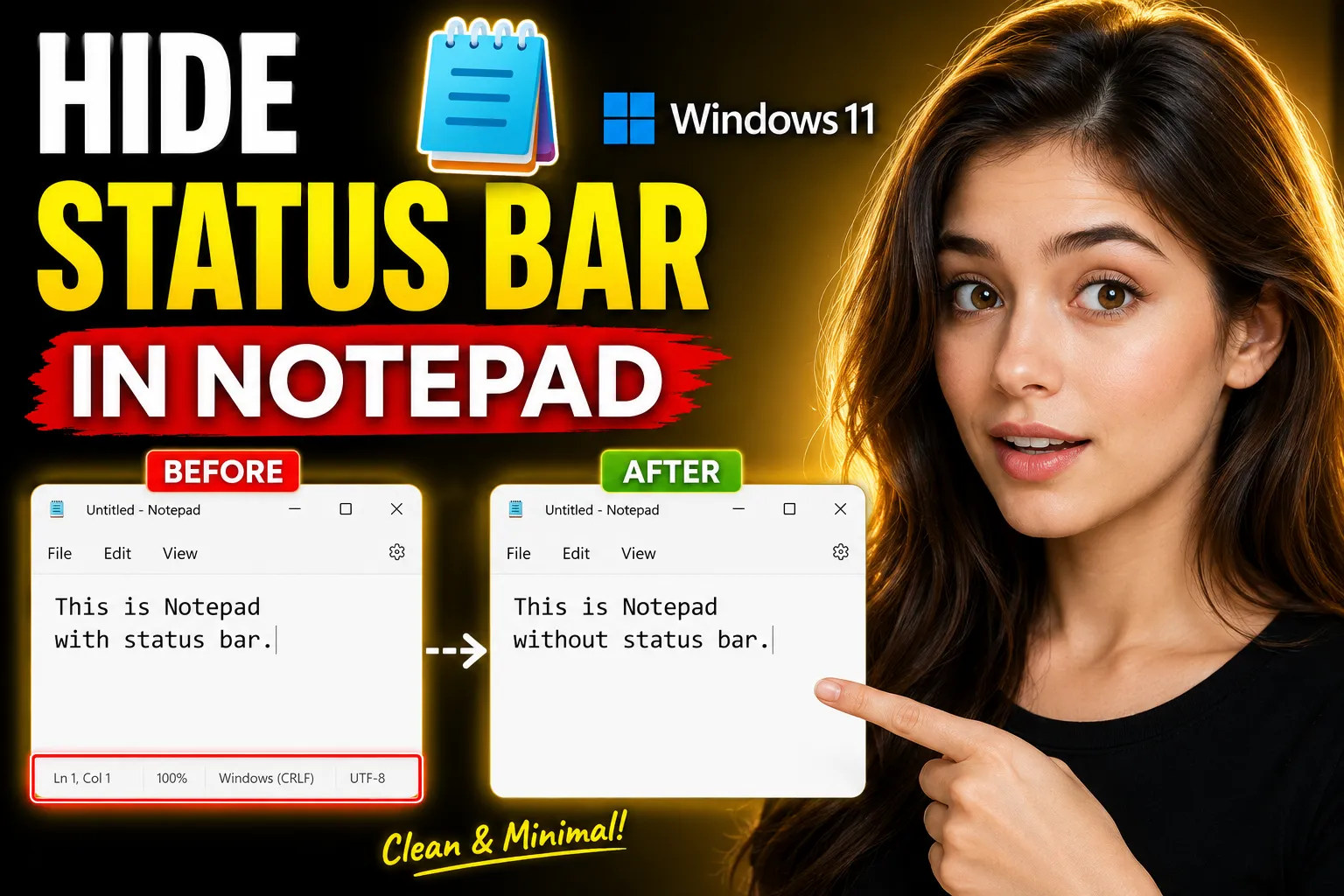
Notepad in Windows 11 includes a status bar that shows details like line number, column number, and zoom level. While some users rely on it for navigation, others prefer a cleaner editing interface without extra UI elements.
If you want to hide the status bar in Notepad on Windows 11, the process is straightforward. However, the option behaves differently depending on whether Word Wrap is enabled, which often confuses beginners.
This guide explains exactly how to remove the status bar, why the option may appear grayed out, and what to do if the setting does not work properly. It also covers alternative online note-taking tools if you need more flexibility than the default Windows Notepad offers.
Table of Contents
- What Is the Status Bar in Notepad?
- How to Hide the Status Bar in Notepad Windows 11
- Why the Status Bar Option Is Grayed Out
- How Word Wrap Affects the Status Bar
- How to Restore the Status Bar
- Troubleshooting Common Problems
- Alternative Note-Taking Tools Beyond Notepad
- When You Should Keep the Status Bar Enabled
- Frequently Asked Questions
- Conclusion
What Is the Status Bar in Notepad?
The status bar is the small information section located at the bottom of the Notepad window. In Windows 11, it typically displays:
- Current line number
- Column number
- Zoom percentage
- Text encoding details in some cases
For example:
Ln 10, Col 5This means your cursor is currently on line 10 and column 5.
For coding, scripting, or editing structured text, this information can be useful. But for distraction-free writing or simple note-taking, many users prefer hiding it.
[IMAGE ALT: Windows 11 Notepad showing the status bar at the bottom of the application window]
How to Hide the Status Bar in Notepad Windows 11
Here is the fastest way to remove the status bar from Notepad.
Step 1: Open Notepad
Click the Start menu and search for:
NotepadOpen the app.
You can also press:
Windows + RThen type:
notepadand press Enter.
Step 2: Disable Word Wrap
This is the step most people miss.
In Windows Notepad, the status bar can only be hidden when Word Wrap is turned off.
To disable Word Wrap:
- Click View in the top menu
- Select Word Wrap
- Make sure the checkmark disappears
Once Word Wrap is disabled, the status bar option becomes available.
Step 3: Hide the Status Bar
Now:
- Click View
- Click Status Bar
The checkmark next to Status Bar will disappear, and the bar at the bottom of Notepad will be hidden instantly.
That is all you need to do.
Why the Status Bar Option Is Grayed Out
One of the most common issues is seeing the Status Bar option disabled or grayed out.
This happens because Word Wrap is enabled.
Why Microsoft Designed It This Way
When Word Wrap is active, lines automatically continue onto the next row instead of extending horizontally. This makes line and column tracking less accurate.
Because of this, Windows automatically forces the status bar to remain visible.
Fix
Disable Word Wrap first:
View → Word WrapThen you can hide the status bar normally.
How Word Wrap Affects the Status Bar
Understanding this relationship helps avoid confusion later.
| Setting | Status Bar Control |
|---|---|
| Word Wrap ON | Status Bar locked |
| Word Wrap OFF | Status Bar can be hidden |
Practical Example
Suppose you are writing long paragraphs.
With Word Wrap enabled:
- Text stays inside the window
- No horizontal scrolling
- Status bar remains active
With Word Wrap disabled:
- Long lines continue horizontally
- Horizontal scrolling appears
- Status bar can be turned off
This behavior has existed in Notepad for many Windows versions, not just Windows 11.
How to Restore the Status Bar
If you later decide you want the status bar back:
- Open Notepad
- Click View
- Enable Status Bar
The bottom information panel will immediately reappear.
No restart is required.
Troubleshooting Common Problems
Sometimes the setting does not behave as expected. Here are the most common fixes.
Status Bar Option Still Disabled
Cause
Word Wrap is still enabled.
Solution
Turn it off completely:
View → Word WrapThen reopen the View menu.
Status Bar Reappears After Restart
This can happen if:
- Notepad restores previous session settings
- Windows sync settings overwrite preferences
- A third-party customization tool changes defaults
Try This
- Disable Word Wrap
- Hide the status bar
- Close Notepad normally
- Reopen the app
Avoid force-closing Notepad through Task Manager while changing settings.
Notepad Looks Different on Windows 11
Microsoft redesigned Notepad in newer Windows 11 updates. Depending on your Windows version, the interface may differ slightly.
Older versions use:
- Classic menu bar
Newer versions may include:
- Updated visual layout
- Modern toolbar styling
- Dark mode integration
The status bar setting still exists in the View menu.
Status Bar Missing Completely
If the status bar is already missing and you cannot find the setting:
- Disable Word Wrap
- Reopen the View menu
- Re-enable Status Bar
Some Windows updates reset preferences automatically.
Alternative Note-Taking Tools Beyond Notepad
Notepad is lightweight and fast, but it has limitations:
- No collaboration
- No cloud sync
- No rich formatting
- Limited organization features
If you regularly take notes online or collaborate with others, web-based tools may work better.
Write Notes – Online Notepad Alternative
Write Notes is an online note-taking application designed for quick writing, editing, and organizing notes directly in your browser.
Features include:
- Fast browser-based editing
- No installation required
- Lightweight interface
- Accessible from multiple devices
- Simple note management
For users who want a cleaner experience than desktop Notepad, browser-based editors can be more flexible.
You can also try the dedicated online editor here:
This is especially useful if:
- You switch between devices often
- You need quick temporary notes
- You prefer browser-based tools
- You do not want to save local text files manually
[INTERNAL LINK: "best online notepad apps" → online productivity tools]
Online Whiteboard for Collaboration
Traditional Notepad is built for solo editing. It does not support:
- Real-time collaboration
- Shared brainstorming
- Visual planning
- Team annotation
For collaborative work, an online whiteboard is more practical.
Online Collaborative Whiteboard provides a shared workspace where multiple users can brainstorm and organize ideas together.
This is useful for:
- Remote teams
- Online tutoring
- Project planning
- Design discussions
- Visual note-taking
Compared to Notepad, collaborative whiteboards support:
- Live updates
- Shared sessions
- Visual layouts
- Interactive planning
When You Should Keep the Status Bar Enabled
Hiding the status bar is not always the best option.
There are several cases where keeping it visible improves usability.
Coding and Scripting
Line and column tracking helps identify:
- Syntax errors
- Debugging locations
- Specific code references
Example:
Error on Line 52Without the status bar, finding the exact location becomes slower.
Working With Structured Text
If you edit:
- CSV files
- Log files
- JSON
- XML
- Configuration files
the status bar can help maintain formatting accuracy.
Zoom Tracking
Modern Notepad versions include zoom information in the status bar.
If you frequently zoom in or out, keeping the bar visible makes navigation easier.
Minimal Interface vs Functional Interface
There is a tradeoff between a cleaner UI and practical information visibility.
| Preference | Best Choice |
|---|---|
| Distraction-free writing | Hide status bar |
| Coding or debugging | Keep status bar |
| Simple notes | Hide status bar |
| Structured editing | Keep status bar |
The right choice depends on how you use Notepad.
Advanced Customization Tips for Notepad
If you want an even cleaner Notepad experience, consider these additional tweaks.
Enable Dark Mode
In newer Windows 11 versions:
- Open Notepad
- Click Settings
- Change App Theme to:
- Dark
- Use system setting
Dark mode reduces eye strain during long editing sessions.
Adjust Font Size
You can improve readability by changing:
- Font family
- Font size
- Font style
Go to:
Edit → Fontor use the Settings menu in updated versions.
Use Zoom Shortcuts
Useful keyboard shortcuts:
| Shortcut | Action |
|---|---|
| Ctrl + Plus | Zoom in |
| Ctrl + Minus | Zoom out |
| Ctrl + 0 | Reset zoom |
These shortcuts work in current Windows 11 Notepad versions.
Notepad vs Online Editors
Many users still rely on Notepad because it is fast and built into Windows. But browser-based note apps have improved significantly.
Here is a practical comparison.
| Feature | Windows Notepad | Online Notepad |
|---|---|---|
| Offline use | Yes | Usually no |
| Collaboration | No | Yes |
| Cloud sync | No | Often yes |
| Installation required | No | No |
| Device access | Local only | Multiple devices |
| Rich formatting | Limited | Varies |
For quick offline edits, Notepad remains useful.
For collaboration and flexible access, modern web apps often provide a better experience.
Common Mistakes Beginners Make
Confusing Word Wrap With Status Bar Settings
This is the biggest issue.
Users try to hide the status bar while Word Wrap is active, which prevents the setting from changing.
Closing Notepad Incorrectly
Force-closing the app can stop preference changes from saving properly.
Always close Notepad normally after changing settings.
Expecting Advanced Features
Notepad is intentionally minimal.
Features like:
- Team editing
- Cloud backup
- Rich formatting
- Advanced organization
require separate tools.
FAQ
How do I hide the status bar in Notepad on Windows 11?
Disable Word Wrap first, then go to:
View → Status Barand uncheck it.
Why is the Status Bar option grayed out in Notepad?
The option becomes unavailable when Word Wrap is enabled.
Turn off Word Wrap to access the setting.
Does hiding the status bar improve performance?
No noticeable performance improvement occurs. The change is mostly visual and helps create a cleaner workspace.
Can I hide the status bar while keeping Word Wrap enabled?
No. Windows Notepad does not allow this combination.
Is the status bar available in all Windows 11 versions?
Yes, although the interface appearance may vary slightly depending on the Notepad version installed.
Are there better alternatives to Notepad for online note-taking?
Yes. Browser-based tools like Write Notes offer online note-taking without installing software.
What is the best use case for online collaborative whiteboards?
Online whiteboards work well for:
- Team brainstorming
- Remote meetings
- Planning workflows
- Shared visual notes
Tools like the Online Collaborative Whiteboard support real-time collaboration.
Conclusion
Hiding the status bar in Notepad on Windows 11 is simple once you understand the connection between the status bar and Word Wrap.
The key steps are:
- Disable Word Wrap
- Open the View menu
- Uncheck Status Bar
For users who prefer a cleaner writing environment, removing the status bar can reduce distractions and simplify the interface.
At the same time, the status bar remains useful for coding, structured editing, and cursor tracking, so whether you keep it enabled depends on your workflow.
If you need more advanced note-taking features like browser access, collaboration, or shared whiteboards, tools such as Write Notes and the Online Collaborative Whiteboard provide more flexibility than standard Windows Notepad.

Alex Chen
I am a Digital Systems Architect and productivity specialist dedicated to building frictionless workflows. With over 2,000 hours of deep-work experimentation, I've mastered the art of transforming cluttered Write Notes workspaces into high-output engines.Having successfully migrated over 10,000 users into streamlined digital systems, I focus on the intersection of Personal Knowledge Management (PKM) and automated task architecture. When I'm not auditing the latest productivity tools, I manage a 1,500-note research library and consult for teams looking to reclaim their focus.