
How to Indent Multiple Lines in Notepad at Once
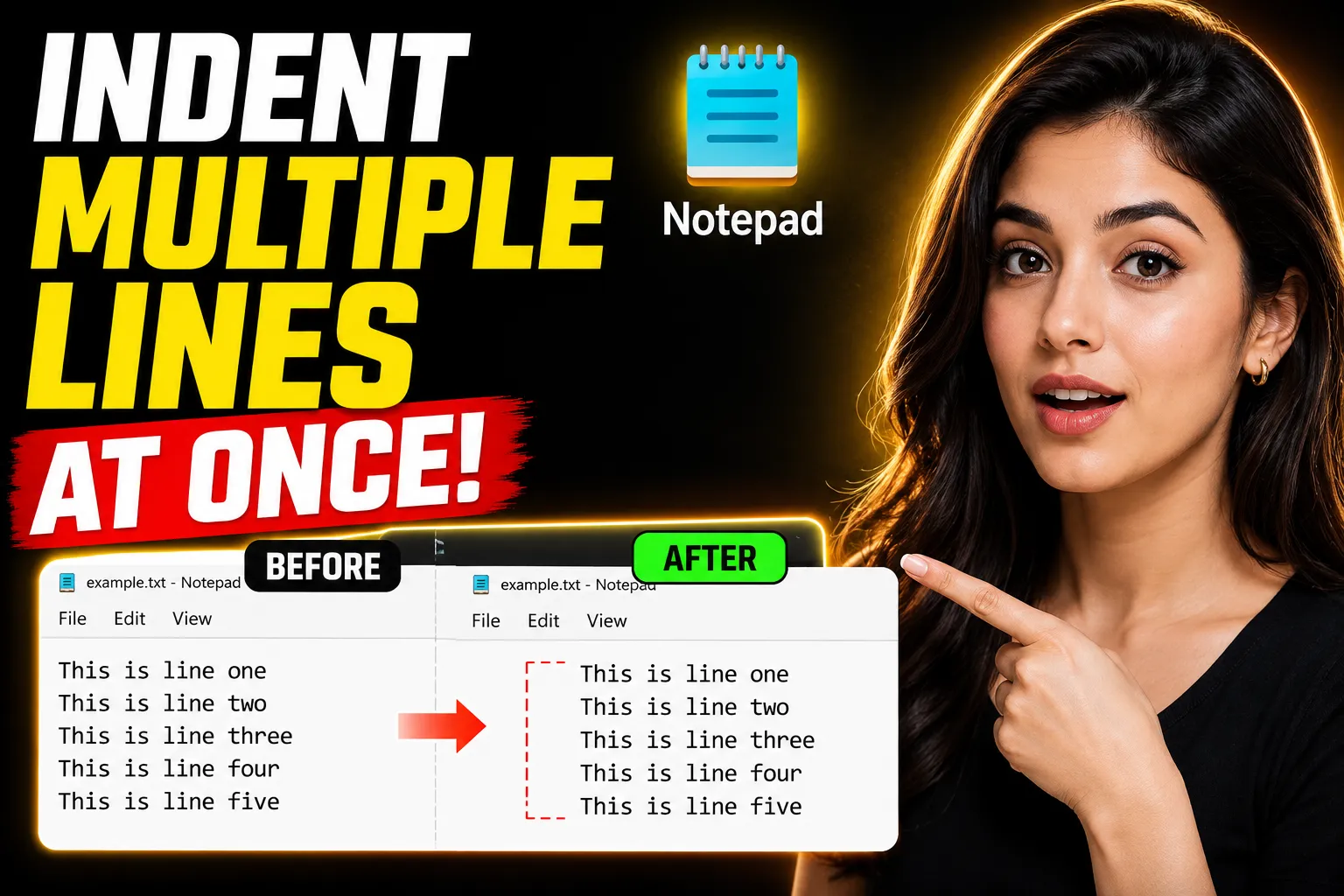
Indenting multiple lines in Notepad sounds simple until you actually try doing it. Microsoft Notepad is intentionally lightweight, which means it lacks many editing features people expect from modern text editors — including proper multi-line indentation tools.
If you're working with code, lists, outlines, copied text, or structured notes, manually adding spaces line by line becomes frustrating quickly.
This article explains how to indent multiple lines in Notepad at once, what the limitations are, and which alternatives make the process significantly easier. You'll also learn when switching to a more capable online editor saves time instead of fighting with Notepad’s minimal feature set.
Table of Contents
- Why Indenting Multiple Lines Is Difficult in Notepad
- Can You Indent Multiple Lines Directly in Notepad?
- Method 1: Using Replace to Add Indentation
- Method 2: Using Tab in Advanced Editors
- Why Many Users Switch to Online Notepad Tools
- Using Write Notes for Faster Text Editing
- When a Collaborative Whiteboard Helps More Than Text Indentation
- Common Problems and Fixes
- Best Alternatives to Windows Notepad
- FAQ
- Conclusion
Why Indenting Multiple Lines Is Difficult in Notepad
Classic Windows Notepad was designed as a plain text editor. Its purpose was basic text entry, not advanced formatting or code editing.
That creates several limitations:
- No block indentation shortcuts
- No multi-line tab support
- No code formatting tools
- Limited find-and-replace functionality
- No syntax-aware editing
If you press the Tab key after selecting multiple lines in traditional Notepad, it usually replaces the selected text instead of indenting every line.
That behavior surprises many users coming from editors like:
- Visual Studio Code
- Notepad++
- Sublime Text
- Online editors
- IDEs
The issue becomes more noticeable when editing:
- Python code
- YAML files
- Nested lists
- JSON
- Markdown
- Structured notes
Can You Indent Multiple Lines Directly in Notepad?
Short Answer
No — standard Windows Notepad does not properly support multi-line indentation using the Tab key.
However, there are workarounds.
You can still indent multiple lines indirectly using:
- Find and Replace
- Copy-paste formatting tricks
- Alternative editors
- Online note-taking tools
The best method depends on what type of text you're editing.
Method 1: Using Replace to Add Indentation
This is the closest thing to batch indentation inside basic Notepad.
Step-by-Step Process
Step 1: Open Your Text
Line one
Line two
Line three
Step 2: Open Replace
Press:
Ctrl + HThis opens the Replace dialog box.
Step 3: Configure Replace
In the “Find what” field, enter:
\nOr manually target line endings depending on your Notepad version.
In the “Replace with” field, enter:
\n (Add spaces after the line break.)
Example:
\n This inserts indentation at the start of each line.
Step 4: Replace All
Click:
Replace AllResult
Before:
Line one
Line two
Line three
After:
    Line one
    Line two
    Line three
Limitations of This Method
This workaround is functional but imperfect.
Problems You May Encounter
| Issue | Explanation |
|---|---|
| No real tab support | Uses spaces instead |
| Inconsistent formatting | Tabs and spaces may mix |
| Difficult for beginners | Replace syntax can confuse users |
| Not ideal for code | Python and YAML require precision |
| Hard to reverse | Undoing large changes gets messy |
💡 Key Takeaway:
The Replace method works for simple formatting tasks, but it becomes inefficient for regular editing or coding work.
Method 2: Using Tab in Advanced Editors
If you frequently indent multiple lines, switching editors is usually the better solution.
Modern editors support:
- Multi-line tab indentation
- Shift+Tab outdent
- Smart formatting
- Line numbering
- Syntax highlighting
- Auto-indentation
Example Workflow
In editors like Notepad++ or online note editors:
- Highlight multiple lines
- Press Tab
- Every line indents instantly
To reverse indentation:
Shift + TabThis saves significant time when editing structured text.
Why Many Users Switch to Online Notepad Tools
Traditional desktop Notepad still works for quick text capture, but many users now prefer browser-based editors because they remove several workflow limitations.
A modern online notepad can offer:
- Multi-line indentation
- Auto-saving
- Cross-device access
- Rich formatting
- Collaboration
- Whiteboard integration
- Faster sharing
This becomes especially useful for:
- Students
- Remote teams
- Developers
- Content writers
- Researchers
- Documentation workflows
Using Write Notes for Faster Text Editing
If you regularly work with structured text, lists, code snippets, or shared notes, using a modern online editor is much easier than relying on basic Notepad.
Write Notes is an online note-taking application designed for quick editing, organization, and collaboration.
Unlike traditional Notepad, browser-based editors can handle larger formatting tasks more efficiently.
Useful Features for Text Editing
Write Notes helps simplify tasks such as:
- Multi-line editing
- Organizing notes
- Quick copy-paste formatting
- Collaborative editing
- Browser-based access
- Device synchronization
For users who want a lightweight editing experience without installing software, this approach is often more practical than upgrading to a full IDE.
Using the Free Online Notepad
Free Online Notepad provides a cleaner environment for working with structured text and quick formatting tasks.
This is particularly useful when:
- Using a shared computer
- Working on school assignments
- Formatting copied text
- Editing notes quickly
- Drafting code snippets
- Organizing outlines
Practical Example
Suppose you're formatting a nested checklist:
Project
Tasks
Research
Writing
Editing
Indentation improves readability:
Project
    Tasks
        Research
        Writing
        Editing
In standard Notepad, this requires repetitive manual spacing.
In more capable editors, batch indentation happens instantly.
When a Collaborative Whiteboard Helps More Than Text Indentation
Sometimes indentation problems are actually organization problems.
Users often try to force structured planning into plain text editors when a visual workspace would work better.
For example:
- Brainstorming workflows
- Planning projects
- Mapping processes
- Team collaboration
- Diagram creation
- Visual note organization
That’s where a collaborative whiteboard becomes more useful than indentation tools.
Online Collaborative Whiteboard allows teams and individuals to organize information visually instead of relying entirely on nested text formatting.
Situations Where Whiteboards Work Better
| Task | Better With Text Editor | Better With Whiteboard |
|---|---|---|
| Code editing | Yes | No |
| Brainstorming | Sometimes | Yes |
| Project planning | Limited | Yes |
| Quick notes | Yes | Sometimes |
| Team collaboration | Limited | Yes |
| Visual workflows | No | Yes |
Many users only realize later that indentation was compensating for the lack of a visual structure.
Common Problems and Fixes
Problem 1: Tab Replaces Selected Text
Why It Happens
Classic Notepad treats the Tab key as a character input, not a formatting command.
Fix
Use:
- Spaces manually
- Replace workaround
- Alternative editor
Problem 2: Indentation Looks Uneven
Cause
Mixing tabs and spaces.
Fix
Choose one formatting style consistently.
For coding:
- Python commonly prefers spaces
- Some editors convert tabs automatically
Problem 3: Copied Text Loses Formatting
Cause
Different editors interpret tabs differently.
Fix
Paste into a formatting-aware editor before finalizing.
Problem 4: Multi-Line Selection Doesn't Work Properly
Cause
Notepad lacks advanced selection handling.
Fix
Use editors with:
- block selection
- multi-cursor editing
- indentation shortcuts
Best Alternatives to Windows Notepad
If indentation is a regular requirement, switching tools saves time immediately.
Comparison Table
| Editor | Multi-Line Indent | Beginner Friendly | Installation Required | Collaboration |
|---|---|---|---|---|
| Windows Notepad | Limited | Yes | No | No |
| Notepad++ | Yes | Moderate | Yes | No |
| VS Code | Yes | Moderate | Yes | Limited |
| Online Notepad | Yes | Yes | No | Sometimes |
| Write Notes | Yes | Yes | No | Yes |
When You Should Keep Using Basic Notepad
Despite its limitations, Notepad still works well for:
- Very small text files
- Quick temporary notes
- Simple copy-paste tasks
- Minimal system environments
- Opening raw TXT files
You probably do not need a heavier editor if:
- formatting is minimal
- indentation is rare
- collaboration is unnecessary
When You Should Upgrade Your Workflow
You should move beyond basic Notepad if you regularly:
- edit code
- manage outlines
- organize documentation
- share notes
- collaborate remotely
- structure nested content
- format large text blocks
The productivity difference becomes noticeable quickly.
Even saving a few seconds per indentation task compounds over weeks of editing work.
Real-World Example: Why Manual Indentation Becomes a Problem
Suppose you're editing a YAML configuration file:
server:
host: localhost
port: 8080
database:
name: app
Incorrect indentation breaks the structure entirely.
Correct version:
server:
  host: localhost
  port: 8080
database:
  name: app
Trying to fix this manually in standard Notepad is error-prone.
A smarter editor dramatically reduces mistakes.
Tips for Cleaner Indentation
Use Spaces Consistently
Avoid mixing:
- tabs
- two-space indentation
- four-space indentation
Pick one system.
Enable Word Wrap Carefully
Word wrap can visually hide formatting problems.
Turn it off temporarily when debugging indentation.
Use Monospaced Fonts
Monospaced fonts make spacing easier to detect.
Examples:
- Consolas
- Courier New
- Fira Code
Test Formatting After Copy-Paste
Some websites and apps strip tab formatting automatically.
Always recheck indentation after transferring text.
FAQ
How do I indent multiple lines in Notepad using the keyboard?
Standard Windows Notepad does not support multi-line indentation with the Tab key. You usually need to add spaces manually or use a workaround like Replace.
Can I use Shift+Tab to outdent in Notepad?
No. Traditional Notepad lacks built-in indentation controls like Tab and Shift+Tab block editing.
What is the easiest way to indent many lines quickly?
Using a modern text editor or online notepad is the easiest method. Most support batch indentation instantly.
Is Notepad good for coding?
Only for very basic editing. It lacks syntax highlighting, formatting tools, debugging support, and reliable indentation handling.
Are online notepad tools safe to use?
Reputable tools are generally safe for ordinary note-taking, but sensitive information should still be handled carefully. Always review privacy policies before storing confidential content online.
Why does indentation matter in programming?
Some languages, including Python and YAML, use indentation to define structure. Incorrect spacing can cause errors or break execution entirely.
Conclusion
Learning how to indent multiple lines in Notepad at once usually leads to a second realization: traditional Notepad was never designed for advanced text formatting.
You can still use workarounds like Replace, but they become inefficient once formatting grows more complex.
For occasional edits, Notepad remains acceptable. For structured writing, coding, note organization, or collaboration, modern editors are substantially more practical.
Browser-based tools such as Write Notes and its Free Online Notepad provide a faster editing workflow without requiring software installation. And for visual planning or shared brainstorming, the Online Collaborative Whiteboard can organize ideas more effectively than nested indentation alone.

Alex Chen
I am a Digital Systems Architect and productivity specialist dedicated to building frictionless workflows. With over 2,000 hours of deep-work experimentation, I've mastered the art of transforming cluttered Write Notes workspaces into high-output engines.Having successfully migrated over 10,000 users into streamlined digital systems, I focus on the intersection of Personal Knowledge Management (PKM) and automated task architecture. When I'm not auditing the latest productivity tools, I manage a 1,500-note research library and consult for teams looking to reclaim their focus.