
How to Print Notepad With Margin Settings
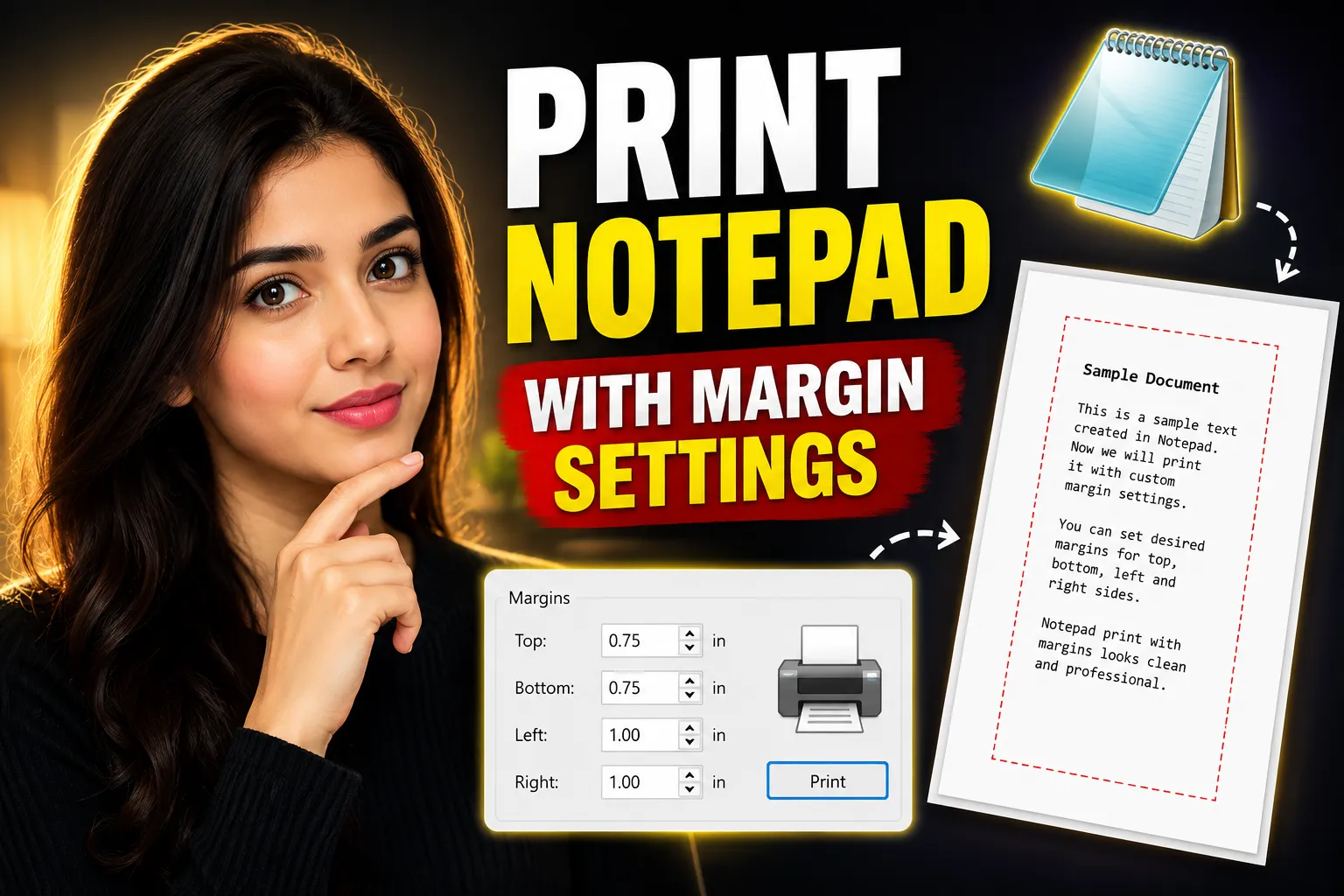
Printing a text file from Notepad sounds simple until the formatting comes out wrong. Text gets cut off, lines shift awkwardly, or the page leaves too much empty space around the edges. Most of these problems come down to margin settings.
If you want clean, readable printouts from Windows Notepad, adjusting margins before printing is essential. The good news is that Notepad already includes built-in page setup tools for margins, headers, footers, and orientation. You just need to know where to find them and how they affect the final print layout.
This guide explains how to print Notepad with margin settings step by step, including troubleshooting tips, formatting advice, and alternatives like online note-taking tools when you need more control over printing.
Table of Contents
- What Margin Settings Do in Notepad
- How to Open Page Setup in Notepad
- How to Change Margins in Notepad
- How to Print a Notepad File Correctly
- Recommended Margin Sizes for Different Uses
- Common Notepad Printing Problems
- How Headers and Footers Affect Margins
- Portrait vs Landscape Printing
- How to Preview Notepad Documents Before Printing
- Using Online Notepad Tools for Better Printing
- When to Use an Online Whiteboard Instead of Notepad
- Frequently Asked Questions
- Conclusion
What Margin Settings Do in Notepad
Margins control the empty space between your text and the edge of the paper.
In Notepad, margins are measured in inches by default. These settings determine:
- How far text appears from the top
- Left and right spacing
- Bottom page spacing
- Available writing area
If margins are too small:
- Text may get clipped during printing
- Some printers may refuse to print near edges
If margins are too large:
- You waste paper space
- Lines wrap too early
- Documents become harder to read
For most users, default margins work reasonably well. But if you're printing notes, code snippets, lists, or formatted text, adjusting them improves readability significantly.
How to Open Page Setup in Notepad
To change margins in Notepad:
Step-by-Step Instructions
- Open Notepad on your Windows computer
- Open the file you want to print
- Click File
- Select Page Setup
You will now see several printing options:
- Margins
- Header
- Footer
- Orientation
- Paper size
This is where all Notepad print formatting happens.
[IMAGE ALT: Windows Notepad Page Setup window showing margin settings and orientation options]
How to Change Margins in Notepad
Inside the Page Setup window, you will see four margin fields:
| Margin | Purpose |
|---|---|
| Top | Space above text |
| Bottom | Space below text |
| Left | Space on left side |
| Right | Space on right side |
Example Margin Settings
| Use Case | Recommended Margins |
|---|---|
| Standard document | 1 inch all sides |
| Compact notes | 0.5 inch |
| Printer-safe layout | 0.75 inch |
| School assignments | 1 inch |
| Code or logs | 0.5–0.75 inch |
How to Apply Margins
- Enter your preferred values
- Click OK
- Go to File → Print
- Print the document
The settings remain active for the current session unless changed again.
How to Print a Notepad File Correctly
Once margins are configured, printing becomes straightforward.
Steps to Print
- Open your document in Notepad
- Configure Page Setup
- Verify margins
- Click File
- Select Print
- Choose your printer
- Click Print
For beginners, the most common mistake is skipping Page Setup entirely. Notepad does not automatically optimize margins for your content.
Recommended Margin Sizes for Different Uses
Different documents benefit from different margin settings.
1. Printing Simple Notes
For shopping lists, reminders, or quick notes:
| Setting | Recommended |
|---|---|
| Top | 0.5 |
| Bottom | 0.5 |
| Left | 0.5 |
| Right | 0.5 |
This keeps the document compact.
2. Printing Programming Code
Code often wraps awkwardly in Notepad.
Recommended settings:
| Setting | Recommended |
|---|---|
| Left | 0.75 |
| Right | 0.5 |
| Top | 0.5 |
| Bottom | 0.5 |
Also:
- Use a monospaced font
- Disable unnecessary line wrapping
3. Printing Formal Documents
For reports or assignments:
| Setting | Recommended |
|---|---|
| All sides | 1 inch |
This creates a clean, professional appearance.
Common Notepad Printing Problems
Text Gets Cut Off
This usually happens because:
- Margins are too small
- Printer hardware has non-printable edge limits
Fix
Increase margins slightly:
- Try 0.75 inch minimum
Lines Wrap Incorrectly
Notepad has limited formatting support.
Fix
- Shorten long lines manually
- Increase paper width
- Use landscape mode
Header or Footer Overlaps Text
Headers and footers consume printable space.
Fix
Adjust:
- Top margin
- Bottom margin
Or remove headers entirely.
Printer Ignores Margin Settings
Some printer drivers override application settings.
Fix
Check:
- Printer preferences
- Scaling options
- Fit-to-page settings
How Headers and Footers Affect Margins
By default, Notepad may print:
- File name
- Date
- Page number
These appear in the header or footer area.
You can modify or remove them in the Page Setup window.
Remove Header/Footer Completely
Delete the contents of:
- Header box
- Footer box
Then click OK.
This gives your document more usable space.
Portrait vs Landscape Printing
Notepad supports two orientations:
| Orientation | Best For |
|---|---|
| Portrait | Standard text documents |
| Landscape | Wide content, code, tables |
When to Use Landscape
Use landscape mode if:
- Lines wrap too often
- You're printing logs or scripts
- The content is horizontally wide
To change orientation:
- Open Page Setup
- Select Landscape
- Print normally
How to Preview Notepad Documents Before Printing
Classic Notepad versions do not include full print preview support.
That creates a problem:
- You cannot always see formatting issues before printing.
Workarounds
Option 1: Use Microsoft Word
- Copy text from Notepad
- Paste into Word
- Use Print Preview
Option 2: Save as TXT and Open in Browser
Modern browsers provide better preview systems.
Option 3: Use an Online Notepad
Tools like Write Notes offer more flexible note management and easier formatting compared to traditional desktop Notepad.
You can:
- Create notes online
- Organize text more effectively
- Access notes from multiple devices
- Prepare cleaner printable layouts
For users who regularly print notes, online editors often provide a smoother workflow than Windows Notepad.
Why Notepad Printing Sometimes Feels Limited
Windows Notepad was designed as a lightweight plain text editor. Its printing capabilities are intentionally minimal.
That simplicity creates several limitations:
| Limitation | Impact |
|---|---|
| No advanced formatting | Limited layout control |
| No print preview | Harder to detect mistakes |
| Basic margin controls only | Minimal customization |
| No rich text support | Plain output only |
For occasional printing, this is acceptable.
For frequent document handling, many users eventually switch to:
- Word processors
- Online note-taking tools
- Browser-based editors
Using Online Notepad Tools for Better Printing
If you frequently create printable notes, browser-based editors can simplify the process.
One example is Write Notes Online Notepad.
Unlike traditional desktop Notepad, online editors can help with:
- Cross-device access
- Cleaner formatting
- Faster editing
- Better organization
- Easy sharing
This becomes useful when:
- Working across multiple computers
- Collaborating remotely
- Managing long notes
- Preparing printable content quickly
Practical Advantage
A common issue with Windows Notepad is accidental formatting inconsistency after copying text from websites or emails.
Online note tools often handle pasted content more predictably.
When to Use an Online Whiteboard Instead of Notepad
Notepad works best for plain text.
But sometimes text alone is not enough.
For:
- brainstorming
- planning
- teaching
- visual collaboration
- diagram creation
a whiteboard is more effective.
An option like the Online Free Whiteboard With Collaboration allows teams or individuals to work visually instead of relying only on text files.
This is particularly useful for:
| Use Case | Why Whiteboards Help |
|---|---|
| Team meetings | Shared visual planning |
| Study sessions | Diagram explanations |
| Project workflows | Better task mapping |
| Remote collaboration | Real-time interaction |
Notepad remains useful for simple text editing, but visual tools solve a different category of productivity problems.
Tips for Cleaner Notepad Printing
Use Shorter Lines
Long lines wrap unpredictably.
Aim for:
- 70–90 characters per line
especially when printing code or logs.
Choose a Readable Font
Notepad uses basic font settings.
Good printing fonts include:
- Consolas
- Courier New
- Lucida Console
Avoid decorative fonts for printed text.
Save Before Printing
Notepad can occasionally lose unsaved edits during crashes or accidental closures.
Always:
- Save the file first
- Then print
Test One Page First
Before printing a large document:
- Print a single page
- Verify margins
- Check alignment
This avoids wasting paper.
Margin Recommendations Based on Printer Type
Different printers behave differently near page edges.
| Printer Type | Recommended Minimum Margin |
|---|---|
| Inkjet printer | 0.5 inch |
| Laser printer | 0.25–0.5 inch |
| Older printers | 0.75 inch |
| Office multifunction printers | 0.5 inch |
If text disappears near edges, increase margins slightly.
Troubleshooting Margin Problems in Windows
Margins Reset After Restart
Some older versions of Notepad may not retain settings consistently.
Solution
Reconfigure:
- Page Setup
- Printer preferences
before printing important files.
Printed Text Looks Too Small
This often happens when:
- Margins are large
- Font size is too small
Solution
Increase:
- Font size
- Printable area
Blank Pages Print Unexpectedly
Possible causes:
- Extra line breaks
- Incorrect printer scaling
- Footer overflow
Solution
- Remove unnecessary blank lines
- Reset footer fields
- Use standard margins
Notepad vs Online Note Editors
| Feature | Windows Notepad | Online Editors |
|---|---|
| Basic text editing | Yes | Yes |
| Cloud access | No | Yes |
| Collaboration | No | Often supported |
| Rich formatting | Limited | Better |
| Print preview | Minimal | Usually improved |
| Sharing tools | No | Yes |
Notepad remains excellent for lightweight text editing.
But if your workflow involves:
- frequent printing
- organization
- remote access
- collaboration
online tools are often more practical.
Frequently Asked Questions
How do I change margins in Notepad?
Open:
File → Page Setup
Then adjust:
- Top
- Bottom
- Left
- Right margins
Click OK to save changes.
What are the best Notepad margin settings?
For most documents:
- 0.5 to 1 inch margins work well.
Smaller margins maximize space, while larger margins improve readability.
Why is my Notepad text getting cut off when printing?
Your margins are likely too small for the printer's printable area.
Increase:
- left margin
- right margin
- bottom margin
and print again.
Can I preview a Notepad document before printing?
Classic Notepad versions have limited print preview support.
Alternatives include:
- Microsoft Word
- Browser-based editors
- Online note-taking applications
Does Notepad support landscape printing?
Yes.
Go to:
File → Page Setup
Then choose:
Landscape
before printing.
Is an online notepad better for printing documents?
For many users, yes.
Online editors can provide:
- easier formatting
- device syncing
- cleaner layouts
- collaboration features
especially for longer or shared documents.
Conclusion
Learning how to print Notepad with margin settings is mostly about understanding Page Setup before hitting the Print button. Small adjustments to margins, headers, and orientation can dramatically improve the final output.
For simple text documents, Windows Notepad still works well because it is lightweight and fast. But its printing system has limitations, especially when formatting matters.
If you regularly work with printable notes, collaborative editing, or organized text workflows, tools like Write Notes and browser-based editors can offer a more flexible experience than traditional desktop Notepad.
The best approach depends on your workflow:
- use Notepad for quick plain text tasks
- use online tools when collaboration, accessibility, or formatting becomes important

Alex Chen
I am a Digital Systems Architect and productivity specialist dedicated to building frictionless workflows. With over 2,000 hours of deep-work experimentation, I've mastered the art of transforming cluttered Write Notes workspaces into high-output engines.Having successfully migrated over 10,000 users into streamlined digital systems, I focus on the intersection of Personal Knowledge Management (PKM) and automated task architecture. When I'm not auditing the latest productivity tools, I manage a 1,500-note research library and consult for teams looking to reclaim their focus.