
How to Use Notepad to Calculate Math Equations
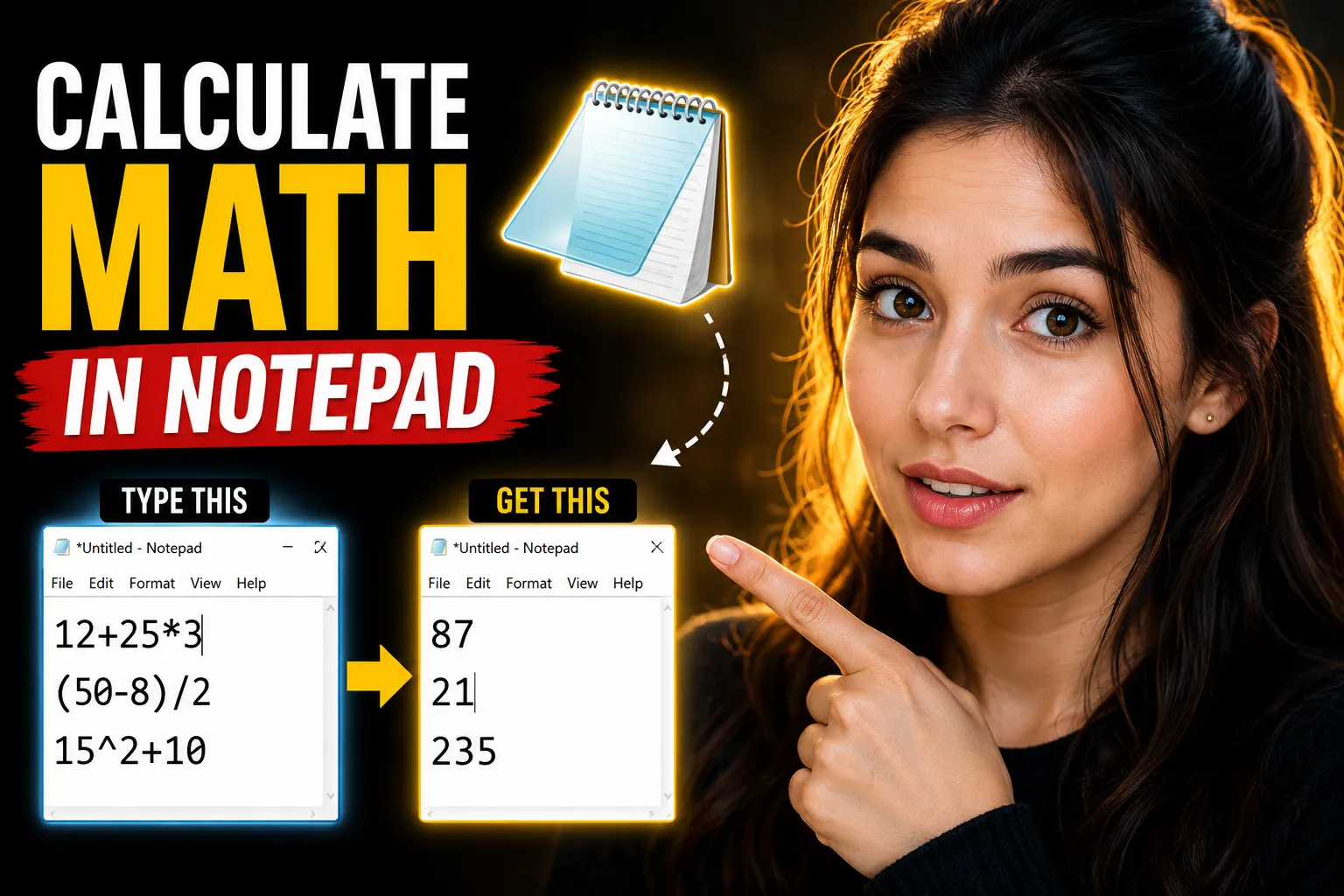
Most people think of Notepad as a basic text editor for writing plain text. But with a few simple methods, you can also use Notepad to calculate math equations, automate calculations, and even create a lightweight calculator using scripts.
This approach is useful for beginners learning basic programming, students experimenting with math automation, or anyone who wants a quick alternative to opening a dedicated calculator app.
In this guide, you’ll learn:
- How Notepad can process math equations
- Different ways to calculate equations using scripts
- How to build a simple calculator in Notepad
- Common mistakes beginners make
- Better online alternatives for notes and collaborative math work
We’ll keep everything beginner-friendly and practical.
Table of Contents
- What Does It Mean to Use Notepad for Math Equations?
- Can Basic Notepad Solve Equations Directly?
- Using VBScript in Notepad to Calculate Equations
- Creating a Simple Calculator with Notepad
- Using Batch Files for Basic Math Operations
- Common Problems and Fixes
- When Notepad Stops Being Practical
- Better Alternatives for Notes and Math Collaboration
- Using an Online Whiteboard for Equation Solving
- FAQ
- Conclusion
What Does It Mean to Use Notepad for Math Equations?
Notepad itself cannot calculate equations directly the way a calculator app can. It is only a text editor.
However, you can use Notepad to write small scripts that execute calculations through Windows scripting tools like:
- VBScript
- Batch scripting
- PowerShell commands
- JavaScript inside HTML files
In simple terms:
Notepad = the place where you write the instructions.
Windows scripting engine = the system that performs the calculations.
This is why many “Notepad calculator tricks” online involve saving files with extensions like:
.vbs.bat.cmd.html
Instead of standard .txt files.
Can Basic Notepad Solve Equations Directly?
Direct answer: No.
If you type:
5 + 5inside a normal .txt file, Notepad will not calculate the answer.
It only displays text.
To make calculations work, you need to add scripting logic.
That’s the key distinction beginners often miss.
| Feature | Standard Notepad | Script-Based Notepad |
|---|---|---|
| Stores text | Yes | Yes |
| Calculates equations | No | Yes |
| Supports automation | No | Limited |
| Requires coding | No | Basic scripting |
Using VBScript in Notepad to Calculate Equations
VBScript is one of the easiest ways to turn Notepad into a simple calculator.
Step 1: Open Notepad
Open the standard Windows Notepad application.
Step 2: Paste This Script
num1 = InputBox("Enter first number")
num2 = InputBox("Enter second number")

result = num1 + num2

MsgBox "The answer is: " & result
Step 3: Save the File Correctly
Click:
File → Save AsSet:
- File name:
calculator.vbs - Save as type:
All Files - Encoding:
ANSIorUTF-8
Step 4: Run the File
Double-click the .vbs file.
You’ll see pop-up boxes asking for numbers.
After entering them, Windows displays the result.
How This Script Works
Here’s the breakdown:
| Line | Purpose |
|---|---|
InputBox |
Gets user input |
result = num1 + num2 |
Adds numbers |
MsgBox |
Displays answer |
This is one of the simplest ways to calculate equations using Notepad.
Creating a Simple Calculator with Notepad
You can expand the idea into a more useful calculator.
Paste this code into Notepad:
operation = InputBox("Choose: +, -, *, /")

num1 = CDbl(InputBox("Enter first number"))
num2 = CDbl(InputBox("Enter second number"))

If operation = "+" Then
    result = num1 + num2
End If

If operation = "-" Then
    result = num1 - num2
End If

If operation = "*" Then
    result = num1 * num2
End If

If operation = "/" Then
    result = num1 / num2
End If

MsgBox "Result: " & result
Save it as:
advancedcalculator.vbsThis version can:
- Add
- Subtract
- Multiply
- Divide
Why Beginners Like This Method
This approach works well for beginners because it teaches:
- Variables
- User input
- Conditional logic
- Basic programming structure
Instead of only using a calculator app, you begin understanding how calculations work behind the scenes.
That’s useful for:
- Learning scripting
- Understanding automation
- Exploring coding fundamentals
Using Batch Files for Basic Math Operations
Another option is using Windows batch scripting.
Paste this into Notepad:
@echo off
set /a result=5+10
echo Result is %result%
pause
Save it as:
math.batDouble-click the file to run it.
The Command Prompt window will display:
Result is 15What set /a Does
The set /a command tells Windows to perform arithmetic calculations.
Examples:
| Expression | Result |
|---|---|
5+5 |
10 |
10-3 |
7 |
6*4 |
24 |
20/5 |
4 |
Limitations of Batch File Calculators
Batch scripts are simple but limited.
Common limitations:
- Weak decimal support
- Poor error handling
- Minimal interface
- Difficult for advanced equations
For example:
set /a result=10/3may return rounded values instead of accurate decimals.
Creating a Browser-Based Calculator Using Notepad
You can also build a calculator using HTML and JavaScript.
This method is more modern and flexible.
Paste this into Notepad:
<!DOCTYPE html>
<html>
<head>
<title>Simple Calculator</title>
</head>
<body>

<h2>Calculator</h2>

<input type="number" id="num1">
<input type="number" id="num2">

<button onclick="calculate()">Add</button>

<p id="result"></p>

<script>
function calculate() {
    let num1 = Number(document.getElementById("num1").value);
    let num2 = Number(document.getElementById("num2").value);

    let result = num1 + num2;

    document.getElementById("result").innerHTML =
        "Answer: " + result;
}
</script>

</body>
</html>
Save the file as:
calculator.htmlOpen it in your browser.
Now you have a functional calculator created entirely from Notepad.
Why HTML Calculators Are Better
Compared to VBScript or batch files, HTML calculators offer:
| Feature | HTML Calculator | Batch Script | VBScript |
|---|---|---|---|
| Visual interface | Yes | No | Minimal |
| Browser support | Yes | No | Windows only |
| Easier customization | High | Low | Medium |
| Better for learning web development | Yes | No | No |
For beginners interested in coding, this is usually the best path.
Common Problems and Fixes
Beginners often run into small issues while using Notepad for equations.
File Saves as .txt
Problem:
calculator.vbs.txtinstead of:
calculator.vbsFix:
Choose:
Save as type → All Filesbefore saving.
Script Does Nothing
Possible causes:
- Wrong file extension
- Typing errors
- Windows scripting disabled
Check the extension carefully.
Division Errors
In some scripts:
10 / 0will crash the script or produce errors.
Always validate inputs.
Decimal Problems in Batch Files
Batch scripting handles integers poorly for advanced math.
For decimal calculations, use:
- VBScript
- JavaScript
- PowerShell
instead.
When Notepad Stops Being Practical
Using Notepad for equations is educational, but it has limits.
It becomes impractical when you need:
- Graphing
- Scientific calculations
- Collaboration
- Real-time sharing
- Formula formatting
- Cloud storage
- Multi-device access
That’s where online tools become much more efficient.
Better Alternatives for Notes and Math Collaboration
If you regularly work with equations, notes, or collaborative study sessions, browser-based tools are usually more productive than local Notepad files.
One option is Write Notes, an online note-taking application that works like a browser-based notepad.
It allows you to:
- Create quick notes online
- Access notes from different devices
- Avoid managing local
.txtfiles - Work directly in the browser
For lightweight workflows, this is often simpler than juggling multiple Notepad files across folders.
You can also use the dedicated Online Free Notepad for fast text editing directly in your browser.
Using an Online Whiteboard for Equation Solving
Text editors work for simple equations, but collaborative math becomes difficult quickly.
For example:
- explaining formulas
- drawing diagrams
- solving equations visually
- teaching students remotely
- brainstorming calculations
In these situations, a whiteboard is usually better than plain text.
An option worth considering is the Online Collaborative Whiteboard.
It allows multiple users to collaborate visually in real time.
That’s useful for:
- online tutoring
- team problem-solving
- classroom demonstrations
- remote learning sessions
- equation walkthroughs
Example use cases
| Use Case | Better Tool |
|---|---|
| Simple quick math | Calculator app |
| Basic scripting practice | Notepad |
| Collaborative equation solving | Online whiteboard |
| Cloud-based note storage | Online notepad |
| Visual brainstorming | Whiteboard |
Practical Use Cases for Notepad Math Scripts
Although basic, Notepad math scripts still have practical uses.
Students Learning Programming
Simple scripts teach:
- syntax
- variables
- logical operations
- debugging
without overwhelming beginners.
Quick Offline Automation
Some users create tiny scripts for:
- expense calculations
- percentage calculations
- simple conversions
- repetitive arithmetic tasks
Intro to Scripting
VBScript and batch files provide an easy entry point into automation before moving into:
- Python
- JavaScript
- PowerShell
Security Considerations
Be careful when downloading random .vbs or .bat calculator files online.
These file types can execute harmful commands.
Only run scripts when:
- you understand the code
- you trust the source
- the commands are visible and readable
This is especially important with downloadable “Notepad hacks” from forums or unknown websites.
Beginner Tips for Learning Faster
If you want to improve beyond simple Notepad calculations:
Start with JavaScript
JavaScript is more modern and useful than VBScript.
Learn Variables First
Most math scripting relies on:
variables + operators + logicMaster those before building larger tools.
Practice Small Projects
Good beginner projects include:
- percentage calculator
- grade calculator
- unit converter
- BMI calculator
- tip calculator
These teach real programming patterns.
Use Browser-Based Tools for Collaboration
Once you move beyond solo experimentation, online note-taking and whiteboard tools become much more practical than local text files.
FAQ
Can Notepad calculate equations by itself?
No. Standard Notepad only stores text. You must use scripts like VBScript, batch scripting, or JavaScript to perform calculations.
What is the easiest Notepad calculator method for beginners?
VBScript is usually the easiest starting point because it requires minimal code and works directly in Windows.
Is using Notepad for calculations safe?
Yes, if you create the scripts yourself. Be cautious when downloading .bat or .vbs files from unknown websites because they can contain malicious commands.
Can I create a scientific calculator in Notepad?
Technically yes, using HTML and JavaScript. However, building advanced calculators becomes difficult compared to using dedicated development tools.
Why do my scripts save as .txt files?
This usually happens because “Save as type” was left as “Text Documents.” Change it to “All Files” before saving.
Is an online notepad better than Windows Notepad?
For collaboration, cloud access, and device syncing, online notepads are usually more convenient. Traditional Notepad is still useful for quick offline editing.
Conclusion
Learning how to use Notepad to calculate math equations is a useful beginner exercise because it introduces basic scripting, automation, and logical thinking without requiring advanced software.
While standard Notepad cannot solve equations directly, combining it with VBScript, batch files, or HTML allows you to build simple calculators and automate basic math tasks.
For individual experimentation, Notepad works well. But once collaboration, cloud access, or visual equation solving becomes important, browser-based tools are usually more practical.
Platforms like Write Notes and collaborative whiteboards can make note-taking, equation sharing, and remote problem-solving much easier than relying on local text files alone.

Alex Chen
I am a Digital Systems Architect and productivity specialist dedicated to building frictionless workflows. With over 2,000 hours of deep-work experimentation, I've mastered the art of transforming cluttered Write Notes workspaces into high-output engines.Having successfully migrated over 10,000 users into streamlined digital systems, I focus on the intersection of Personal Knowledge Management (PKM) and automated task architecture. When I'm not auditing the latest productivity tools, I manage a 1,500-note research library and consult for teams looking to reclaim their focus.