
How to Use Notepad to Strip Formatting From Text
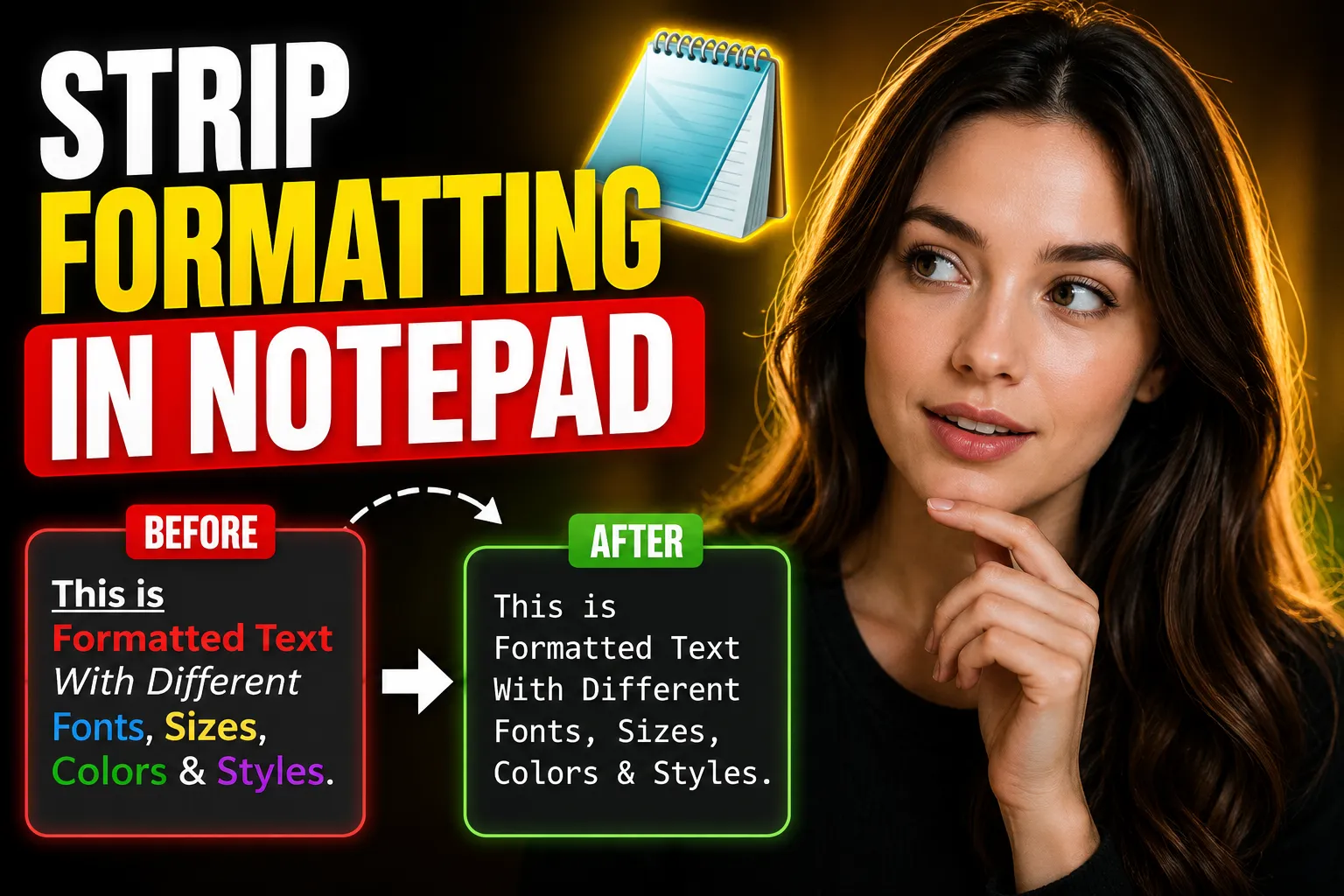
Copying text from websites, PDFs, Microsoft Word, emails, or AI tools often brings hidden formatting with it. Fonts change, colors appear unexpectedly, spacing breaks, and pasted content suddenly looks inconsistent.
One of the simplest ways to fix this problem is to use Notepad to strip formatting from text.
Because Windows Notepad only supports plain text, it automatically removes fonts, colors, hyperlinks, tables, and styling when you paste content into it. You can then copy the clean text back into your document, email, CMS, or editor.
This guide explains exactly how to use Notepad to remove formatting, why it works, where it fails, and what alternatives are available online.
Table of Contents
- What It Means to Strip Formatting From Text
- Why Formatting Problems Happen
- How to Use Notepad to Remove Formatting
- Keyboard Shortcut Method
- What Formatting Gets Removed
- When Notepad Is the Best Option
- Limitations of Using Notepad
- How to Remove Formatting Online
- Using Write Notes as an Online Notepad
- Using an Online Whiteboard for Collaboration
- Alternative Methods to Remove Formatting
- Common Problems and Fixes
- Best Practices for Clean Text Formatting
- FAQ
- Conclusion
What It Means to Strip Formatting From Text
Stripping formatting means removing all visual styling and embedded formatting from text so only plain text remains.
This usually removes:
- Font styles
- Font sizes
- Colors
- Hyperlinks
- Tables
- Background colors
- Bold and italic formatting
- HTML formatting
- Rich text formatting
For example, if you copy text from a webpage, it may include:
- Different fonts
- Hidden HTML code
- Unwanted spacing
- Link formatting
- Embedded styles
Using Notepad removes all of that automatically.
The result is plain, clean text that can be pasted anywhere consistently.
Why Formatting Problems Happen
Formatting issues happen because modern applications use rich text formats instead of plain text.
Programs like:
- Microsoft Word
- Google Docs
- Gmail
- Web browsers
- AI writing tools
- PDF readers
all preserve formatting when content is copied.
That formatting is carried through the clipboard.
When pasted into another editor, the destination application tries to preserve those styles. This can create:
- Broken layouts
- Inconsistent fonts
- Weird spacing
- Oversized headings
- Unwanted colors
- Invisible formatting artifacts
This is especially common for:
- Bloggers
- Students
- Content editors
- Web developers
- SEO writers
- CMS users
- Email marketers
Plain text editors solve this by removing all style information completely.
How to Use Notepad to Remove Formatting
Using Notepad to strip formatting is straightforward.
Step-by-Step Instructions
Step 1: Copy the Formatted Text
Highlight the text you want to clean.
Press:
Ctrl + Cor right-click and select Copy.
Step 2: Open Notepad
On Windows:
- Press the Windows key
- Type “Notepad”
- Open the Notepad app
You can also press:
Windows + Rthen type:
notepadand press Enter.
Step 3: Paste the Text Into Notepad
Paste using:
Ctrl + VNotepad automatically strips all formatting.
Only plain text remains.
Step 4: Copy the Clean Text
Select the cleaned text.
Press:
Ctrl + Athen:
Ctrl + CStep 5: Paste Into Your Final Destination
Now paste the text into:
- WordPress
- Google Docs
- Microsoft Word
- Email editors
- CMS platforms
- Notes apps
- Chat applications
The pasted text will now be clean and formatting-free.
Keyboard Shortcut Method
Some applications support direct “Paste as Plain Text” shortcuts.
Examples include:
| Platform | Shortcut |
|---|---|
| Windows | Ctrl + Shift + V |
| Mac | Command + Shift + V |
| Google Docs | Ctrl + Shift + V |
| Slack | Ctrl + Shift + V |
However, many desktop applications still do not support this properly.
That is why Notepad remains one of the most reliable universal methods.
What Formatting Gets Removed
Notepad strips nearly all rich formatting elements.
| Formatting Type | Removed? |
| Fonts | Yes |
| Font sizes | Yes |
| Bold/Italic | Yes |
| Hyperlinks | Yes |
| Colors | Yes |
| Tables | Mostly |
| Images | Yes |
| HTML styling | Yes |
| Hidden formatting | Yes |
However, line breaks and basic spacing usually remain intact.
That makes Notepad useful for preserving readable structure while removing styling.
When Notepad Is the Best Option
Notepad works especially well in practical everyday situations.
Cleaning Content for Blogging Platforms
When copying from Word or Google Docs into WordPress, formatting problems are common.
Using Notepad first helps avoid:
- Random font changes
- Broken paragraph spacing
- Strange HTML markup
- Inconsistent heading styles
This creates cleaner blog formatting and fewer editing issues later.
Preparing Text for Emails
Copying text from websites into email clients often carries hidden formatting.
This can make emails look unprofessional or inconsistent across devices.
Plain text helps maintain consistency.
Working With Code Snippets
Developers frequently use Notepad to remove smart quotes, hidden formatting, or copied HTML styling before pasting code into editors.
Removing AI Tool Formatting
AI-generated content sometimes contains hidden formatting or inconsistent spacing when pasted into CMS editors.
Running the content through Notepad first simplifies cleanup.
Limitations of Using Notepad
Although Notepad is useful, it is not perfect.
It Removes All Formatting
Sometimes you may want to keep:
- Headings
- Bullet points
- Links
- Basic emphasis
Notepad removes everything indiscriminately.
Tables Become Messy
Complex tables copied from websites or spreadsheets may lose structure.
Columns often collapse into plain text.
Images Are Removed
Notepad only supports text.
Any copied images disappear entirely.
Line Breaks Can Change
Some copied content may lose spacing consistency after pasting.
This happens frequently with PDF text extraction.
How to Remove Formatting Online
If you do not want to install software or open desktop apps, online plain text editors work well.
An online notepad lets you:
- Paste formatted text
- Instantly remove styling
- Edit plain text
- Save notes
- Share content across devices
This is especially useful for Chromebook users, remote workers, and mobile users.
One practical option is Write Notes, which provides a lightweight browser-based note-taking experience.
Unlike traditional desktop Notepad, online editors can be accessed from:
- Windows
- Mac
- Linux
- Tablets
- Mobile devices
This makes them more flexible for modern workflows.
Using Write Notes as an Online Notepad
Write Notes Online Notepad works similarly to plain text editors while remaining accessible directly in the browser.
You can use it to:
- Remove formatting from copied text
- Draft blog posts
- Save quick notes
- Prepare clean CMS content
- Organize text snippets
- Edit plain text online
Because it runs in the browser, there is no installation required.
This is useful when:
- Working on public computers
- Switching between devices
- Collaborating remotely
- Using lightweight systems
- Editing content quickly online
For beginners, browser-based editors are often simpler than installing desktop software.
Using an Online Whiteboard for Collaboration
Sometimes text cleanup is only one part of a larger collaboration process.
Teams often need to:
- Brainstorm content
- Organize ideas visually
- Review drafts
- Collaborate in real time
In those cases, a collaborative whiteboard can help.
Write Notes Online Collaborative Whiteboard provides a shared workspace for visual collaboration and note organization.
This can be useful for:
- Remote teams
- Content planning
- Educational sessions
- Workflow mapping
- Brainstorming article structures
For content teams, combining plain text cleanup with collaborative planning tools creates a smoother publishing workflow.
Alternative Methods to Remove Formatting
Notepad is not the only option.
Here are some alternatives.
Use Paste Special in Word
Microsoft Word supports:
Paste Special → Keep Text OnlyThis preserves plain text without opening another app.
Use Google Docs Paste Without Formatting
Shortcut:
Ctrl + Shift + VThis works well inside Google Workspace.
Use Plain Text Mode in CMS Editors
Some CMS platforms include:
- Paste as plain text
- Remove formatting
- Clear styles
buttons directly in the editor toolbar.
Use Code Editors
Editors like:
- VS Code
- Sublime Text
- Notepad++
- Vim
also remove most formatting automatically.
However, these tools may feel overly technical for beginners.
Common Problems and Fixes
Problem: Extra Line Breaks
Cause
PDF text extraction often inserts broken line spacing.
Fix
Use Find and Replace to normalize spacing after cleaning text.
Problem: Bullet Points Disappear
Cause
Notepad removes rich formatting.
Fix
Recreate bullet lists manually after pasting.
Problem: Links Become Plain Text
Cause
Hyperlinks are stripped intentionally.
Fix
Reinsert important links manually.
Problem: Weird Symbols Appear
Cause
Character encoding mismatches.
Fix
Use UTF-8 compatible editors or modern online editors.
Best Practices for Clean Text Formatting
Using plain text workflows consistently prevents many formatting issues later.
Keep Source Formatting Minimal
Avoid copying heavily styled content whenever possible.
Use Plain Text Before Publishing
Many professional editors clean text before final publishing.
This reduces hidden formatting problems inside CMS systems.
Reapply Formatting Intentionally
Instead of importing random styles, rebuild formatting manually inside your final editor.
This creates more consistent design and cleaner HTML.
Store Drafts in Plain Text
Plain text files are:
- lightweight
- portable
- future-proof
- compatible everywhere
This is one reason many developers and writers still prefer plain text workflows.
FAQ
Does Notepad remove all formatting?
Yes. Standard Windows Notepad removes nearly all rich text formatting and leaves only plain text.
Can I remove formatting without Notepad?
Yes. Many applications support “Paste as Plain Text” shortcuts such as Ctrl + Shift + V.
Online notepad tools also work well.
Does Notepad remove hyperlinks?
Yes. Hyperlinks become regular plain text URLs after pasting into Notepad.
Is there an online version of Notepad?
Yes. Browser-based tools like Write Notes Online Notepad provide similar functionality online.
Why does copied text break formatting in WordPress?
Copied content often contains hidden HTML and CSS styles from the original source.
These styles can conflict with WordPress themes and editor formatting.
Using plain text first helps avoid this.
Can Notepad remove formatting from PDFs?
Yes, but PDF extraction may still create spacing or line break issues depending on the source document.
Is plain text better for SEO content publishing?
In many cases, yes.
Plain text workflows reduce hidden formatting issues and produce cleaner HTML inside CMS platforms.
This can improve editing consistency and reduce layout problems.
Conclusion
Using Notepad to strip formatting from text remains one of the fastest and most reliable ways to clean copied content.
The process is simple:
- Copy the text
- Paste into Notepad
- Copy the plain text
- Paste into your final editor
This removes hidden formatting that often causes layout and styling problems.
For users who prefer browser-based tools, online editors like Write Notes offer a convenient alternative without requiring installation. And for collaborative brainstorming or content planning, tools like the Online Collaborative Whiteboard can support team workflows alongside plain text editing.
Keeping text clean before publishing saves time, reduces formatting issues, and creates more consistent content across platforms.

Alex Chen
I am a Digital Systems Architect and productivity specialist dedicated to building frictionless workflows. With over 2,000 hours of deep-work experimentation, I've mastered the art of transforming cluttered Write Notes workspaces into high-output engines.Having successfully migrated over 10,000 users into streamlined digital systems, I focus on the intersection of Personal Knowledge Management (PKM) and automated task architecture. When I'm not auditing the latest productivity tools, I manage a 1,500-note research library and consult for teams looking to reclaim their focus.