
How to View Hex Code in Notepad Without Plugins
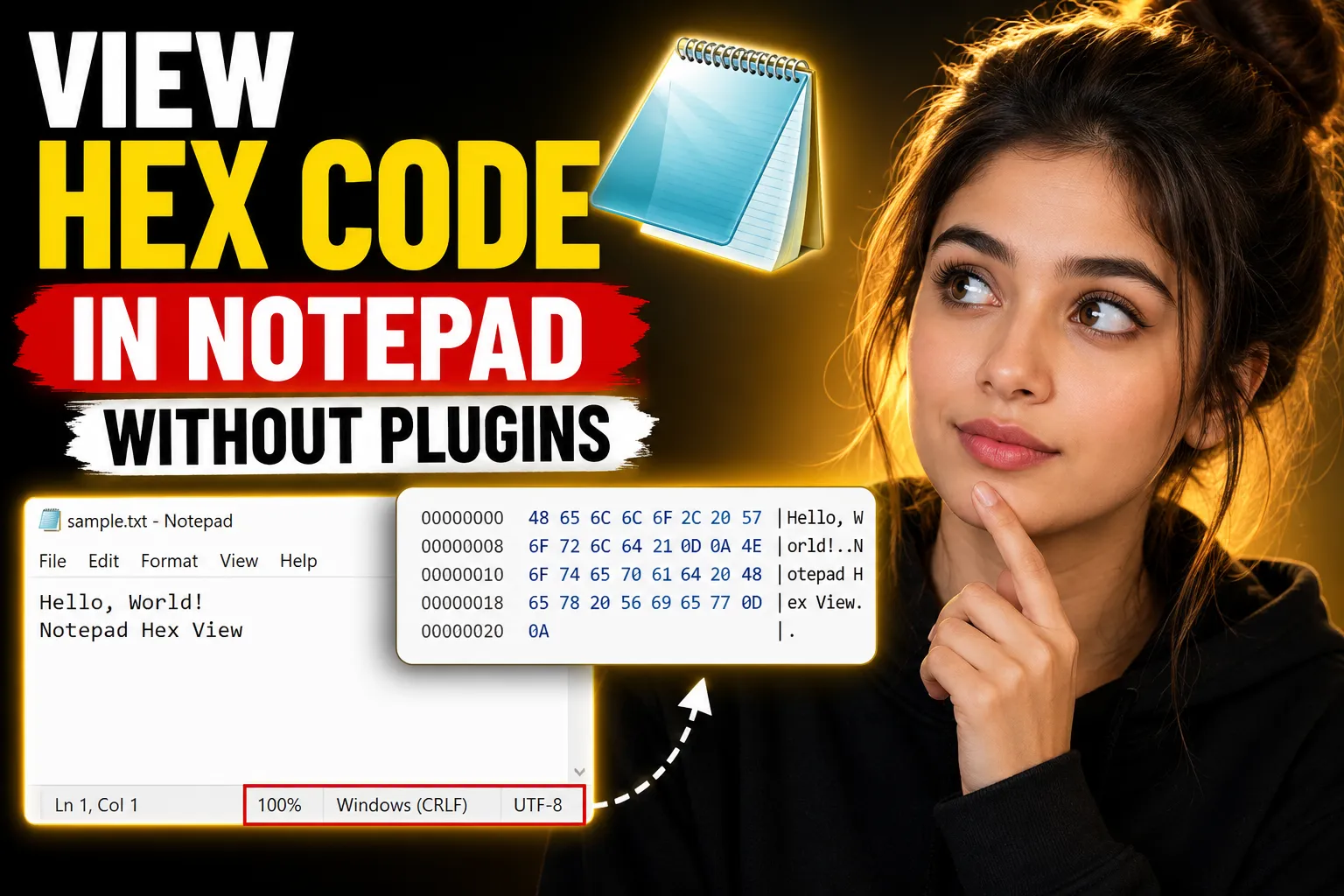
Most people assume you need a dedicated hex editor or third-party plugin to view hexadecimal code properly. In reality, Windows already includes several built-in tools that let you inspect hex data without installing anything extra. If you only need to check file contents, inspect binary data, or troubleshoot corrupted files occasionally, these methods are usually enough.
This guide explains how to view hex code in Notepad without plugins using beginner-friendly approaches. You’ll also learn the limitations of plain Notepad, when built-in Windows tools work better, and which free online tools can help when you need quick collaboration or note-taking during debugging sessions.
Table of Contents
-
Why Notepad Cannot Properly Display Hex Code
-
What Hex Code Actually Means
-
Method 1: Open a File in Notepad Directly
-
Method 2: Use Windows Command Prompt to View Hex Data
-
Method 3: Use PowerShell to Display Hex Values
-
Method 4: Use CertUtil Built Into Windows
-
Method 5: Convert Binary Files to Readable Text
-
Best Situations for Viewing Hex Without Plugins
-
Limitations of Using Notepad for Hex Data
-
Better Free Alternatives Without Installing Plugins
-
Using Online Tools for Notes and Collaboration
-
Common Problems and Troubleshooting
-
FAQ
-
Conclusion
Why Notepad Cannot Properly Display Hex Code
Notepad is designed for plain text editing. Hexadecimal files are usually binary files, which contain machine-readable data instead of human-readable text.
When you open a binary file directly in Notepad, several things can happen:
-
Random symbols appear
-
Characters become unreadable
-
Formatting breaks
-
The file may seem corrupted
-
Some content may display as blank spaces
That happens because Notepad tries to interpret binary bytes as text characters.
A true hex editor displays:
-
Hexadecimal byte values
-
ASCII representations
-
File offsets
-
Structured binary data
Notepad lacks these features entirely.
Still, there are workarounds that let you inspect hex values without installing plugins or specialized editors.
What Hex Code Actually Means
Hexadecimal, usually shortened to “hex,” is a base-16 numbering system used heavily in computing.
Instead of using numbers 0–9 only, hex uses:
0 1 2 3 4 5 6 7 8 9 A B C D E F
Each pair of hex digits represents one byte.
For example:
| Hex | Decimal | ASCII |
|---|---|---|
| 41 | 65 | A |
| 42 | 66 | B |
| FF | 255 | Extended value |
Hex is commonly used for:
-
Debugging software
-
Inspecting binary files
-
Reverse engineering
-
Data recovery
-
Firmware editing
-
Network packet analysis
Understanding basic hex values helps when diagnosing damaged files or inspecting unknown data.
Method 1: Open a File in Notepad Directly
The simplest method is opening the file directly in Notepad.
Steps
-
Right-click the file
-
Choose Open With
-
Select Notepad
If the file contains readable text mixed with binary data, you may see partial information.
What You’ll Notice
You’ll usually encounter:
-
Garbled characters
-
Random symbols
-
Broken formatting
-
Some readable strings
Example:
PK����
This is common when opening ZIP archives or executable files.
When This Method Helps
This basic approach works if you only need:
-
File signatures
-
Embedded strings
-
Quick inspection
-
Basic corruption checks
For example:
| File Type | Common Hex Signature |
|---|---|
| ZIP | 50 4B 03 04 |
| PNG | 89 50 4E 47 |
| 25 50 44 46 |
Sometimes spotting these signatures is enough to identify unknown files.
Major Limitation
Notepad does not show actual hexadecimal byte formatting. It only attempts to interpret bytes as characters.
That means this method is useful for quick checks only.
Method 2: Use Windows Command Prompt to View Hex Data
Windows includes a built-in utility called fc and several command-line methods for viewing binary content.
One beginner-friendly approach uses the debug command on older systems or PowerShell-compatible tools through Command Prompt.
Simple Command Prompt Method
Open Command Prompt and run:
certutil -encodehex filename.bin stdout
Replace filename.bin with your actual file name.
Example:
certutil -encodehex sample.exe stdout
What This Does
The command converts binary content into readable hexadecimal output.
Example output:
0000  4D 5A 90 00 03 00 00 00
0008  04 00 00 00 FF FF 00 00
This is much closer to a real hex viewer.
Advantages
-
No plugins required
-
Built into Windows
-
More accurate than Notepad
-
Works for most binary files
Disadvantages
-
Terminal-based output
-
Harder for beginners
-
Large files become difficult to read
Method 3: Use PowerShell to Display Hex Values
PowerShell provides one of the best built-in solutions for viewing hex data without external plugins.
Basic PowerShell Command
Open PowerShell and run:
Format-Hex filename.exe
Example:
Format-Hex sample.dll
Example Output
Offset Bytes                                           Ascii
------ ----------------------------------------------- -----
0000000000000000 4D 5A 90 00 03 00 00 00              MZ......
Why This Method Is Better
Compared to Notepad:
| Feature | Notepad | PowerShell |
|---|---|---|
| Shows actual hex | No | Yes |
| ASCII preview | Partial | Yes |
| File offsets | No | Yes |
| Binary support | Poor | Good |
Best Use Cases
PowerShell is excellent for:
-
Beginners learning hex
-
Quick file analysis
-
Malware inspection
-
File header identification
-
Checking binary corruption
💡 Key Takeaway:
If you want a built-in Windows hex viewer without installing plugins, PowerShell’s Format-Hex command is the easiest modern solution.
Method 4: Use CertUtil Built Into Windows
CertUtil is another built-in Windows tool that many users overlook.
Command Example
certutil -dump filename.exe
Or:
certutil -encodehex filename.exe output.txt
Why It’s Useful
Unlike Notepad, CertUtil:
-
Handles binary data correctly
-
Produces structured hex output
-
Supports exporting to text files
This makes it easier to analyze large files later.
Exporting Hex Data for Notes
Many developers export hex output into text files for documentation or debugging.
For organizing those notes online, tools like Write Notes can help store temporary debugging notes, command examples, and troubleshooting steps directly in the browser without installing additional software.
Method 5: Convert Binary Files to Readable Text
Sometimes you do not need full hex output. You may only need readable strings from a binary file.
Windows includes the strings concept indirectly through PowerShell methods.
Example PowerShell Command
Get-Content file.exe -Encoding Byte
This reads raw byte values.
You can also redirect results into text files for easier review.
When This Helps
Useful for:
-
Extracting hidden URLs
-
Finding readable metadata
-
Inspecting corrupted documents
-
Identifying embedded text
Best Situations for Viewing Hex Without Plugins
Built-in methods work surprisingly well for lightweight tasks.
Good Use Cases
| Scenario | Built-In Tools Work Well |
|---|---|
| Checking file signatures | Yes |
| Viewing small binary files | Yes |
| Learning hexadecimal basics | Yes |
| Quick debugging | Yes |
| Inspecting malware samples | Limited |
| Firmware editing | No |
When You Need a Real Hex Editor
You should use dedicated tools when:
-
Editing binary values
-
Comparing large files
-
Reverse engineering software
-
Analyzing memory dumps
-
Working with structured binary formats
Limitations of Using Notepad for Hex Data
Many beginners try using Notepad alone because it is already installed. The problem is that Notepad was never designed for binary inspection.
Major Drawbacks
No Byte Alignment
Real hex editors group bytes cleanly.
Notepad does not.
Encoding Problems
Binary data gets interpreted incorrectly.
Risk of File Corruption
Saving a binary file in Notepad can permanently damage it.
No Offset Information
Offsets are critical in hex analysis.
Notepad cannot display them.
Better Free Alternatives Without Installing Plugins
If you do not want plugins but still need easier tools, browser-based solutions can help.
Online Note-Taking for Debugging
During troubleshooting, many users copy hex output into temporary notes.
Free Online Notepad by Write Notes is useful for quickly storing:
-
Hex dumps
-
PowerShell commands
-
File signatures
-
Error logs
-
Temporary debugging notes
Since it runs in the browser, there is no installation required.
Online Whiteboard for Team Collaboration
Hex analysis often becomes collaborative in:
-
cybersecurity teams
-
programming groups
-
classroom environments
-
debugging sessions
An online whiteboard helps visualize offsets, structures, and byte layouts more clearly than plain text notes.
Online Collaborative Whiteboard can help teams discuss:
-
binary structures
-
file headers
-
memory layouts
-
debugging workflows
This is especially useful during remote troubleshooting sessions.
Common Problems and Troubleshooting
Problem: Notepad Shows Blank Characters
Cause:
Binary bytes are not valid text characters.
Fix:
Use PowerShell Format-Hex instead.
Problem: File Looks Corrupted After Saving
Cause:
Notepad rewrote binary encoding.
Fix:
Never save binary files directly from Notepad unless you know the exact encoding requirements.
Problem: Hex Output Is Too Large
Cause:
Large files generate huge dumps.
Fix:
Limit output ranges in PowerShell.
Example:
Format-Hex file.exe -Count 128
Problem: Symbols Look Random
Cause:
Binary data is not human-readable text.
Fix:
This is normal behavior.
Use proper hex viewers for structured analysis.
Practical Beginner Workflow
If you are completely new to hex inspection, this workflow works well:
Step 1
Open the file in Notepad briefly.
Look for readable strings.
Step 2
Use PowerShell:
Format-Hex filename.exe
Step 3
Identify the file signature.
Step 4
Copy useful notes into an online notepad.
Step 5
Use collaborative tools if working with others.
This approach avoids unnecessary plugins while still giving you meaningful inspection capabilities.
FAQ
Can Notepad display real hexadecimal values?
No. Notepad cannot properly format or interpret hexadecimal byte structures. It only attempts to display binary data as text characters.
What is the easiest built-in Windows hex viewer?
PowerShell’s Format-Hex command is the easiest built-in option for most beginners.
Can opening a binary file in Notepad damage it?
Opening alone usually does not damage the file. Saving changes from Notepad can corrupt the file because encoding may change.
Do I need plugins to inspect file headers?
No. PowerShell and CertUtil can display file headers without plugins.
What is the difference between ASCII and hex?
ASCII represents readable characters. Hex represents raw byte values in base-16 format.
Is PowerShell safer than Notepad for binary inspection?
Yes. PowerShell reads binary data properly without attempting to reinterpret the file as plain text.
Conclusion
If your goal is learning how to view hex code in Notepad without plugins, the important thing to understand is that Notepad itself is extremely limited for binary analysis. It can occasionally help with quick inspections or identifying readable strings, but it is not a true hex viewer.
For better results without installing additional software, Windows already provides stronger built-in tools through PowerShell and CertUtil. These methods display structured hexadecimal output, offsets, and ASCII representations far more accurately than plain Notepad.
For organizing debugging notes, sharing command output, or collaborating remotely, browser-based tools like Write Notes Online Notepad and the Collaborative Whiteboard Tool can also streamline the workflow without requiring extra installations.

Alex Chen
I am a Digital Systems Architect and productivity specialist dedicated to building frictionless workflows. With over 2,000 hours of deep-work experimentation, I've mastered the art of transforming cluttered Write Notes workspaces into high-output engines.Having successfully migrated over 10,000 users into streamlined digital systems, I focus on the intersection of Personal Knowledge Management (PKM) and automated task architecture. When I'm not auditing the latest productivity tools, I manage a 1,500-note research library and consult for teams looking to reclaim their focus.