
How to View Notepad Tabs Side by Side in Windows 11
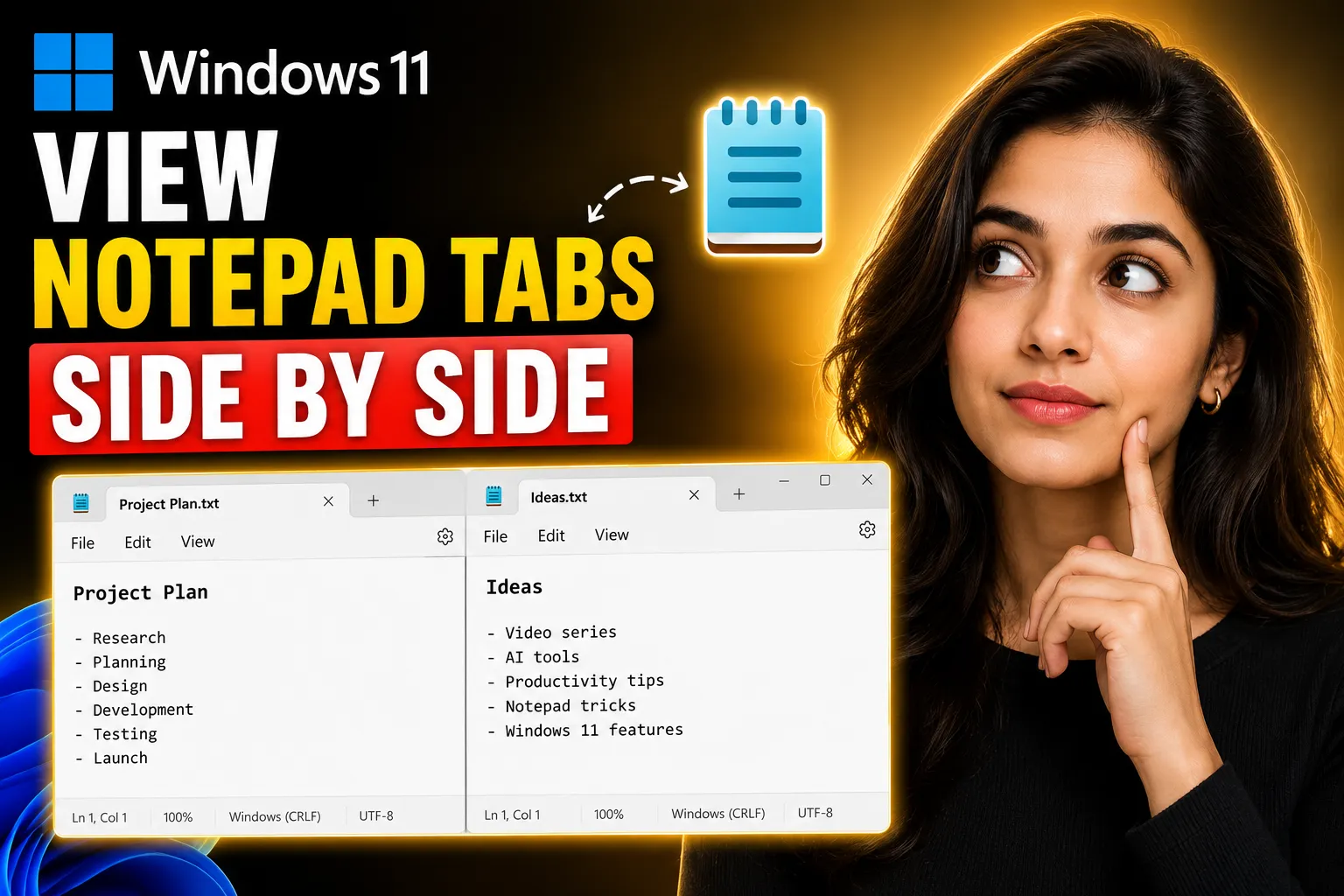
Windows 11 introduced a redesigned Notepad app with tab support, making it easier to work with multiple text files in a single window. But many users quickly notice one limitation: Notepad tabs cannot be split side by side inside the same app window like browser tabs in Microsoft Edge.
That does not mean you are stuck switching back and forth between tabs.
There are several practical ways to view Notepad files side by side in Windows 11, including opening multiple Notepad windows, using Snap Layouts, and working with browser-based note-taking tools that support collaborative editing and whiteboards.
This guide explains exactly how to do it, what limitations exist in the current Notepad app, and which methods work best for beginners.
Table of Contents
- Why Notepad Tabs Cannot Be Split Directly
- The Easiest Way to View Notepad Files Side by Side
- How to Open Multiple Notepad Windows
- Using Windows 11 Snap Layouts for Better Multitasking
- How to Compare Two Text Files Efficiently
- Alternative Method: Use Online Notepad Tools
- When a Collaborative Whiteboard Works Better Than Notepad
- Common Problems and Fixes
- Best Practices for Working With Multiple Notes
- FAQ
Why Notepad Tabs Cannot Be Split Directly
The new Windows 11 Notepad app supports tabs, but Microsoft has not added built-in split-view functionality.
That means:
- You can open multiple tabs
- You can switch between them quickly
- You cannot drag one tab to split the window into two panes
This behavior is different from:
- Microsoft Edge
- Visual Studio Code
- Some advanced text editors
If your goal is to read or compare two notes at the same time, you need a workaround.
The good news is that Windows 11 already includes excellent multitasking tools that solve this problem easily.
The Easiest Way to View Notepad Files Side by Side
The simplest solution is:
- Open the first file in Notepad
- Open a second Notepad window
- Use Windows Snap Layouts to place them side by side
This works reliably and takes less than a minute.
Step-by-Step Instructions
Step 1: Open Your First Notepad File
- Press
Windows + S - Type
Notepad - Open the app
- Load your first text file
Step 2: Open Another Notepad Window
There are several ways to do this.
Method 1: Right-Click Notepad
- Right-click the Notepad icon on the taskbar
- Click
Notepadagain
Method 2: Use Keyboard Shortcut
- Press
Windows + R - Type:
notepad- Press Enter
A second Notepad window opens.
Step 3: Open Your Second File
Load another note or text document in the second window.
Step 4: Snap the Windows Side by Side
Now use Windows 11 Snap Assist.
Keyboard Shortcut Method
- Click the first Notepad window
- Press:
Windows + Left Arrow- Click the second window
- Press:
Windows + Right ArrowYour two Notepad windows now appear side by side.
Using Snap Layouts in Windows 11
Windows 11 introduced improved multitasking tools called Snap Layouts.
These are especially useful when comparing notes, code snippets, logs, or copied text.
How to Use Snap Layouts
- Hover your mouse over the maximize button
- A layout menu appears
- Select the two-column layout
- Choose another Notepad window for the second side
[IMAGE ALT: Windows 11 Snap Layout menu showing two side-by-side windows]
Benefits of Snap Layouts
| Feature | Benefit |
|---|---|
| Automatic resizing | Windows align perfectly |
| Faster multitasking | Less manual dragging |
| Better screen organization | Cleaner workspace |
| Multi-monitor support | Useful for larger setups |
How to Open Multiple Notepad Windows From Tabs
Some users think tabs prevent multiple windows from opening.
That is not true.
You can still create separate Notepad windows even with tab support enabled.
Method: Drag a Tab Out
In newer Windows 11 builds, Microsoft allows limited tab detaching.
Try this:
- Open multiple tabs
- Click and drag one tab outside the Notepad window
- Release it
If supported on your version, the tab becomes a separate window.
If nothing happens, your Windows version may not support detached tabs yet.
Another Quick Method: Duplicate the App
You can launch additional Notepad instances manually.
Using Command Prompt
Open Command Prompt and type:
start notepad
start notepad
This opens multiple windows instantly.
Best Layouts for Different Tasks
Different workflows benefit from different screen arrangements.
For Comparing Notes
Use:
- Two equal vertical windows
Best for:
- Copying text
- Reviewing drafts
- Comparing lists
- Editing notes simultaneously
For Research and Writing
Use:
- Browser on one side
- Notepad on the other
This setup works well for:
- Students
- Bloggers
- Researchers
- Content writers
For Coding or Logs
Use:
- One large editor
- One smaller Notepad window
Best for:
- Reading logs
- Temporary snippets
- Config file editing
How to Compare Two Text Files Efficiently
Viewing files side by side is only part of the process.
You also need a workflow that avoids confusion.
Practical Tips
Keep Related Files Named Clearly
Bad example:
notes1.txt
notes2.txt
Better example:
meeting-notes-march.txt
meeting-notes-april.txt
Use Different Zoom Levels Carefully
If one window uses larger text, alignment becomes harder.
Try keeping both windows at the same zoom percentage.
Turn On Word Wrap Only When Needed
Word wrap changes line alignment between files.
For easier comparison:
- Disable word wrap temporarily
Go to:
View → Word WrapUse Monospaced Fonts
Notepad already uses simple monospaced fonts, which helps maintain alignment when comparing text.
This matters especially for:
- Code
- Tables
- Structured lists
Alternative Method: Use an Online Notepad Instead
Desktop Notepad works well for quick editing, but it has limitations:
- No cloud sync
- No collaboration
- Limited organization
- No real-time sharing
If you frequently work with multiple notes, browser-based note tools are often more practical.
One option is Write Notes, an online note-taking application that works directly in your browser.
It allows you to:
- Create notes instantly
- Access notes online
- Work across devices
- Avoid saving local TXT files repeatedly
You can also use the dedicated Free Online Notepad for quick text editing without installing software.
This approach is useful when:
- Switching between multiple computers
- Working remotely
- Sharing notes with others
- Keeping temporary notes online
When an Online Whiteboard Works Better Than Notepad
Text files are useful for linear notes, but they become limiting when:
- Brainstorming
- Planning workflows
- Organizing ideas visually
- Collaborating with teams
In those situations, a whiteboard tool is often more effective.
The Online Collaborative Whiteboard allows multiple people to work together visually in real time.
This is better suited for:
| Task | Better Tool |
|---|---|
| Quick text editing | Notepad |
| Brainstorming | Whiteboard |
| Team collaboration | Whiteboard |
| Temporary text notes | Online Notepad |
| Visual planning | Whiteboard |
| Simple offline editing | Windows Notepad |
Common Problems and Fixes
Problem: Notepad Opens Tabs Instead of New Windows
Windows 11 may reopen files in tabs automatically.
Fix
Open another app instance manually:
- Right-click taskbar icon → New window
- Or use:
Windows + R → notepadProblem: Snap Layouts Not Working
Possible Causes
- Snap Assist disabled
- Outdated Windows version
- Third-party window manager conflict
Fix
Go to:
Settings → System → MultitaskingEnsure:
- Snap windows = ON
Problem: Tabs Cannot Be Detached
This depends on your Windows build version.
Microsoft rolls out Notepad features gradually.
Fix
Update Windows:
Settings → Windows UpdateThen check for updates.
Problem: Windows Resize Incorrectly
Some applications override Windows snapping behavior.
Fix
Try:
- Restarting Explorer
- Updating display drivers
- Disconnecting extra monitors temporarily
Advanced Productivity Tips
Once you start using side-by-side Notepad windows regularly, a few small habits can improve efficiency significantly.
Use Virtual Desktops
Windows 11 supports multiple desktops.
This helps separate tasks like:
- Work notes
- Personal writing
- Research
- Coding
Shortcut
Windows + Ctrl + DCreates a new desktop.
Use Clipboard History
Clipboard history makes moving text between windows easier.
Enable It
Go to:
Settings → System → ClipboardTurn on:
Clipboard HistoryShortcut
Windows + VThis shows copied items history.
Use Dark Mode for Long Sessions
Long editing sessions can cause eye strain.
Enable dark mode:
Settings → Personalization → ColorsChoose:
DarkUse Multiple Monitors if Available
If you frequently compare documents, dual monitors improve productivity dramatically.
Recommended setup:
| Screen | Usage |
|---|---|
| Main monitor | Active editing |
| Secondary monitor | Reference notes |
Notepad vs Online Note Apps
Windows Notepad is intentionally simple.
That simplicity is useful for lightweight editing, but modern note-taking often requires more flexibility.
Here is a realistic comparison.
| Feature | Windows Notepad | Online Note Apps |
|---|---|---|
| Offline access | Yes | Usually partial |
| Collaboration | No | Yes |
| Cloud sync | No | Yes |
| Multiple layouts | Limited | Better |
| Whiteboard support | No | Available |
| File organization | Minimal | Advanced |
| Installation required | Built-in | Browser-based |
Neither option is universally better.
The right choice depends on your workflow.
When Side-by-Side Notepad Viewing Is Most Useful
Many people assume split-screen editing is only for developers.
In reality, it helps in many everyday tasks.
Common Use Cases
Students
- Compare lecture notes
- Copy references
- Rewrite drafts
Writers
- Research on one side
- Draft on the other
IT Professionals
- Compare config files
- Review logs
- Edit scripts
Office Workers
- Transfer data manually
- Compare reports
- Organize meeting notes
Frequently Asked Questions
Can Notepad split tabs inside one window?
No. Windows 11 Notepad currently does not support built-in split-pane tab viewing.
You must open separate Notepad windows instead.
How do I open two Notepad windows quickly?
Use:
Windows + RThen type:
notepadRepeat the process to open multiple windows.
Can I compare two TXT files in Notepad?
Yes, but manually.
Open each file in separate windows and place them side by side using Snap Layouts.
Is there a keyboard shortcut for side-by-side windows?
Yes.
Use:
Windows + Left Arrow
Windows + Right Arrow
This snaps windows to either side of the screen.
Does Windows 10 support this too?
Yes.
Snap Assist also works in Windows 10, although Windows 11 has improved layouts and multitasking tools.
What is the best free online alternative to Notepad?
Browser-based note apps are useful if you need:
- Cloud access
- Collaboration
- Cross-device syncing
Write Notes Online Notepad is one option for quick online text editing without installing software.
Can I collaborate with others in Notepad?
No.
Traditional Windows Notepad does not support real-time collaboration.
If you need collaborative editing or brainstorming, tools like the Write Notes Whiteboard are more suitable.
Conclusion
Windows 11 Notepad tabs make file organization easier, but they do not support true split-screen tab viewing inside a single window.
The simplest workaround is to open multiple Notepad windows and use Windows Snap Layouts. This gives you a clean side-by-side workspace for comparing notes, copying text, or multitasking.
For more advanced workflows, browser-based tools can offer features that traditional Notepad lacks, including cloud access, collaboration, and visual whiteboards.
If your work involves frequent note comparison, research, or shared editing, combining Windows multitasking tools with online note platforms can create a much smoother workflow.

Alex Chen
I am a Digital Systems Architect and productivity specialist dedicated to building frictionless workflows. With over 2,000 hours of deep-work experimentation, I've mastered the art of transforming cluttered Write Notes workspaces into high-output engines.Having successfully migrated over 10,000 users into streamlined digital systems, I focus on the intersection of Personal Knowledge Management (PKM) and automated task architecture. When I'm not auditing the latest productivity tools, I manage a 1,500-note research library and consult for teams looking to reclaim their focus.