
How to Zoom In on Notepad Using Keyboard Shortcuts
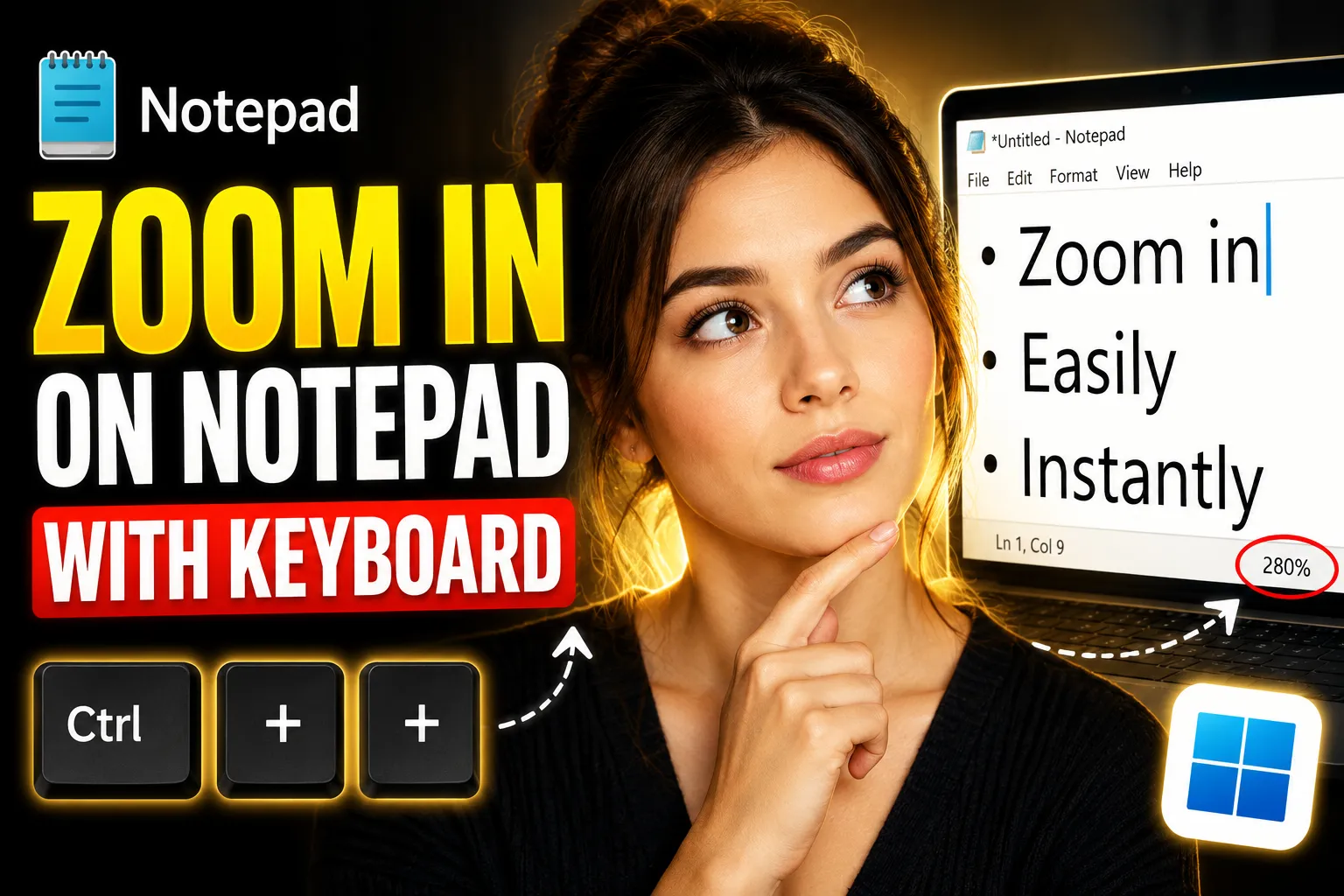
If the text in Notepad looks too small, you can quickly zoom in using keyboard shortcuts instead of changing Windows display settings. Modern versions of Notepad in Windows 10 and Windows 11 include built-in zoom controls that make text easier to read without affecting the actual file content.
This guide explains how to zoom in on Notepad using the keyboard, how to zoom back out, what to do if zoom shortcuts are not working, and alternative options for users who need a more flexible online note-taking experience.
Table of Contents
- How to Zoom In on Notepad Using Keyboard
- Keyboard Shortcuts for Notepad Zoom
- How to Reset Zoom Level in Notepad
- Mouse and Menu Methods for Zooming
- Why Zoom May Not Work in Notepad
- Differences Between Old and New Versions of Notepad
- Best Alternatives to Notepad for Better Zoom and Collaboration
- Using an Online Notepad Instead of Desktop Notepad
- When to Use an Online Whiteboard Instead
- Frequently Asked Questions
- Conclusion
How to Zoom In on Notepad Using Keyboard
The fastest way to zoom in on Notepad is:
Press:
Ctrl + Plus (+)This increases the text size inside Notepad.
You can press the shortcut multiple times to continue zooming in.
Example
If you are reading:
- code
- logs
- notes
- configuration files
- plain text documents
and the text appears too small, pressing Ctrl + + immediately enlarges the display.
The actual content of the file does not change. Only the viewing size changes.
Keyboard Shortcuts for Notepad Zoom
Here are the most useful Notepad zoom shortcuts.
| Action | Keyboard Shortcut |
|---|---|
| Zoom In | Ctrl + Plus (+) |
| Zoom Out | Ctrl + Minus (-) |
| Reset Default Zoom | Ctrl + 0 |
| Open View Menu | Alt + V |
These shortcuts work in:
- Windows 10 Notepad
- Windows 11 Notepad
- Updated Microsoft Store versions of Notepad
Important Detail About the Plus Key
On many keyboards:
- you may need to press
Ctrl + Shift + = - because the
+symbol shares the same key as=
If Ctrl + + does not work directly, try:
Ctrl + Shift + =How to Reset Zoom Level in Notepad
If you zoomed too far in or out, you can instantly restore the default text size.
Press:
Ctrl + 0This resets Notepad zoom to its normal level.
This is useful if:
- text becomes oversized
- formatting feels difficult to read
- accidental zoom changes occur
Step-by-Step Example for Beginners
If you have never used keyboard shortcuts before, follow these steps.
Step 1: Open Notepad
Press:
Windows + SType:
NotepadThen press Enter.
Step 2: Open or Create a Text File
Type some text or open an existing .txt file.
Step 3: Zoom In
Hold down:
CtrlThen press:
+You should immediately notice larger text.
Step 4: Zoom Out if Needed
Press:
Ctrl + -until the size feels comfortable.
Mouse and Menu Methods for Zooming
If you prefer not to use keyboard shortcuts, Notepad also supports zoom controls through the menu.
Method 1: Using the View Menu
- Open Notepad
- Click View
- Select:
- Zoom In
- Zoom Out
- Restore Default Zoom
This method is useful for users unfamiliar with keyboard shortcuts.
Method 2: Using Ctrl + Mouse Wheel
You can also:
- hold
Ctrl - scroll the mouse wheel upward to zoom in
- scroll downward to zoom out
This method works similarly to:
- web browsers
- document editors
- PDF readers
However, some older Notepad versions may not support mouse wheel zooming.
Why Zoom May Not Work in Notepad
Sometimes keyboard zoom shortcuts appear broken. Usually, the issue comes from one of these situations.
1. You Are Using an Older Windows Version
Very old Notepad versions did not include zoom support.
This mainly affects:
- older Windows 7 systems
- outdated Windows 10 installations
Fix
Update Windows or install the latest Notepad version from Microsoft Store.
2. Keyboard Layout Differences
International keyboards may place the plus symbol in a different location.
Try:
Ctrl + Shift + =- numeric keypad plus key
- another keyboard layout
3. Function Lock or Accessibility Settings
Certain keyboard utilities can interfere with shortcuts.
This can happen with:
- gaming keyboards
- remapping software
- accessibility tools
Temporarily disable custom keyboard software to test.
4. Notepad Window Is Not Active
Keyboard shortcuts only work if Notepad is the selected window.
Click inside the Notepad text area first.
Differences Between Old and New Versions of Notepad
Many users are surprised that older tutorials conflict with newer Windows behavior.
Here is the difference.
| Feature | Old Notepad | New Notepad |
|---|---|---|
| Zoom Support | No | Yes |
| Dark Mode | No | Yes |
| Tabs | No | Yes |
| Auto Save | Limited | Improved |
| Keyboard Zoom | No | Yes |
Microsoft significantly upgraded Notepad in recent Windows releases.
If your Notepad does not support zoom:
- your system may be outdated
- or you may be using a legacy version
Increase Text Size Permanently in Notepad
Zoom only changes the current viewing level.
If you want permanently larger text:
Change the Font Size
- Open Notepad
- Click Format
- Select Font
- Choose:
- larger size
- different font family
- bold style if needed
This changes the default display appearance.
Best Fonts for Readability
| Font | Best Use |
|---|---|
| Consolas | Coding |
| Arial | General notes |
| Courier New | Plain text formatting |
| Segoe UI | Modern readability |
Best Alternatives to Notepad for Better Zoom and Collaboration
Traditional Notepad works well for simple text editing, but it has limitations.
It lacks:
- collaboration tools
- cloud syncing
- rich formatting
- advanced organization
- shared editing
For users who need a more flexible experience, browser-based note-taking apps are often more practical.
One option is Write Notes, an online note-taking application designed for quick access from any browser.
Features include:
- online text editing
- easy note access
- browser-based workflow
- no software installation
- accessible from multiple devices
This is especially useful for:
- students
- remote workers
- shared project notes
- temporary text storage
- quick drafting
Using an Online Notepad Instead of Desktop Notepad
A browser-based editor can solve many of the limitations found in desktop Notepad.
For example, Online Free Notepad allows users to create and edit notes directly in a web browser.
Advantages of Online Notepads
| Feature | Desktop Notepad | Online Notepad |
|---|---|---|
| Works Across Devices | Limited | Yes |
| Collaboration | No | Often Supported |
| Cloud Access | No | Yes |
| Browser-Based | No | Yes |
| Installation Required | Yes | No |
When an Online Notepad Makes More Sense
An online notepad is useful when:
- using public computers
- switching between devices
- sharing quick notes
- avoiding software installation
- collaborating remotely
It also avoids some desktop-specific issues like:
- outdated Notepad versions
- missing zoom support
- local file dependency
When to Use an Online Whiteboard Instead
Sometimes plain text is not enough.
If you need:
- visual brainstorming
- diagramming
- collaborative planning
- sketching ideas
- workflow mapping
a whiteboard tool is more effective than a traditional text editor.
An option for this is the Online Free Whiteboard with Collaboration.
Unlike Notepad, collaborative whiteboards support:
- shared visual editing
- real-time teamwork
- diagrams and flowcharts
- brainstorming sessions
- visual organization
Common Use Cases
| Use Case | Better Tool |
|---|---|
| Quick text notes | Notepad |
| Shared meeting notes | Online Notepad |
| Team brainstorming | Online Whiteboard |
| Diagram planning | Whiteboard |
| Code snippets | Notepad |
| Remote collaboration | Online tools |
Troubleshooting Notepad Zoom Problems
Here are the most common fixes if zooming still does not work.
Restart Notepad
Close and reopen the application.
Some temporary interface glitches disappear after restart.
Update Windows
Outdated Windows builds may use legacy Notepad versions.
Go to:
Settings → Windows UpdateInstall pending updates.
Reinstall Notepad
In Windows 11, Notepad can be removed and reinstalled.
Steps
- Open Settings
- Go to Apps
- Select Optional Features
- Find Notepad
- Reinstall it
Try Another Keyboard
Sometimes the issue is hardware-related.
Common problems include:
- stuck modifier keys
- broken plus key
- keyboard remapping conflicts
Use Accessibility Zoom Instead
If Notepad zoom is unavailable, Windows Magnifier can help.
Press:
Windows + Plus (+)This zooms the entire screen.
Notepad Zoom vs Windows Display Scaling
Many beginners confuse Notepad zoom with Windows scaling.
They are different.
| Feature | What It Changes |
|---|---|
| Notepad Zoom | Only Notepad text |
| Windows Scaling | Entire interface |
| Magnifier | Entire screen zoom |
If only Notepad text is too small, use Notepad zoom first.
If all apps look tiny, adjust Windows display scaling instead.
Practical Situations Where Zoom Helps
Zooming in on Notepad is especially useful for:
Reading Log Files
System logs often use tiny fonts and long lines.
Zoom improves readability quickly.
Coding or Script Editing
Small syntax-heavy text becomes easier to scan.
Presentations or Screen Sharing
When sharing your screen in:
- Zoom
- Microsoft Teams
- Google Meet
larger text prevents viewers from struggling to read.
Accessibility and Eye Strain
Users with:
- vision limitations
- eye fatigue
- high-resolution monitors
often need larger text sizes for comfortable reading.
Frequently Asked Questions
Can I zoom in on Notepad using only the keyboard?
Yes. Press:
Ctrl + Plus (+)to zoom in.
Use:
Ctrl + Minus (-)to zoom out.
Why does Ctrl + Plus not work on my keyboard?
Some keyboards require:
Ctrl + Shift + =because the plus symbol shares the equals key.
Does Notepad zoom change the actual file?
No.
Zoom only changes how the text appears on your screen.
The file content and formatting remain unchanged.
Can I make Notepad permanently larger?
Yes.
Go to:
Format → Fontand choose a larger font size.
Does Notepad zoom work in Windows 11?
Yes.
Modern Windows 11 versions fully support:
- zoom shortcuts
- mouse wheel zoom
- zoom reset controls
Is there an online alternative to Notepad?
Yes.
Browser-based tools like Write Notes Online Notepad provide quick note-taking without installing software.
What is better for team collaboration than Notepad?
For shared brainstorming and visual collaboration, a tool like the Online Collaborative Whiteboard is usually more effective than plain text editing.
Conclusion
Learning how to zoom in on Notepad using keyboard shortcuts makes reading and editing text much easier, especially on high-resolution displays or during long work sessions.
The most important shortcuts are simple:
Ctrl + Plus (+)to zoom inCtrl + Minus (-)to zoom outCtrl + 0to reset zoom
Modern versions of Notepad support these features directly, but older Windows installations may require updates.
If you regularly work across devices or collaborate with others, browser-based tools such as Write Notes can provide a more flexible alternative to desktop Notepad. For visual collaboration and brainstorming, online whiteboards are often a better fit than plain text editors.

Alex Chen
I am a Digital Systems Architect and productivity specialist dedicated to building frictionless workflows. With over 2,000 hours of deep-work experimentation, I've mastered the art of transforming cluttered Write Notes workspaces into high-output engines.Having successfully migrated over 10,000 users into streamlined digital systems, I focus on the intersection of Personal Knowledge Management (PKM) and automated task architecture. When I'm not auditing the latest productivity tools, I manage a 1,500-note research library and consult for teams looking to reclaim their focus.