
What Is the Difference Between Notepad and WordPad in Computer?
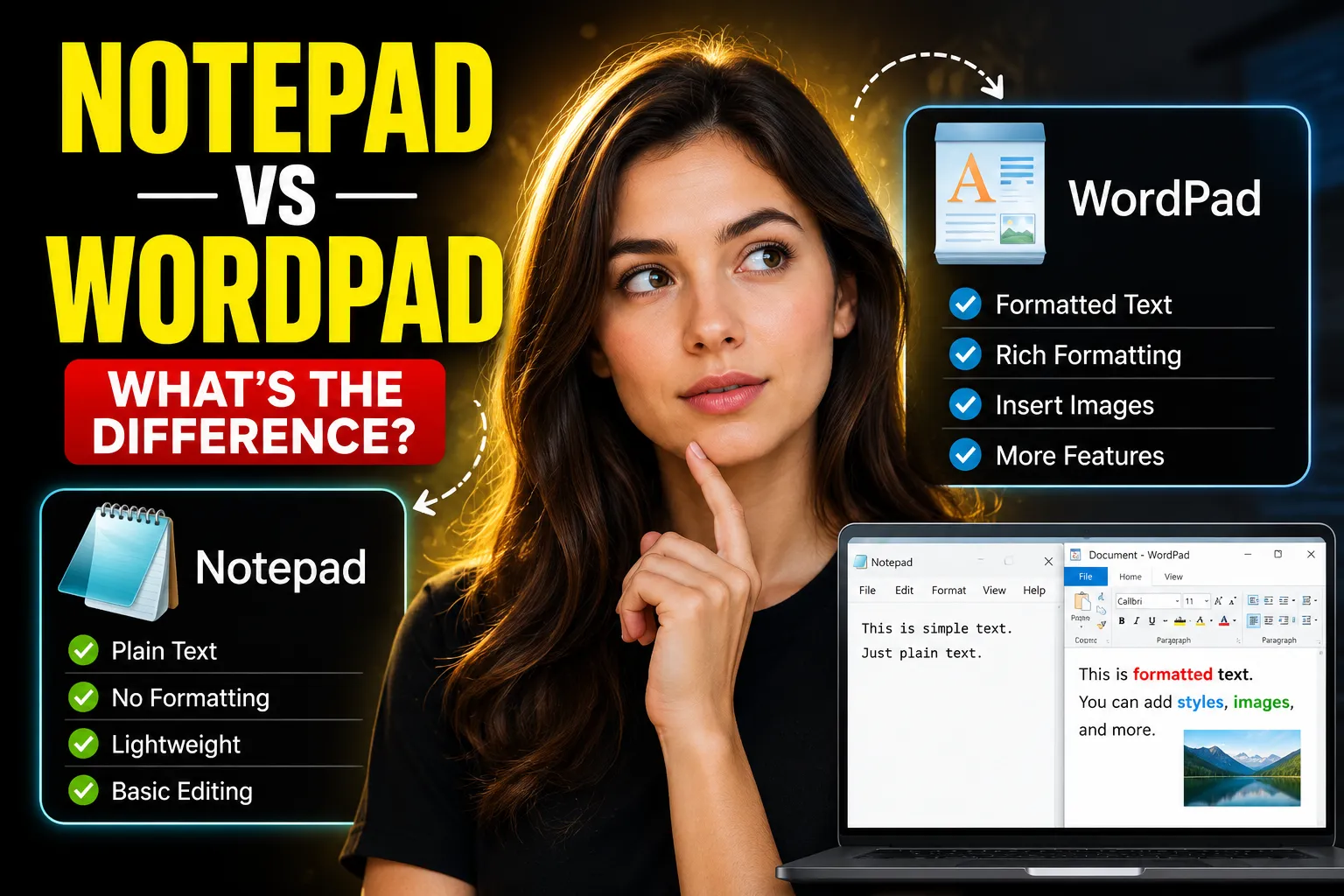
Many beginners get confused when they see both Notepad and WordPad on a Windows computer. At first glance, they look similar because both are used for typing text. But they are designed for very different purposes.
The main difference between Notepad and WordPad is simple:
-
Notepad is a basic text editor used for plain text without formatting.
-
WordPad is a basic word processor that supports fonts, colors, images, and document formatting.
Understanding this difference helps you choose the right tool for writing notes, creating documents, coding, or editing simple text files.
This article explains how Notepad and WordPad work, their features, advantages, limitations, and when to use each one. If you are new to computers, this beginner-friendly guide will make everything easy to understand.
Table of Contents
-
What Is Notepad?
-
What Is WordPad?
-
Main Difference Between Notepad and WordPad
-
Features Comparison Table
-
When Should You Use Notepad?
-
When Should You Use WordPad?
-
Advantages and Disadvantages
-
Notepad vs WordPad for Students
-
Notepad vs WordPad for Coding
-
Modern Alternatives to Notepad and WordPad
-
Why Online Note-Taking Tools Are Becoming Popular
-
Frequently Asked Questions
-
Conclusion
What Is Notepad?
Notepad is a simple text editor included with Microsoft Windows. It is mainly used for writing and editing plain text files.
Plain text means the text has:
-
no font styling
-
no colors
-
no images
-
no tables
-
no advanced formatting
Everything appears in a simple format.
Common Uses of Notepad
People use Notepad for:
-
writing quick notes
-
editing text files
-
writing code
-
creating HTML files
-
editing configuration files
-
removing formatting from copied text
Because it is lightweight and fast, Notepad opens almost instantly.
Example of a Notepad File
A Notepad document may look like this:
Shopping List
Milk
Bread
Eggs
Rice
There are no bold fonts, bullet styles, or images.
Features of Notepad
-
Very lightweight
-
Fast loading
-
Plain text support
-
Basic find and replace
-
Supports .txt files
-
Useful for coding and scripting
Limitations of Notepad
Notepad does not support:
-
images
-
tables
-
text formatting
-
multiple font styles
-
advanced page layout
That makes it unsuitable for professional document creation.
What Is WordPad?
WordPad is a basic word processing application included in older versions of Windows. It offers more formatting features than Notepad.
With WordPad, users can:
-
change fonts
-
use bold and italic styles
-
insert images
-
create paragraphs
-
align text
-
add bullet points
It sits somewhere between Notepad and Microsoft Word.
Common Uses of WordPad
People use WordPad for:
-
writing letters
-
creating simple documents
-
school assignments
-
formatted notes
-
basic reports
Example of a WordPad Document
A WordPad file may contain:
-
colored text
-
different font sizes
-
images
-
formatted headings
Unlike Notepad, the document looks visually organized.
Features of WordPad
-
Text formatting
-
Image support
-
Paragraph alignment
-
Rich Text Format support (.rtf)
-
Multiple font styles
-
Printing support
Limitations of WordPad
WordPad still lacks many advanced features found in Microsoft Word, including:
-
grammar tools
-
advanced templates
-
collaboration tools
-
cloud synchronization
-
spreadsheet support
Main Difference Between Notepad and WordPad
The core difference is that Notepad handles plain text, while WordPad handles formatted documents.
Here is the simplest way to understand it:
| Feature | Notepad | WordPad |
|---|---|---|
| Type | Text Editor | Word Processor |
| Formatting | No | Yes |
| Images | No | Yes |
| Font Styles | Limited | Multiple |
| File Type | .txt | .rtf, .doc |
| Best For | Plain text and coding | Simple formatted documents |
| Speed | Very fast | Slightly heavier |
| Coding Use | Excellent | Poor |
| Rich Documents | No | Yes |
When Should You Use Notepad?
Notepad is best when simplicity matters.
Use Notepad If You Want To:
1. Write Plain Text Quickly
If you only need text without formatting, Notepad is perfect.
Examples:
-
reminders
-
temporary notes
-
copied text cleanup
2. Write Computer Code
Many beginners use Notepad to:
-
write HTML
-
edit CSS
-
create batch files
-
write Python scripts
Because it avoids hidden formatting, code stays clean.
3. Remove Formatting From Text
When copying text from websites, formatting can become messy. Pasting into Notepad removes unwanted styles automatically.
4. Open Large Text Files
Notepad consumes fewer system resources than heavier word processors.
When Should You Use WordPad?
WordPad is useful when documents need basic formatting.
Use WordPad If You Want To:
1. Create Simple Documents
WordPad works well for:
-
letters
-
school homework
-
resumes
-
small reports
2. Add Images and Styling
Unlike Notepad, WordPad supports:
-
pictures
-
text formatting
-
colored text
-
aligned paragraphs
3. Print Better-Looking Documents
Formatted documents look cleaner when printed.
4. Create Beginner-Friendly Reports
Students often prefer WordPad because it is easier than advanced software like Microsoft Word.
Advantages and Disadvantages of Notepad
Advantages of Notepad
| Advantage | Explanation |
|---|---|
| Fast | Opens instantly |
| Lightweight | Uses minimal memory |
| Easy to use | Beginner-friendly |
| Great for coding | No hidden formatting |
| Free | Included with Windows |
Disadvantages of Notepad
| Disadvantage | Explanation |
|---|---|
| No formatting | Cannot style text |
| No images | Image insertion unavailable |
| Basic interface | Limited tools |
| No collaboration | Cannot share edits live |
Advantages and Disadvantages of WordPad
Advantages of WordPad
| Advantage | Explanation |
|---|---|
| Supports formatting | Fonts, colors, alignment |
| Image support | Insert pictures |
| Better for documents | More organized layout |
| Easy for beginners | Simple interface |
Disadvantages of WordPad
| Disadvantage | Explanation |
|---|---|
| Limited advanced tools | Not suitable for professional publishing |
| Weak collaboration | No real-time editing |
| Fewer features than Word | Missing templates and advanced formatting |
| Less useful for coding | Formatting may break code |
Notepad vs WordPad for Students
Students often use both tools for different tasks.
Notepad Is Better For:
-
coding practice
-
quick notes
-
simple text storage
-
distraction-free writing
WordPad Is Better For:
-
assignments
-
formatted reports
-
school projects
-
printable documents
For example:
-
A programming student may prefer Notepad.
-
A middle school student creating homework may prefer WordPad.
Notepad vs WordPad for Coding
Notepad is far more suitable for coding.
Why Developers Prefer Notepad
Code files need clean plain text. WordPad may add formatting that breaks code.
Example:
-
HTML
-
JavaScript
-
Python
-
CSS
These files work best as plain text.
Limitations of Notepad for Modern Programming
Although Notepad works for basic coding, modern developers often use advanced editors like:
-
Visual Studio Code
-
Sublime Text
-
Notepad++
-
Atom
These editors provide:
-
syntax highlighting
-
auto-complete
-
debugging tools
-
extensions
Still, Notepad remains useful for learning basic programming concepts.
Modern Alternatives to Notepad and WordPad
Many people now prefer online tools because they work across devices and support collaboration.
One useful option is Write Notes, an online note-taking application and online notepad that works directly in a web browser.
Unlike traditional desktop applications, browser-based note tools provide:
-
cloud accessibility
-
quick sharing
-
device synchronization
-
collaboration features
Benefits of Online Note-Taking Applications
| Feature | Traditional Apps | Online Apps |
|---|---|---|
| Cloud Access | Limited | Yes |
| Real-Time Collaboration | No | Often supported |
| Device Compatibility | Windows-focused | Works on multiple devices |
| Installation Required | Yes | No |
| Sharing Options | Limited | Easier |
This shift toward browser-based tools is especially useful for remote learning and team collaboration.
Online Free Whiteboard With Collaboration
Modern note-taking is not limited to text anymore.
Some users also need:
-
visual brainstorming
-
sketching
-
diagrams
-
collaborative planning
An example is the Online Collaborative Whiteboard offered by Write Notes.
Online whiteboards are useful for:
-
online teaching
-
project planning
-
team collaboration
-
mind mapping
-
classroom discussions
Unlike traditional Notepad or WordPad, whiteboards allow multiple users to interact visually in real time.
Situations Where Whiteboards Work Better
| Task | Best Tool |
|---|---|
| Writing plain notes | Notepad |
| Formatting documents | WordPad |
| Brainstorming ideas | Online Whiteboard |
| Team collaboration | Online Whiteboard |
| Visual teaching | Online Whiteboard |
Free Online Notepad for Quick Writing
Some users want a lightweight note-taking tool without installing software.
In that case, a browser-based tool like the Free Online Notepad can be useful.
These tools work well for:
-
temporary notes
-
quick writing
-
copy-paste editing
-
simple drafting
-
online access from any device
This is especially convenient when using:
-
public computers
-
school systems
-
office devices
-
mobile browsers
Why Online Note-Taking Tools Are Becoming Popular
The way people use computers has changed.
Older applications like Notepad and WordPad were built mainly for offline desktop use. Modern users often need:
-
cloud syncing
-
online access
-
collaboration
-
mobile compatibility
That is why browser-based writing tools continue growing in popularity.
Common Reasons People Choose Online Tools
1. Access Anywhere
Users can open notes from:
-
laptops
-
tablets
-
phones
-
shared computers
2. Easier Collaboration
Teams can edit content together.
3. No Installation Needed
This helps users with:
-
low-storage devices
-
restricted office computers
-
school systems
4. Faster Sharing
Sharing links is easier than sending files manually.
Common Beginner Mistakes
Many beginners misuse Notepad and WordPad because they assume both applications are identical.
Mistake 1: Writing Formatted Documents in Notepad
Notepad cannot properly format resumes or reports.
Mistake 2: Writing Code in WordPad
WordPad formatting can damage code structure.
Mistake 3: Expecting Advanced Features
Neither application replaces professional tools like:
-
Microsoft Word
-
Google Docs
-
Visual Studio Code
Understanding the purpose of each tool avoids frustration.
Frequently Asked Questions
Is Notepad better than WordPad?
Notepad is better for plain text and coding. WordPad is better for formatted documents.
Can WordPad open Notepad files?
Yes. WordPad can open .txt files created in Notepad.
Is WordPad the same as Microsoft Word?
No. WordPad is a simple word processor, while Microsoft Word includes advanced editing, templates, collaboration, and professional formatting tools.
Why do programmers use Notepad?
Programmers use Notepad because it creates clean plain text without hidden formatting.
Can I insert images in Notepad?
No. Notepad does not support images.
Are online notepad tools safe?
Most reputable online note-taking tools are reasonably safe for general notes, but sensitive information should always be handled carefully. Users should review privacy policies before storing confidential data online.
Which is easier for beginners?
WordPad is usually easier for beginners creating school documents, while Notepad is easier for quick text editing.
Conclusion
The difference between Notepad and WordPad comes down to simplicity versus formatting.
Notepad is designed for plain text, coding, and lightweight editing. It is fast, simple, and ideal for clean text files.
WordPad offers basic document formatting, image support, and better presentation for assignments and reports. It works well for beginners who need more than plain text but do not require advanced office software.
Today, many users also rely on browser-based tools for note-taking and collaboration. Platforms like Write Notes combine accessibility, online note-taking, and collaborative features that traditional desktop applications were never designed to provide.
The best choice depends on what you need:
-
Use Notepad for plain text and coding.
-
Use WordPad for simple formatted documents.
-
Use online tools for collaboration and flexible access across devices.

Alex Chen
I am a Digital Systems Architect and productivity specialist dedicated to building frictionless workflows. With over 2,000 hours of deep-work experimentation, I've mastered the art of transforming cluttered Write Notes workspaces into high-output engines.Having successfully migrated over 10,000 users into streamlined digital systems, I focus on the intersection of Personal Knowledge Management (PKM) and automated task architecture. When I'm not auditing the latest productivity tools, I manage a 1,500-note research library and consult for teams looking to reclaim their focus.