
What Is the Purpose of Notepad in Windows? A Complete Beginner’s Guide
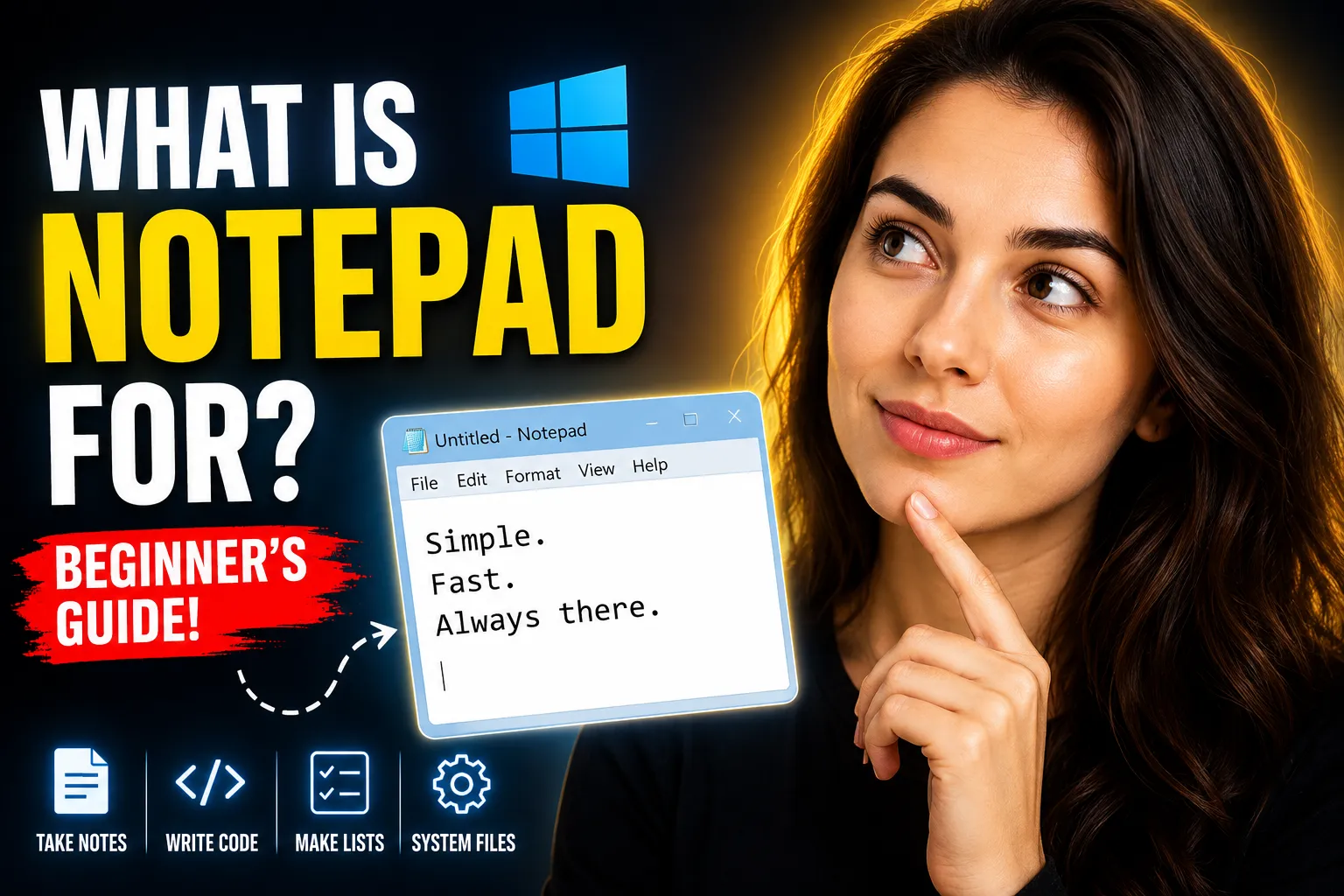
When people first start using a Windows computer, one of the simplest applications they encounter is Notepad. Despite its basic appearance, Notepad has remained a part of Windows for decades and continues to be useful for millions of users.
So, what is the purpose of Notepad in Windows?
The primary purpose of Notepad in Windows is to create, edit, and save plain text files without formatting. It provides a lightweight and distraction-free environment for writing notes, editing text, creating simple code files, and storing information quickly.
Although many modern note-taking applications exist today, Notepad remains one of the fastest and easiest tools for handling plain text. In this guide, you'll learn how Notepad works, why it is still relevant, its advantages and limitations, and when you may want to use more advanced alternatives.
Table of Contents
- What Is Notepad in Windows?
- What Is the Purpose of Notepad in Windows?
- Main Features of Notepad
- Common Uses of Notepad
- Benefits of Using Notepad
- Limitations of Notepad
- Notepad vs Modern Note-Taking Applications
- When Should You Use Notepad?
- Better Alternatives for Online Note-Taking and Collaboration
- Frequently Asked Questions
- Conclusion
What Is Notepad in Windows?
Notepad is a simple text editor that comes pre-installed with Microsoft Windows. It allows users to create and edit plain text documents without any formatting elements such as fonts, colors, tables, or images.
Unlike word processors such as Microsoft Word, Notepad focuses entirely on text. This simplicity makes it extremely fast and easy to use.
A Notepad file is usually saved with the .txt extension, making it compatible with virtually every operating system and device.
For many users, Notepad serves as their first introduction to text editing on a computer.
What Is the Purpose of Notepad in Windows?
The purpose of Notepad is to provide a quick and lightweight way to work with plain text.
Instead of launching larger applications, users can open Notepad instantly and begin typing.
Its primary functions include:
- Taking quick notes
- Writing reminders
- Editing text files
- Creating configuration files
- Writing simple code
- Storing information temporarily
- Removing unwanted formatting from copied text
Because Notepad consumes very few system resources, it can run smoothly even on older computers.
Direct Answer
If someone asks, "What is the purpose of Notepad in Windows?" the simplest answer is:
Notepad is designed to create, edit, and save plain text documents quickly and efficiently without formatting distractions.
Main Features of Notepad
Although Notepad appears simple, it offers several useful features.
Plain Text Editing
Notepad focuses entirely on text.
This makes it ideal for:
- Notes
- Instructions
- Lists
- Scripts
- Code snippets
Fast Startup
Notepad launches almost instantly compared to larger applications.
This speed makes it convenient for quick tasks.
Find and Replace
Users can quickly search for specific words and replace them throughout a document.
This feature is especially useful when editing large text files.
Word Wrap
Word Wrap allows text to automatically continue onto the next line instead of extending horizontally.
This improves readability for longer notes.
Encoding Support
Modern versions of Notepad support multiple text encoding formats, helping users work with various languages and character sets.
Tabs Support
Recent Windows updates have introduced tabs in Notepad, allowing users to work on multiple text files simultaneously within one window.
Common Uses of Notepad
Many people underestimate how versatile Notepad can be.
Here are some of its most common uses.
Taking Quick Notes
One of the most popular uses of Notepad is jotting down information quickly.
Examples include:
- Phone numbers
- Addresses
- Shopping lists
- Ideas
- Meeting notes
Writing To-Do Lists
Many users create simple task lists inside Notepad because it opens quickly and requires no setup.
Example:
- Finish report
- Call client
- Schedule appointment
- Submit project
Editing Configuration Files
Advanced users and IT professionals frequently use Notepad to edit configuration files.
Examples include:
- INI files
- CFG files
- Log files
- System settings files
Writing Code
Programmers often use Notepad to create:
- HTML files
- CSS files
- JavaScript files
- Python scripts
- Batch files
While specialized code editors offer more features, Notepad remains useful for quick edits.
Removing Formatting
When text is copied from websites or documents, it often contains hidden formatting.
Pasting content into Notepad removes all formatting, leaving only clean text.
This trick is widely used by writers, marketers, and developers.
Viewing Log Files
Many applications generate text-based log files.
Notepad allows users to open and review these files easily.
Benefits of Using Notepad
Notepad has survived for decades because it offers several advantages.
Simplicity
There is almost no learning curve.
Anyone can open Notepad and start typing immediately.
Speed
Notepad loads quickly and consumes very little memory.
This makes it ideal for quick tasks.
Universal Compatibility
Plain text files can be opened on:
- Windows
- macOS
- Linux
- Android
- iPhone
- Web applications
No Formatting Problems
Since Notepad only stores plain text, users avoid formatting conflicts when sharing files.
Reliability
Notepad rarely crashes and has been a dependable Windows utility for years.
💡 Key Takeaway:
The biggest strength of Notepad is its simplicity. It removes distractions and allows users to focus entirely on text.
Limitations of Notepad
Despite its usefulness, Notepad is not perfect.
As user needs grow, its limitations become more apparent.
No Rich Text Formatting
Notepad does not support:
- Bold text
- Italics
- Images
- Tables
- Hyperlinks
- Advanced layouts
No Cloud Synchronization
Traditional Notepad files remain stored locally unless manually uploaded elsewhere.
No Collaboration Features
Multiple users cannot edit the same document simultaneously.
Limited Organization
Managing hundreds of notes becomes difficult because Notepad lacks:
- Folders
- Tags
- Search databases
- Workspaces
Minimal Productivity Tools
Unlike modern note-taking platforms, Notepad does not include:
- Task management
- Real-time sharing
- Comments
- Version history
Notepad vs Modern Note-Taking Applications
As digital work evolves, many users require features beyond plain text editing.
The following comparison highlights the differences.
| Feature | Windows Notepad | Modern Note-Taking Apps |
|---|---|---|
| Plain Text Editing | Yes | Yes |
| Rich Formatting | No | Yes |
| Cloud Storage | No | Yes |
| Collaboration | No | Yes |
| Whiteboard Support | No | Often Available |
| Cross-Device Sync | Limited | Yes |
| Team Sharing | No | Yes |
| File Organization | Basic | Advanced |
For personal notes, Notepad works well.
For team projects and collaborative work, modern solutions are usually more effective.
When Should You Use Notepad?
Notepad remains an excellent choice when:
- You need to take a quick note.
- You want a distraction-free writing environment.
- You need to edit text-based files.
- You want to remove formatting from copied content.
- You are working on simple coding tasks.
However, when collaboration or cloud access becomes important, other tools may provide a better experience.
Better Alternatives for Online Note-Taking and Collaboration
While Notepad is useful for local text editing, many users today need cloud-based access, real-time collaboration, and the ability to work from multiple devices.
One option is Write Notes, an online note-taking application designed for users who want a simple yet accessible environment for creating and managing notes online.
Users can access Write Notes here:
Online Notepad for Quick Writing
For users who enjoy the simplicity of Windows Notepad but want browser-based access, the Free Online Notepad provides a convenient alternative.
Benefits include:
- No software installation
- Accessible from multiple devices
- Fast note creation
- Browser-based convenience
You can access the Free Online Notepad here:
http://www.writenotes.net/free-online-notepad
Online Whiteboard with Collaboration
Traditional Notepad is focused on text only.
Modern teams often need visual collaboration tools for brainstorming, planning, and sharing ideas.
An Online Free Whiteboard with Collaboration allows multiple users to work together visually in real time.
Potential use cases include:
- Project planning
- Team meetings
- Brainstorming sessions
- Educational activities
- Remote collaboration
You can explore the collaborative whiteboard here:
http://www.writenotes.net/online-collaborative-whiteboard
Why Many Users Are Moving Beyond Traditional Notepad
The way people work has changed significantly.
Today's users often expect:
- Cloud access
- Mobile compatibility
- Real-time collaboration
- Shared workspaces
- Cross-device synchronization
While Windows Notepad remains excellent for simple text editing, online tools provide additional flexibility for modern workflows.
Practical Examples of Notepad Usage
To better understand Notepad's role, consider these scenarios.
Student Use Case
A student quickly records lecture notes during class.
Notepad provides a distraction-free environment without formatting concerns.
Developer Use Case
A web developer edits an HTML file and saves it directly as a webpage.
Notepad handles plain code efficiently.
Office Worker Use Case
An employee copies text from multiple sources and pastes it into Notepad to remove formatting before using it in a report.
Home User Use Case
A homeowner creates a grocery list and saves it as a text file for later reference.
These examples demonstrate how Notepad continues to serve practical everyday needs.
Frequently Asked Questions
Is Notepad free in Windows?
Yes. Notepad is included with Windows and can be used without any additional cost.
Can Notepad create Word documents?
No. Notepad creates plain text files and does not support advanced Word document formatting.
Is Notepad good for coding?
For simple coding tasks, yes. However, professional developers typically use specialized code editors with advanced features.
Can multiple people edit a Notepad file at the same time?
No. Traditional Notepad does not support real-time collaboration.
What is the difference between Notepad and an online notepad?
Windows Notepad is a local application installed on a computer, while an online notepad operates in a web browser and can often be accessed from multiple devices.
When should I use an online collaborative whiteboard instead of Notepad?
If you need visual brainstorming, diagrams, team discussions, or real-time collaboration, a collaborative whiteboard is generally more effective than a text-only editor.
Conclusion
Understanding what is the purpose of Notepad in Windows helps explain why this simple application has remained relevant for so many years. Notepad provides a fast, lightweight, and reliable way to create and edit plain text files without unnecessary distractions.
For quick notes, text editing, coding snippets, and formatting removal, Notepad remains one of the most useful built-in Windows tools. However, modern users increasingly need cloud access, collaboration, and cross-device functionality.
In those situations, online solutions such as Write Notes, browser-based online notepads, and collaborative whiteboards can complement or extend the capabilities of traditional Notepad while preserving the simplicity users appreciate.

Alex Chen
I am a Digital Systems Architect and productivity specialist dedicated to building frictionless workflows. With over 2,000 hours of deep-work experimentation, I've mastered the art of transforming cluttered Write Notes workspaces into high-output engines.Having successfully migrated over 10,000 users into streamlined digital systems, I focus on the intersection of Personal Knowledge Management (PKM) and automated task architecture. When I'm not auditing the latest productivity tools, I manage a 1,500-note research library and consult for teams looking to reclaim their focus.