
Where Is the Notepad File Located in Windows 10?
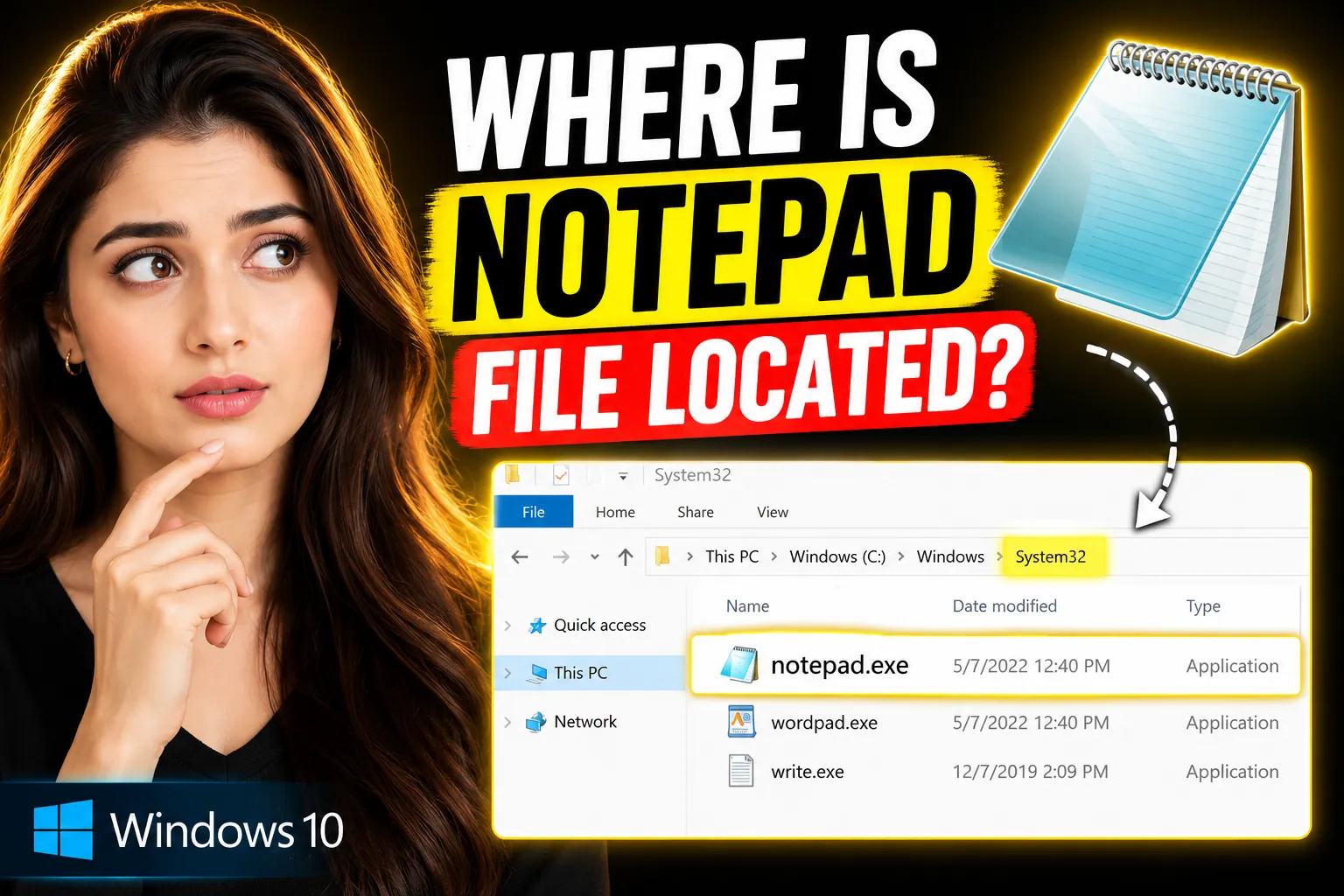
Notepad is one of the most widely used text editors in Windows 10. Despite its simplicity, many users often struggle to locate the actual Notepad application file or find the text files they've created and saved using Notepad.
If you've searched for "where is the Notepad file located in Windows 10," the answer depends on whether you're looking for the Notepad application itself or a document created with Notepad. These are stored in different locations.
This guide explains exactly where Notepad is located in Windows 10, how to find saved Notepad files, common troubleshooting steps, and useful alternatives for users who need cloud-based note-taking and collaboration.
Table of Contents
- What Is Notepad in Windows 10?
- Where Is the Notepad Application Located?
- How to Open Notepad in Windows 10
- Where Are Saved Notepad Files Stored?
- How to Find Lost Notepad Files
- Understanding Notepad File Extensions
- How to Create a Desktop Shortcut for Notepad
- Notepad vs Online Note-Taking Applications
- Using Write Notes as an Online Notepad Alternative
- Online Whiteboard Collaboration for Teams and Students
- Frequently Asked Questions
- Conclusion
What Is Notepad in Windows 10?
Notepad is a lightweight text editor included with Microsoft Windows. It allows users to create and edit plain text files without formatting options such as fonts, colors, or images.
People commonly use Notepad for:
- Taking quick notes
- Writing code snippets
- Editing configuration files
- Creating text documents
- Drafting content before transferring it elsewhere
Because it is built into Windows, Notepad requires no installation and is available immediately after Windows setup.
Where Is the Notepad Application Located in Windows 10?
Direct Answer
The default location of Notepad in Windows 10 is:
C:\Windows\System32\notepad.exeThis executable file launches the Notepad application whenever you open it through the Start Menu, Run dialog, Command Prompt, or File Explorer.
How to Verify the Notepad Location
Follow these steps:
- Open File Explorer.
- Navigate to:
C:\Windows\System32- Scroll down until you find:
notepad.exe- Double-click the file to launch Notepad.
This is the official executable used by Windows 10.
Why Is Notepad Stored in System32?
The System32 folder contains essential Windows system applications and executable files. Microsoft stores Notepad here because it is considered a core Windows utility.
Other common Windows tools stored in System32 include:
- cmd.exe
- mspaint.exe
- calc.exe
- taskmgr.exe
Keeping these applications in a central system directory allows Windows to launch them quickly from anywhere.
How to Open Notepad in Windows 10
There are several ways to open Notepad.
Method 1: Use the Start Menu
- Click the Start button.
- Type:
Notepad- Select the Notepad application.
Method 2: Use the Run Dialog
Press:
Windows + RType:
notepadPress Enter.
Windows automatically locates the executable and opens Notepad.
Method 3: Open Through Command Prompt
Launch Command Prompt and type:
notepadPress Enter.
Method 4: Open Through File Explorer
Navigate to:
C:\Windows\System32Then double-click:
notepad.exeWhere Are Saved Notepad Files Stored?
A common misunderstanding is that Notepad saves all files in a specific folder.
In reality, Notepad does not use a dedicated storage location.
Instead, files are saved wherever the user chooses.
Example Locations
You might save files in:
DesktopDocumentsDownloadsOneDriveCustom foldersFor example:
C:\Users\YourName\Documentsor
C:\Users\YourName\DesktopThe location depends entirely on the folder selected when the file was saved.
How to Check a Notepad File's Location
If the file is already open:
- Click File.
- Select Save As.
- The current directory will be displayed.
Alternatively:
- Right-click the file.
- Choose Properties.
- View the folder path under Location.
How to Find Lost Notepad Files
Many users accidentally save a Notepad file and later forget where it was stored.
Method 1: Use Windows Search
Open Start and search for:
*.txtThis displays text files stored across your computer.
Method 2: Search by Filename
If you remember the name:
meeting-notes.txtSearch directly from File Explorer.
Method 3: Check Recent Files
Open Notepad.
Select:
File > OpenRecently accessed files may appear depending on your Windows configuration.
Method 4: Search Common Locations
Check:
- Documents
- Desktop
- Downloads
- OneDrive
- Work folders
These are the most common save locations.
Understanding Notepad File Extensions
By default, Notepad saves files using the TXT extension.
Examples:
notes.txtideas.txtshopping-list.txtHowever, Notepad can save files with other extensions.
Examples include:
.html.css.js.bat.iniThis flexibility makes Notepad useful for developers and IT professionals.
Important Tip
To prevent Windows from automatically adding ".txt":
Choose:
Save As > Save as Type > All FilesThen enter your desired filename.
Example:
index.htmlinstead of:
index.html.txtHow to Create a Desktop Shortcut for Notepad
If you use Notepad frequently, creating a shortcut can save time.
Steps
- Navigate to:
C:\Windows\System32- Locate:
notepad.exe- Right-click it.
- Select:
Send To > Desktop (Create Shortcut)A shortcut will appear on your desktop for quick access.
Notepad vs Online Note-Taking Applications
Traditional desktop applications like Notepad work well for simple tasks, but they have limitations.
| Feature | Windows Notepad | Online Note-Taking Apps |
|---|---|---|
| Cloud Access | No | Yes |
| Real-Time Sync | No | Yes |
| Collaboration | No | Yes |
| Device Access | Single Device | Multiple Devices |
| Sharing | Limited | Easy |
| Backup | Manual | Automatic |
As remote work and online collaboration become more common, many users prefer browser-based note-taking tools.
Using Write Notes as an Online Notepad Alternative
If you want a modern note-taking experience that works directly in your browser, Write Notes is worth considering.
You can access it here:
http://www.writenotes.net/free-online-notepad
Write Notes functions as an online notepad that allows users to create and manage notes without installing software.
Benefits of Online Note-Taking
- Access notes from any device
- No software installation required
- Quick note creation
- Easy sharing
- Cloud accessibility
- Better collaboration workflows
This can be particularly useful for students, remote workers, freelancers, and teams that need access to notes from multiple devices.
When an Online Notepad Makes Sense
An online notepad is often preferable when:
- You switch between devices regularly.
- You need access while traveling.
- You want browser-based note management.
- You collaborate with others.
- You need centralized note storage.
While Windows Notepad remains useful for local text editing, online alternatives offer additional flexibility.
Online Whiteboard Collaboration for Teams and Students
Text notes are useful, but some projects require visual collaboration.
In these situations, an online whiteboard can be more effective than a traditional text editor.
Write Notes also provides an Online Free Whiteboard with collaboration features:
http://www.writenotes.net/online-collaborative-whiteboard
Common Use Cases
Teams and individuals use collaborative whiteboards for:
- Brainstorming sessions
- Project planning
- Mind mapping
- Remote workshops
- Online teaching
- Team discussions
- Process visualization
Advantages of Collaborative Whiteboards
Compared to traditional note-taking:
| Capability | Notepad | Collaborative Whiteboard |
| Visual Planning | No | Yes |
| Drawing | No | Yes |
| Team Collaboration | No | Yes |
| Real-Time Updates | No | Yes |
| Brainstorming | Limited | Excellent |
For visual thinkers, a collaborative whiteboard can significantly improve productivity.
Common Notepad Issues and Solutions
Notepad Won't Open
Possible causes:
- Corrupted system files
- Windows update issues
- Permission conflicts
Try:
sfc /scannowfrom an elevated Command Prompt.
Notepad File Missing
If notepad.exe is missing:
- Open Windows Features.
- Verify Notepad is enabled.
- Reinstall Notepad through Optional Features.
Accidentally Closed an Unsaved File
Unfortunately, traditional Notepad offers limited recovery options.
Prevent future loss by:
- Saving frequently
- Using cloud-based note tools
- Enabling backups
- Working in applications with autosave functionality
Can't Find Saved Notes
Search:
*.txtacross the system.
Also check:
- Desktop
- Documents
- Downloads
- OneDrive
These locations account for most misplaced files.
Frequently Asked Questions
Where is notepad.exe located in Windows 10?
The default location is:
C:\Windows\System32\notepad.exeDoes Windows 10 store Notepad files automatically?
No. Notepad files are saved only when the user chooses a location and saves the document.
Can I recover unsaved Notepad files?
Recovery options are limited. Unless the file was saved previously, unsaved content is often lost after closing Notepad.
Where should I save important Notepad documents?
For better organization, save files in the Documents folder or a cloud storage location such as OneDrive.
Is there an online alternative to Notepad?
Yes. Write Notes provides an online notepad experience accessible through a web browser:
http://www.writenotes.net/free-online-notepad
Can multiple people edit notes together in Notepad?
No. Windows Notepad does not support collaboration. For collaborative work, online note-taking tools or whiteboards are more suitable.
Conclusion
If you're wondering where the Notepad file is located in Windows 10, the application itself is stored at:
C:\Windows\System32\notepad.exeHowever, documents created with Notepad can be saved anywhere you choose, including the Desktop, Documents folder, Downloads folder, OneDrive, or custom directories.
Understanding the difference between the Notepad application location and the location of saved text files helps eliminate confusion when searching for notes or troubleshooting missing documents.
For users who need more than basic text editing, browser-based solutions such as Write Notes offer online note-taking capabilities, while its Online Free Whiteboard with collaboration features provides a practical option for brainstorming, planning, and team-based work. These tools complement traditional Notepad by adding accessibility, sharing, and collaborative functionality that modern workflows often require.

Alex Chen
I am a Digital Systems Architect and productivity specialist dedicated to building frictionless workflows. With over 2,000 hours of deep-work experimentation, I've mastered the art of transforming cluttered Write Notes workspaces into high-output engines.Having successfully migrated over 10,000 users into streamlined digital systems, I focus on the intersection of Personal Knowledge Management (PKM) and automated task architecture. When I'm not auditing the latest productivity tools, I manage a 1,500-note research library and consult for teams looking to reclaim their focus.